Starting from Yendif Video Share 1.2.2, you can show advertisements before or after the video. Follow the steps below to show advertisements,
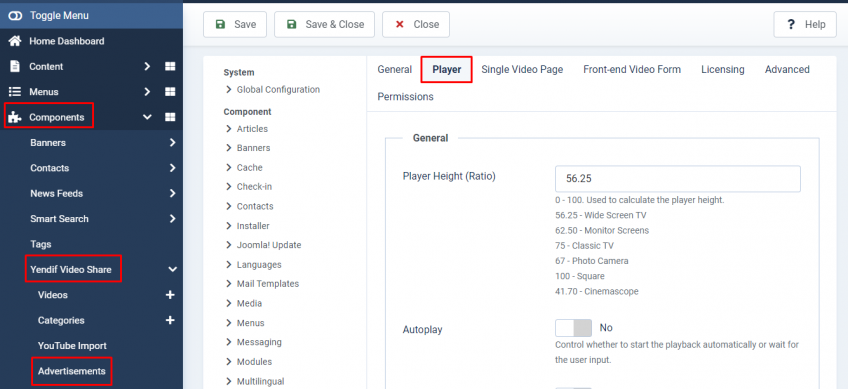
Step 1: Enable Video Advertisements under “Global Configuration”
- Open your Joomla admin
- Go to “Components → Yendif Video Share → Advertisements“
- Click the “Options” button on the Top Right
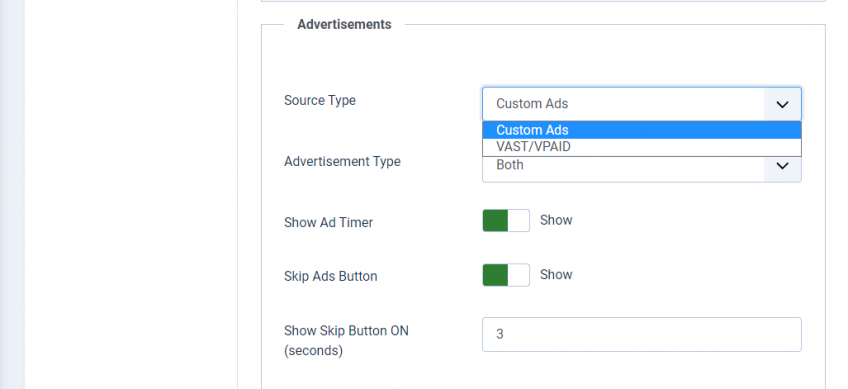
- Now click “Player” Settings and scroll down to the “Advertisements” section.
- Here you can find the options related to advertisements. All the options are self-explanatory. Just configure them as per your need.
Step 2: Add your Advertisement videos
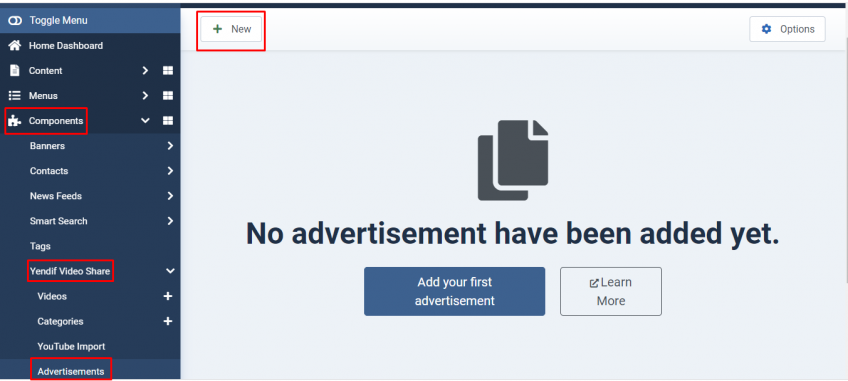
- Open your Joomla admin
- Go to “Components → Yendif Video Share → Advertisements“
- Click “New“
- You can start adding your advertisement videos here. The whole section is similar to our “Videos” menu and all the options under this section are self-explanatory. So, I don’t go deep explaining them here again 🙂
That’s it. Just browse to your videos menu on the site front-end. You can start seeing the advertisement videos now.
Step 3 [optional] : Configure Advertisements per video
By default, Yendif Video Share picks advertisement videos randomly from the Advertisements menu. But, you can configure Yendif Video Share to show a specific advert as a pre-roll or post-roll advertisement. Or you can disable advertisements for particular videos. To do this,
- Open your Joomla admin
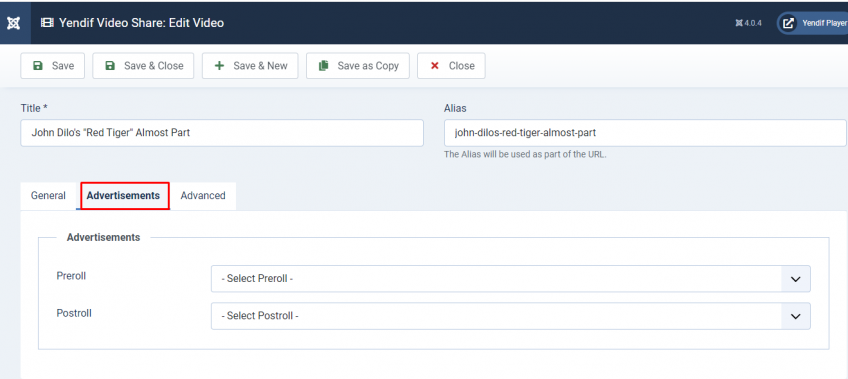
- Go to “Components → Yendif Video Share → Videos“
- Select the option to add a “New” video or just “Edit” your existing video.
- Select the tab “Advertisements“. Here, you can see the options to enable/disable advertisements or to configure a specific advertisement video. Configure them as per your need and save the changes.
That’s it.
Limitations
- Video advertisements for RTMP video cannot be shown in desktop and mobile browsers.
- Video advertisement for youtube videos cannot be shown in mobile browsers.
Still stuck on something? We’re just an email away. Reach out to us here, and you should receive a reply within 24 hours, except on Sundays.