Check the below steps to add (or) edit a Video:
- Login to your Joomla admin
- Select Components → Yendif Video Share → Videos
- Click “New” to add a new video or “Edit” to make changes to the existing video. Then, fill in the form as per the following instructions
General Settings
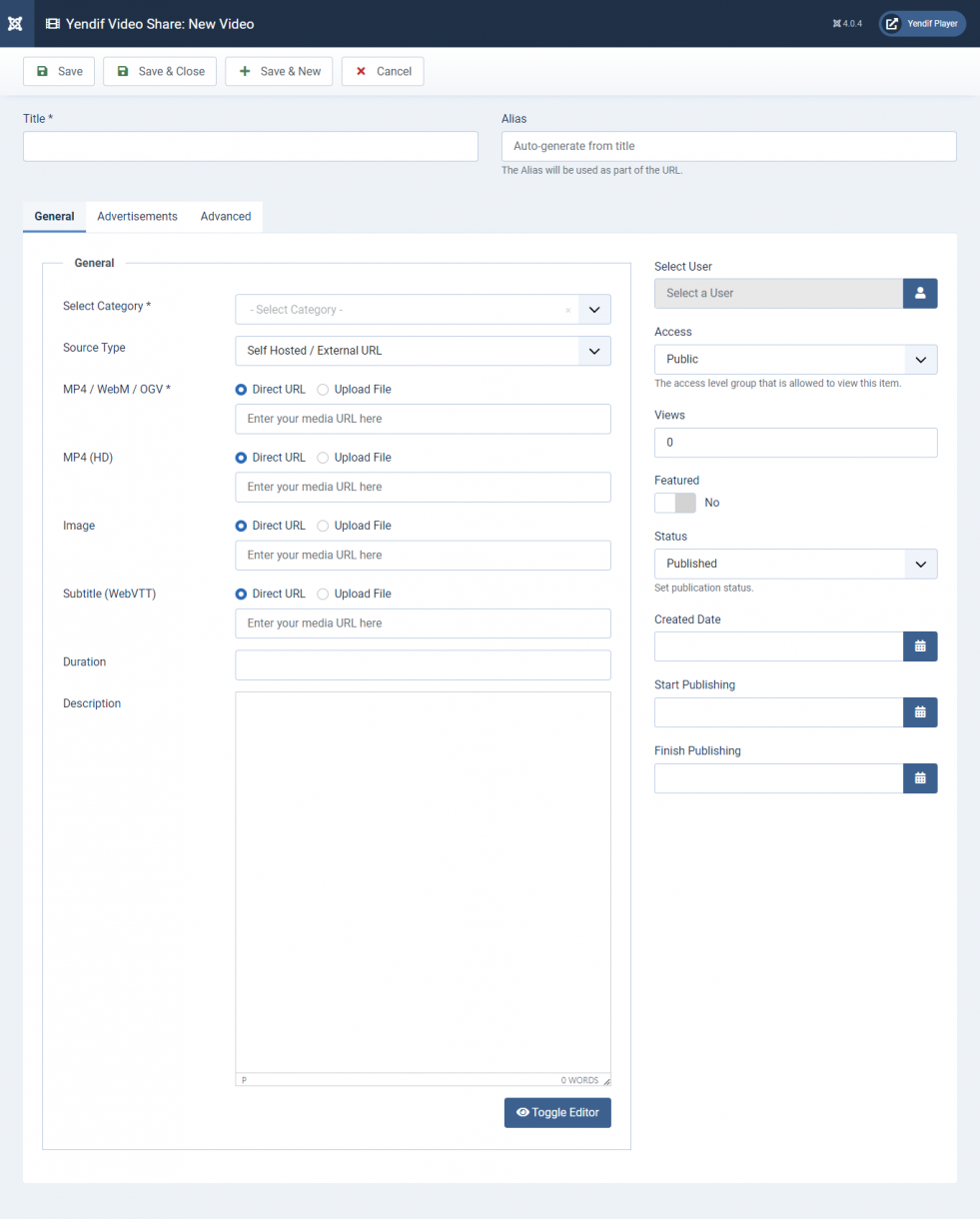
| Option | Description | Example |
|---|---|---|
| Title | A title for your video | My First Video |
| Alias | Aliases are short pieces of text that represent the title of the category in a machine-friendly format. Read More Note: Yendif Video Share will automatically generate the field value if it’s left empty. So, it’s recommended to leave this blank, if you’re unsure about this. | my-first-video |
| Select Category | Select a category in which the video should be added. | Albums |
| Type | Self Hosted / External URL: Select when you upload video from your hard disk or through a direct video file path. YouTube: Select when you like to add a YouTube video. Read More HLS / M(PEG)-Dash/RTMP: Select when you like to add HLS or M(PEG)-Dash or RTMP streams. Read More iframe Embed Code: Select when you like to add embed-codes from third party websites. Read More | Self Hosted / External URL |
| MP4 | M4V | Type = Self Hosted / External URL Add your MP4 | M4V Video. We always recommend using MP4 as it gives complete cross-browser support with the aid of Flash. This makes your media playable anywhere. | video.mp4 |
| MP4 [HD] (optional) | Type = Self Hosted / External URL Add your MP4 video in HD format. | video.mp4 |
| WEBM | Type = Self Hosted / External URL An optional HTML5 video format that plays in Firefox, Chrome, and Safari when flash not detected. | video.webm |
| OGG | Type = Self Hosted / External URL An optional HTML5 video format that plays in Firefox, Chrome, and Safari when flash not detected. | video.ogv |
| YouTube URL | Type = YouTube YouTube video page URL to play YouTube videos. Fully supporting YouTube’s Flash and IFrame API, Yendif Player selects the optimal API for your device and browser. | Youtube video url |
| HLS | Type = HLS / M(PEG)-Dash/ RTMP Add the HLS(HTTP Live Streaming) URL | video.m3u8 |
| M(PEG)-DASH | Type = HLS / M(PEG)-Dash/ RTMP Add the M(PEG)-DASH(Dynamic Adaptive Streaming over HTTP) URL | video.mpd |
| RTMP Server | Type = HLS / M(PEG)-Dash/ RTMP RTMP Server path (protocol://server_ip_address/application_name) | Server URL |
| Stream Name | Type = HLS / M(PEG)-Dash/ RTMP RTMP Stream name. | stream.mp4 |
| Mobile Fallback Video | Type = HLS / M(PEG)-Dash/ RTMP RTMP Stream can be played only in flash supported browsers. So, we provide an optional input field which allows adding your Progressive MP4 video file path. This makes your stream available anywhere (mobiles, Flash disabled browsers). | fallback.mp4 |
| Third Party Code | Type = Third Party Add your third-party video embed codes copied from websites like Vimeo, Viddler, Daily Motion, etc … | <iframe …></iframe> |
| Image | Image for the Video. Used as both thumbnail and poster images Supported formats: jpg, png, gif | video.jpg |
| Subtitle | A WebVTT file input that provides subtitle input for your video. Click here to learn about the WebVTT file format. | subtitle.vtt |
| Duration | An optional field that gets the video duration. Displayed in video playlists and thumbnail galleries. | 00:00 |
| Description | Description of the video | Description |
| Access | The access level group that is allowed to view this video | Public |
| Featured | Add or remove your video from the Yendif Video Share featured list | No |
| Start Publishing Date | Select the date in which video need to publish. This field will be displayed only if Schedule video publishing is enabled in Components → Yendif Video Share → Global Configuration → select User Settings (tab) → Enable the Schedule video publishing. Schedule your video to publish only between certain dates | Date |
| Finish Publishing Date | Select the date in which video need to unpublish. This field will be displayed only if Schedule video publishing is enabled in Components → Yendif Video Share → Global Configuration → select User Settings (tab) → Enable the Schedule video publishing. Schedule your video to publish only between certain dates. | Date |
| Status | Option to enable or disable the video | Yes |
Advertisements
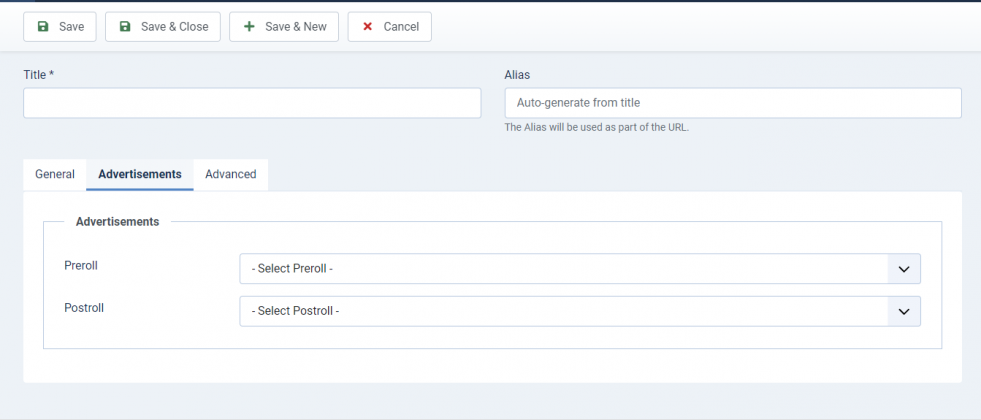
| Option | Description | Example |
|---|---|---|
| Preroll | Advertisement before the video starts | Videos |
| Postroll | Advertisement after the video ends | Videos |
Advanced
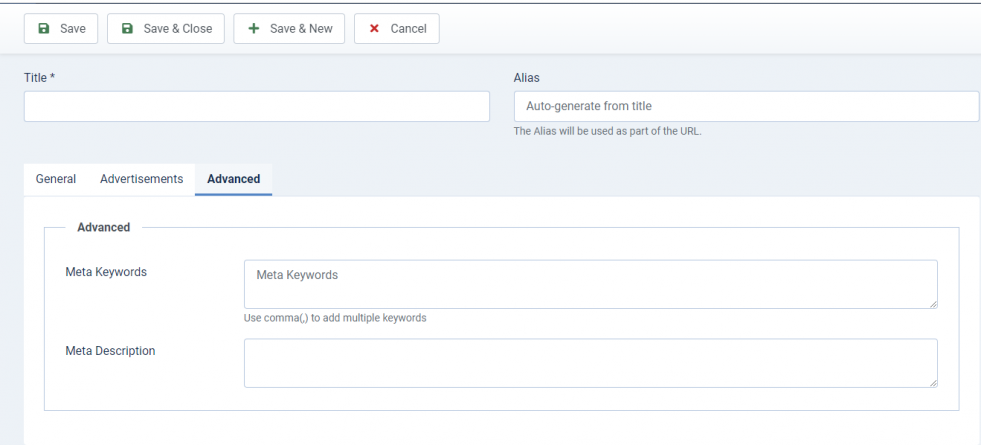
| Option | Description | Example |
|---|---|---|
| Meta Keywords | Custom Meta Keywords to your video page (Use a comma to separate multiple meta keywords). | Albums, Videos, Movies |
| Meta Description | Custom Meta Description to your video page. | My album Videos |
- Click “Save” at the top of the page
- Congrats, you successfully added a video. Follow the same steps to add more videos.
Still stuck on something? We’re just an email away. Reach out to us here, and you should receive a reply within 24 hours, except on Sundays.