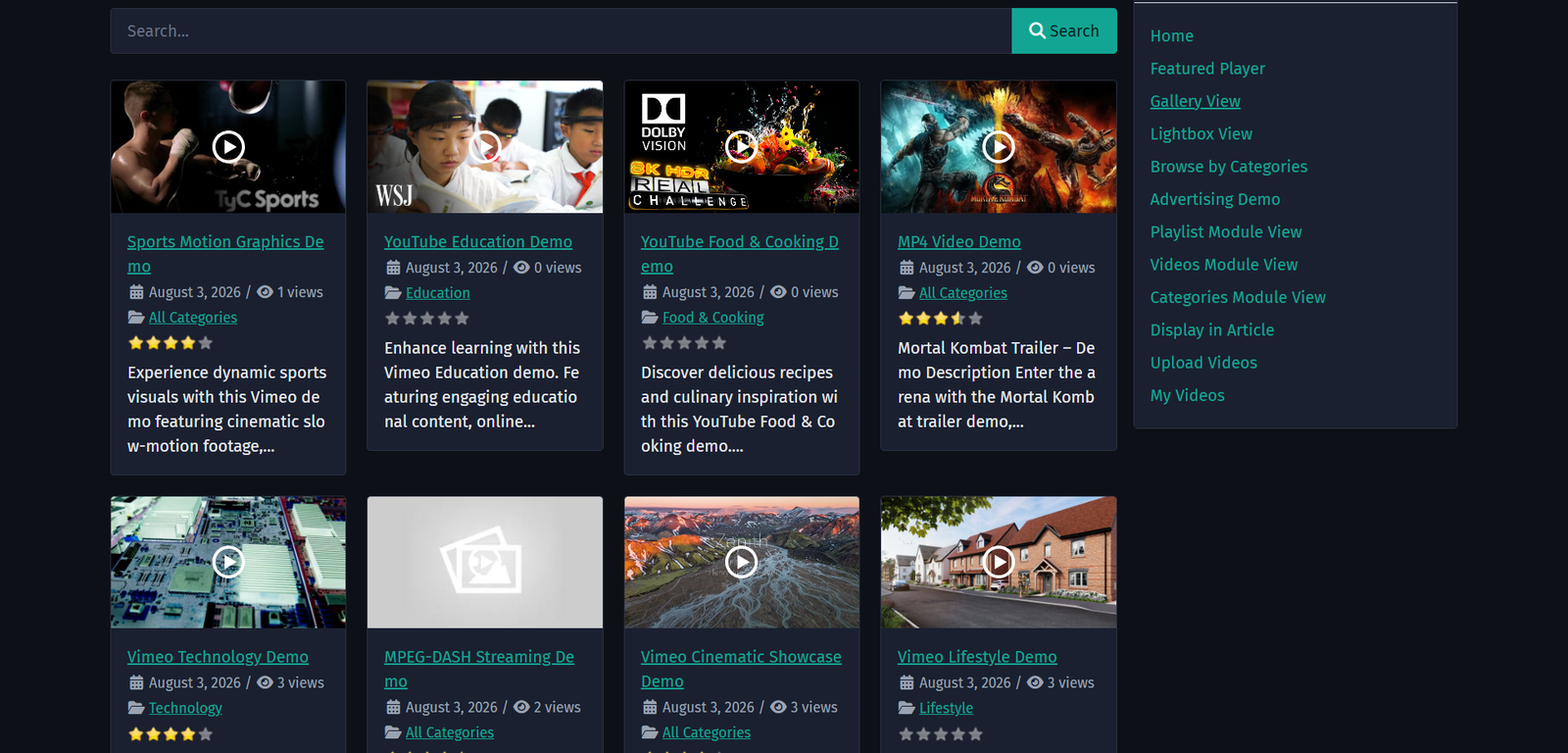
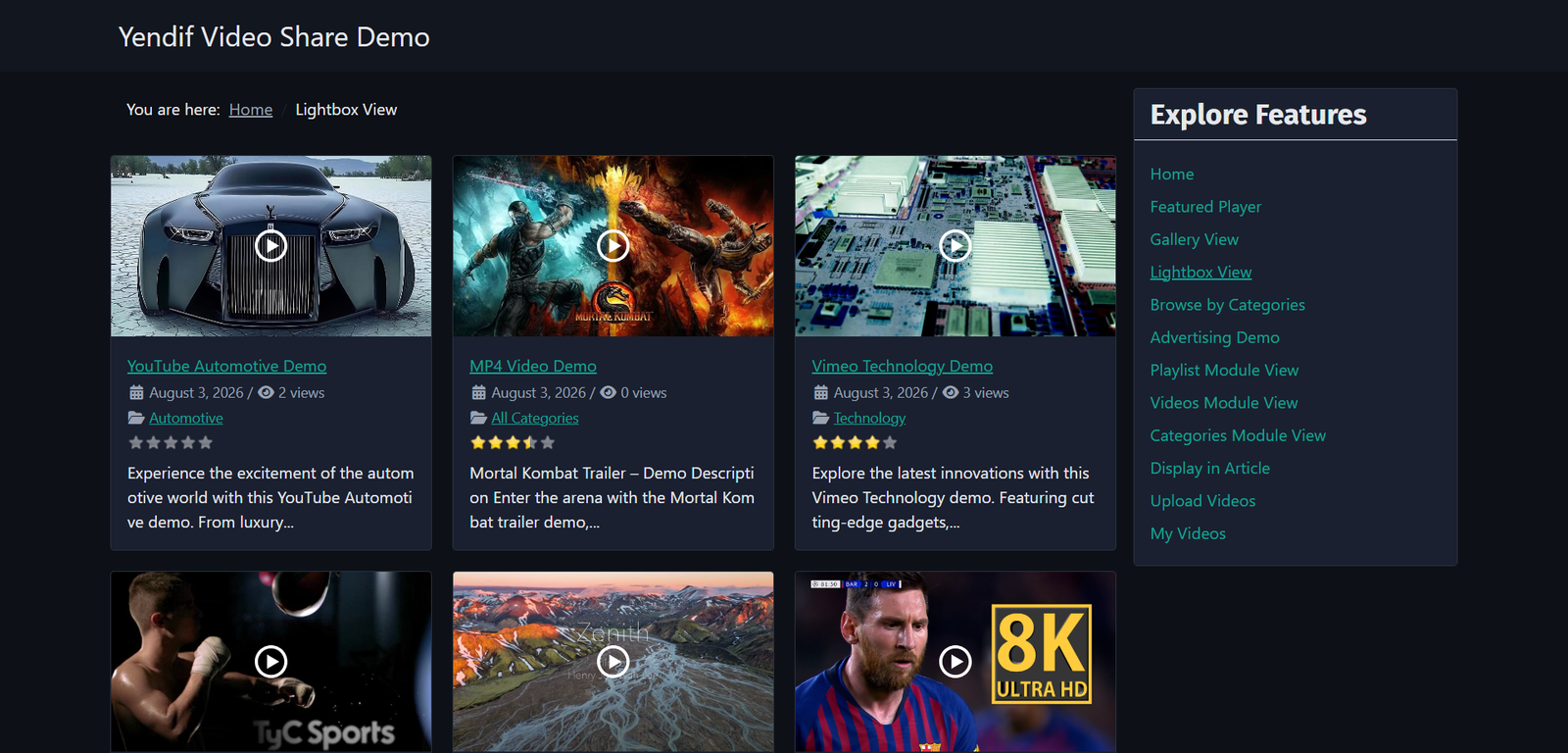
The gallery you get out of the box is deliberately plain — three columns, widescreen thumbnails, a title and a few details underneath. This guide covers how to change all of it, from a two-minute settings tweak to a full template override.
Read this first: where settings live
The same settings appear in three places, and knowing which one you are editing saves a lot of confusion.
- Global — Options → General → Gallery. Applies to your whole site. Set your preferences here once.
- Menu item — the Yendif Video Share tab on a Categories, Videos or My Videos menu item. Applies to that one page.
- Module — the settings on a Videos, Categories or Playlist module. Applies to that one module.
Levels 2 and 3 start at Use Global, meaning they follow level 1 until you change them. So the rule is simple: set your defaults globally, and override only where a page or module genuinely needs to differ.
If a change in Options seems to have no effect on one particular page, that page’s menu item is almost certainly overriding it. Check the menu item before assuming anything is broken.
Step 1: Set the size of your grid
Go to Options → General → Gallery.
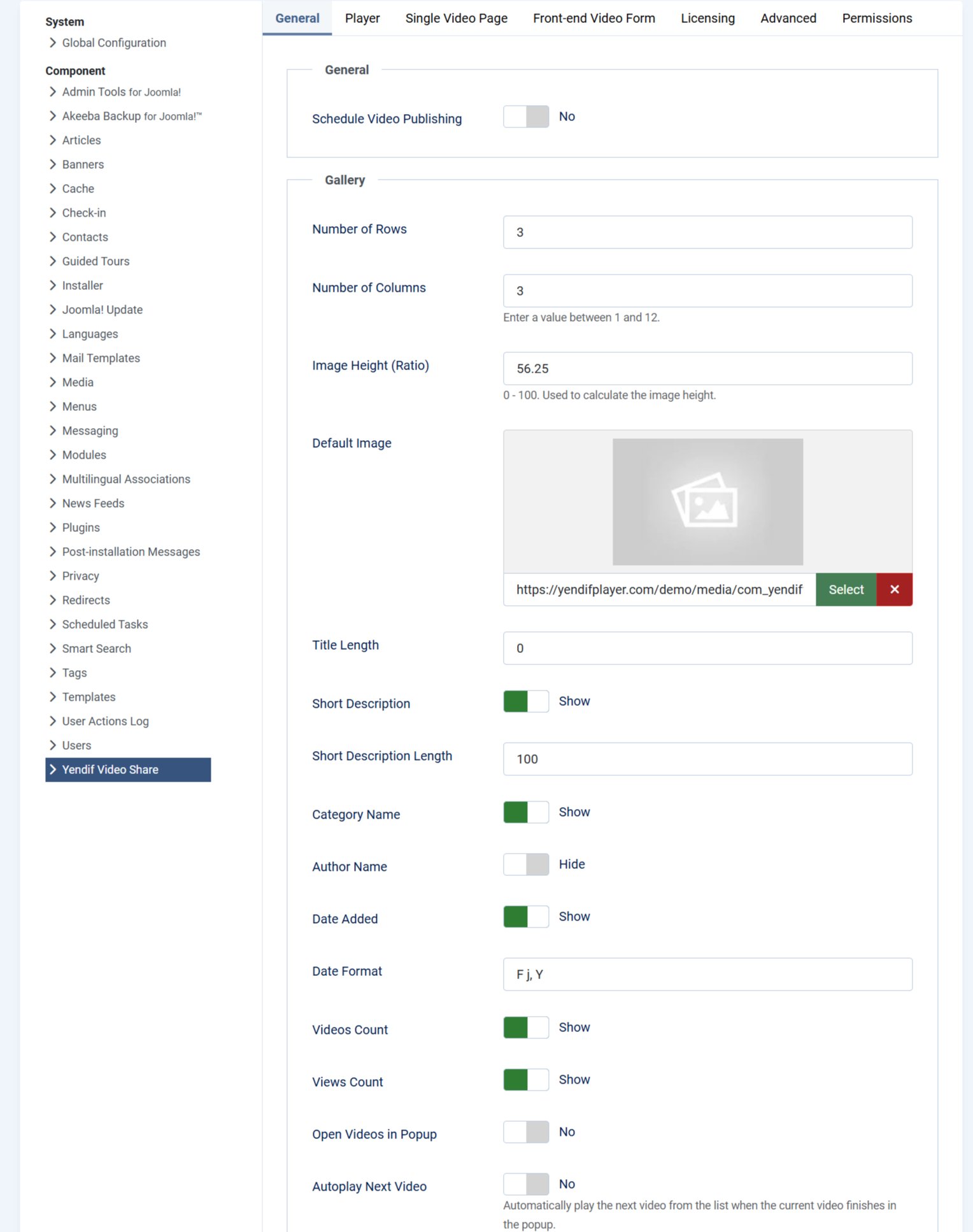
- Number of Rows — rows per page. Default: 3.
- Number of Columns — videos per row, any value from 1 to 12. Default: 3.
Rows times columns is your page size. Three rows of three shows nine videos, then paging. There is no separate “videos per page” setting.
It already works on phones
You do not need to write responsive CSS. The grid steps down on its own.
- Set 1 or 2 columns — stays the same on desktop, tablet and phone.
- Set 3 columns — 3 on desktop, 3 on tablet, 2 on a phone.
- Set 4 or more columns — as you set it on desktop, 3 on tablet, 2 on a phone.
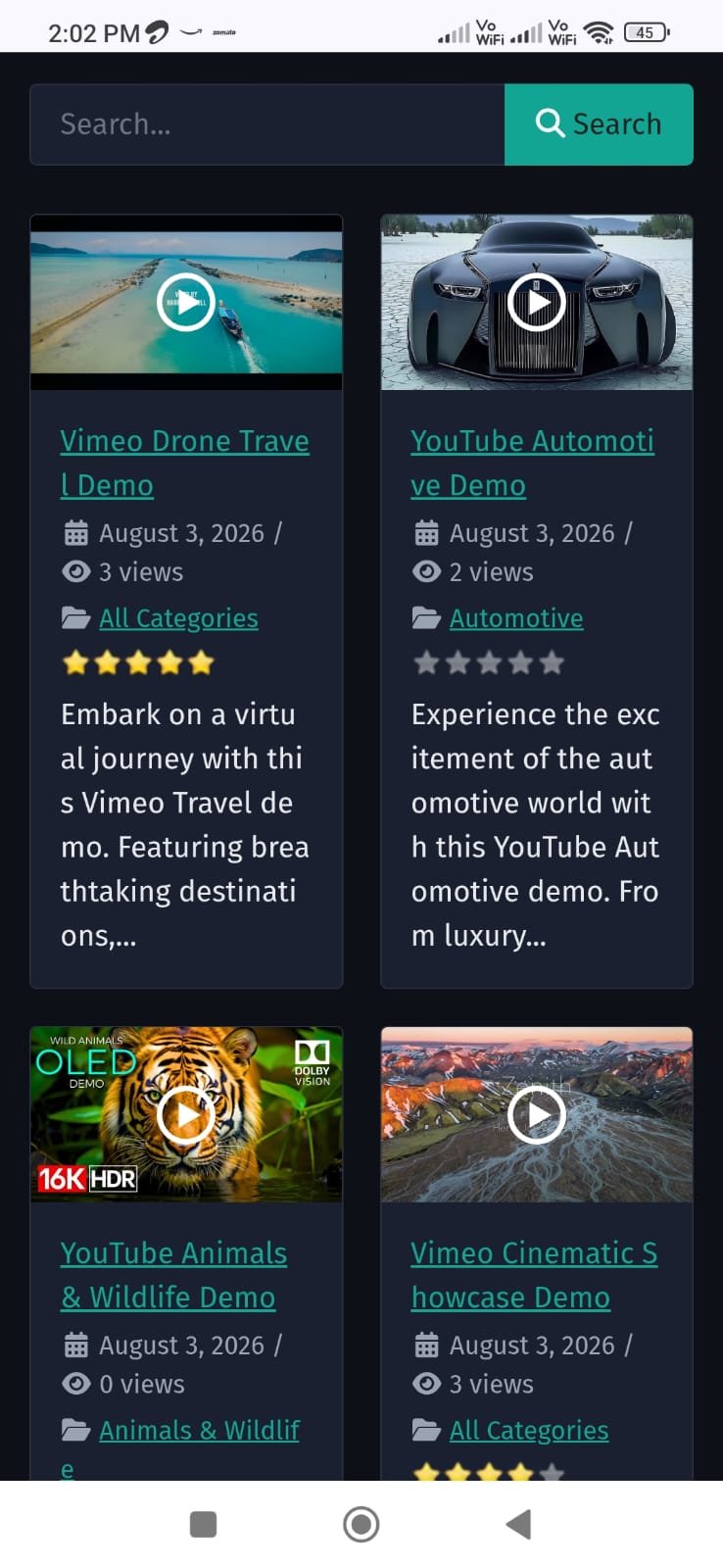
Match the columns to the space. Four columns suits a full width page; three is the safe default for a page with a sidebar; a sidebar module wants one. Cramming four columns into a narrow position is the most common cause of squashed thumbnails.
Step 2: Choose the shape of your thumbnails
- Image Height (Ratio) — the thumbnail height, as a percentage of its width. This is how you control the shape. Default: 56.25.
- Default Image — used when a video has no image of its own, which mainly means self hosted videos and streams. Default: empty.
The ratio is a percentage rather than a pixel height, so thumbnails keep their shape at every screen size. Useful values:
- 56.25 — 16:9 widescreen. Right for almost everything: YouTube, Vimeo and modern video.
- 62.50 — 16:10. For screen recordings and software demos.
- 75 — 4:3. For older footage.
- 100 — square. Gives a tidy, uniform grid whatever shape the source is.
- 41.70 — cinemascope. For film trailers.
- 150 — tall portrait. For vertical video, phone footage and shorts.
Set a Default Image. Without one, any video that has no thumbnail falls back to a grey placeholder. One branded image is far better than a row of grey boxes, and it takes ten seconds.
Step 3: Decide what appears under each thumbnail
Each of these is an independent switch. Turn off anything that is not helping.
- Title Length — characters before the title is shortened. Empty means never shorten. Default: empty.
- Short Description — an excerpt from the video description. Default: Show.
- Short Description Length — characters in that excerpt. Cuts at a word, not mid-word. Default: 100.
- Category Name — the video’s category, as a link. Default: Show.
- Author Name — the credited user. Default: Hide.
- Date Added — the video’s date. Default: Show.
- Date Format — how that date is written, using PHP date codes. Default: F j, Y.
- Videos Count — on category tiles, how many videos are inside. Includes sub categories. Default: Show.
- Views Count — how many times the video has been watched. Default: Show.
- Ratings — the star score. Premium feature. Default: Hide.
Date Format examples
F j, Ygives March 9, 2026j F Ygives 9 March 2026d/m/Ygives 09/03/2026M Ygives Mar 2026Ygives 2026
Less is usually better. A thumbnail carrying a title, an excerpt, a category, an author, a date, a view count and a star rating is a wall of grey text. Pick the two that matter to your visitors — often the title and the date — and switch off the rest. Keep a fuller set on your main gallery page if you like, and strip it back in modules.
Playing videos without leaving the page
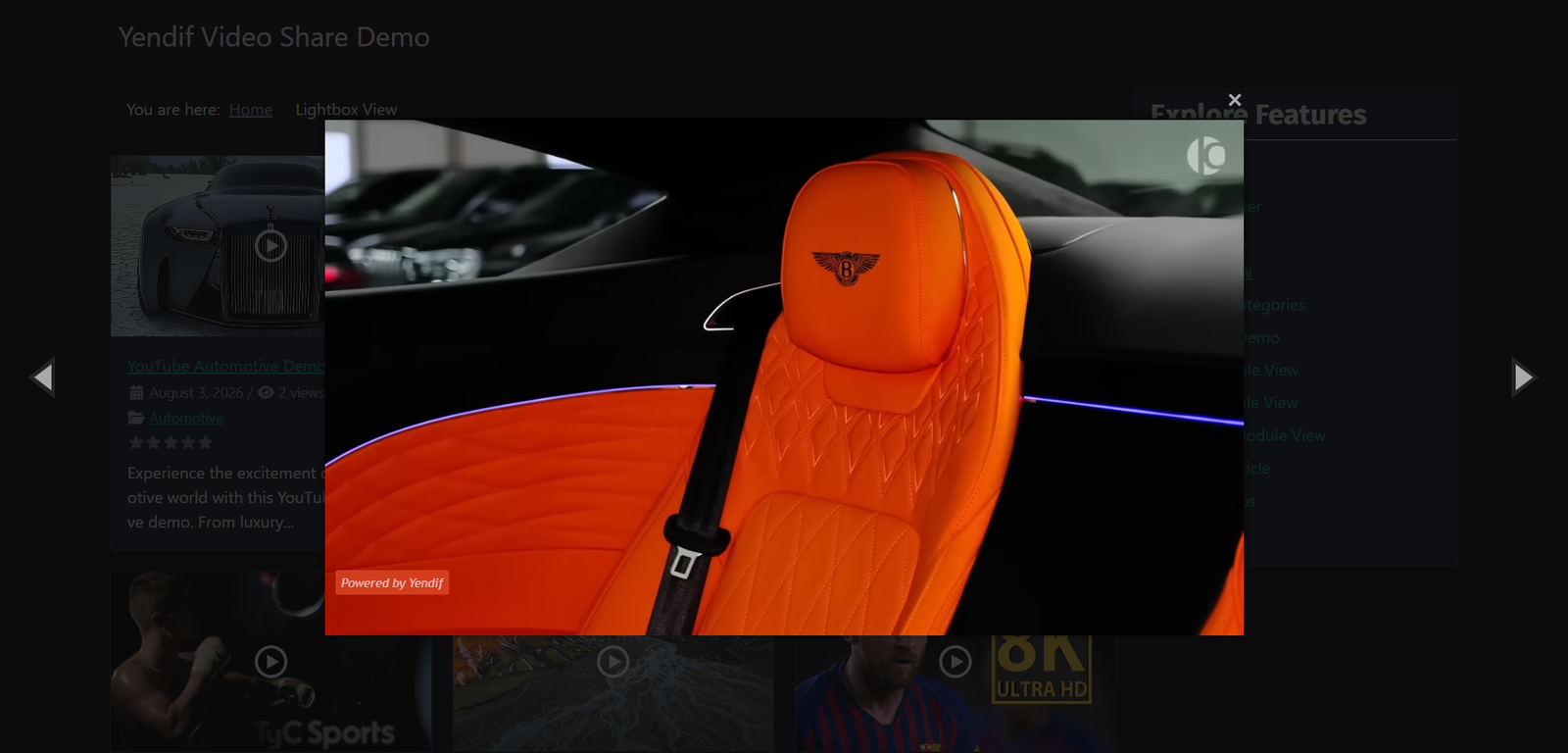
Open Videos in Popup changes what a click does. Instead of opening the video page, the video plays in a lightbox over your gallery.
- Open Videos in Popup — play in a lightbox instead of opening the video page. Premium feature. Default: No.
- Autoplay Next Video — when a popup video ends, move to the next one in the gallery. Default: No.
Worth thinking about before you turn this on. Popups keep visitors browsing, which suits a showreel or a portfolio. But they skip the video page — so no description, no comments, no related videos, and no separate URL for that video to be found or shared by. If your video pages are doing work for you in search, leave popups off.
Making one page different
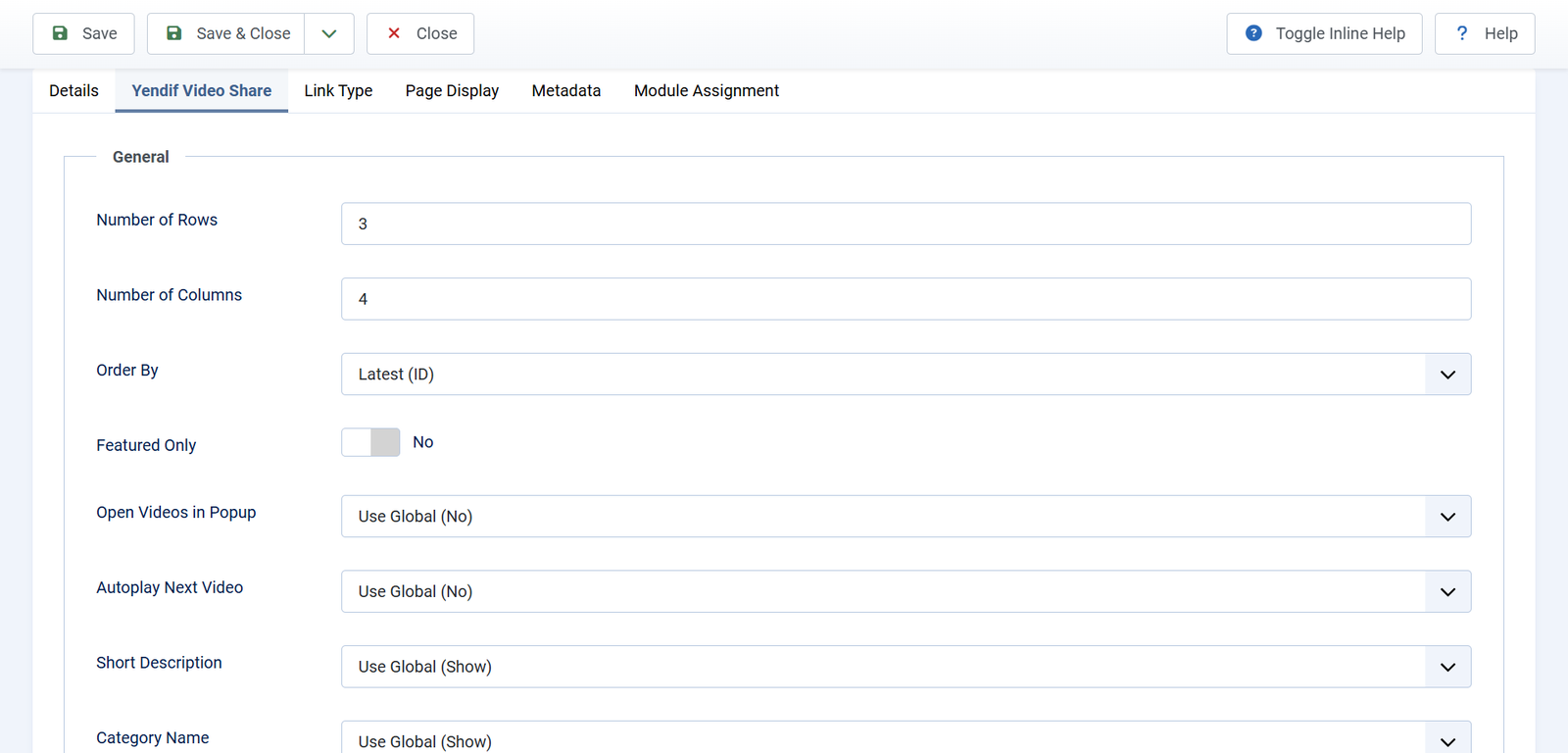
Open the menu item and go to its Yendif Video Share tab. Every setting there starts at Use Global — change only the ones that should differ on that page.
- A wide showcase — Columns 4, Rows 2, Short Description Hide.
- A dense archive — Columns 4, Rows 6, everything except the title hidden.
- A detailed listing — Columns 2, Rows 5, Short Description Show with a longer length.
- Square tiles — Image Height (Ratio) 100.
- Vertical video — Image Height (Ratio) 150, Columns 4 or more.
Going further with CSS
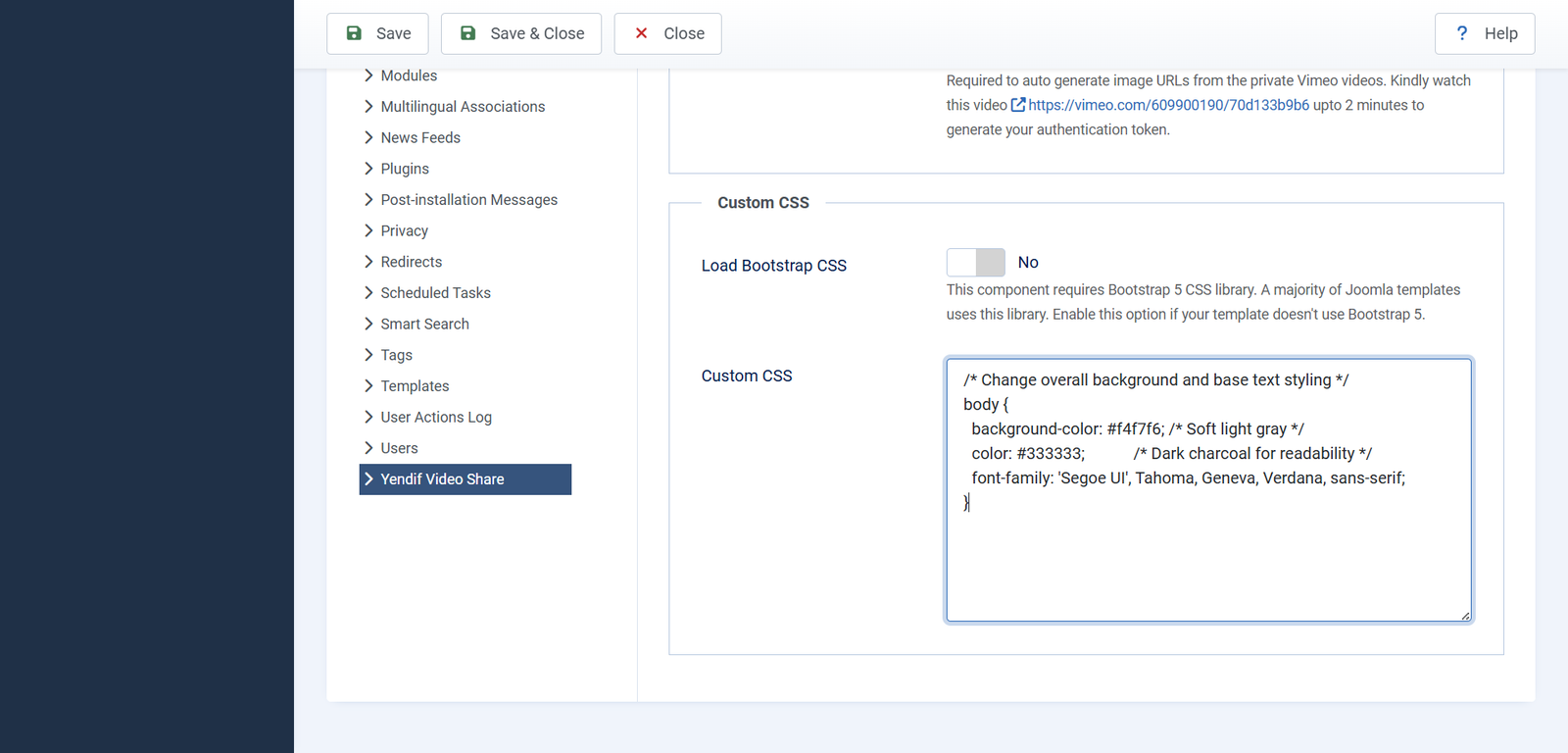
When the settings run out, CSS takes over. Put it in Options → Advanced → Custom CSS and it applies to your gallery pages and modules.
The classes you need
.yendif-video-share— the wrapper around everything..yendif-video-share-grid— the grid itself..yendif-video-share-grid-item— one tile..yendif-video-share-image— the thumbnail..yendif-video-share-duration— the duration badge on the thumbnail..yendif-video-share-title— the title..yendif-video-share-excerpt— the short description..yendif-video-share-meta— the metadata line. Also-meta-user,-meta-dateand-meta-viewsindividually..yendif-video-share-category— the category link..yendif-video-share-ratings-small— the stars on a thumbnail..yendif-player-wrapper— the player container on a video page..yendif-video-share-playlist-item— one row in a playlist..activemarks the one playing.
Two more that are easy to miss but very useful:
.yendif-video-share-video-42— every tile carries a class with its own video ID, so you can style one specific video differently from all the others.- Module Class Suffix — on any module’s Advanced tab. Put
homepage-videosthere and target that one placement without touching the rest of your site.
Some CSS to start from
Rounded thumbnails with a lift on hover:
.yendif-video-share-image {
    border-radius: 8px;
    overflow: hidden;
}

.yendif-video-share-grid-item {
    transition: transform .2s ease;
}

.yendif-video-share-grid-item:hover {
    transform: translateY(-4px);
}
A bigger, tighter title:
.yendif-video-share-title {
    font-size: 1.05rem;
    font-weight: 600;
    line-height: 1.3;
}
Quieter metadata:
.yendif-video-share-meta {
    font-size: .8rem;
    opacity: .7;
}
For more than a few rules, put your CSS in your template rather than in the Options box. Template CSS is easier to edit, can be version controlled, and survives if you ever move these settings around.
Changing the markup itself
If you need to move things around rather than restyle them — put the date above the title, add your own element, drop something entirely — use a Joomla template override. This edits the layout, not the CSS.
1. Go to System → Site Templates and open your template.
2. Open the Create Overrides tab.
3. Under Components, click com_yendifvideoshare, then choose the layout you want.
4. Joomla copies it into your template, where you can edit it freely.
- Override
videosto change the video grid. - Override
categoriesto change the category grid. - Override
categoryto change a single category page. - Override
videoto change the single video page. - Override
searchto change the search results page.
Overrides survive updates. They live in your template folder, so an extension update will not touch them. Editing the component’s own files directly is the thing to avoid — the next update overwrites your work.
The flip side: an override is frozen at the version you copied. If a later release improves that layout, you will not get the improvement until you recreate the override. Only override what you actually need to change.
If something goes wrong
- The gallery is a plain list, not a grid. Your template does not load Bootstrap 5 CSS. Set Load Bootstrap CSS to Yes under Options → Advanced → Custom CSS — but only if you need it, since enabling it on a template that already has Bootstrap causes conflicts.
- A settings change did nothing on one page. That menu item is overriding the global value. Open the menu item’s Yendif Video Share tab and set the field back to Use Global.
- Thumbnails squashed or overlapping. Too many columns for the width available. Reduce Number of Columns, and use 1 in a sidebar.
- Thumbnails stretched or letterboxed. The ratio does not match your images. Set Image Height (Ratio) to suit — 56.25 for widescreen, 100 for square.
- Grey placeholders. Those videos have no image, and no default is set. Add a Default Image, or give each video its own.
- Titles cut off mid-sentence. Title Length is set low. Raise it, or clear the field for no limit.
- Custom CSS has no effect. Your template’s CSS is more specific and wins. Make your selector more specific, for example
.yendif-video-share .yendif-video-share-title. - Your override stopped matching the rest of the site. It is frozen at the version you copied it from. Delete it, create it again from the current layout, then reapply your edits.
What to try next
- Set up the player how you want it
To change the player rather than the gallery. - Put videos on your homepage and sidebar
To build differently sized galleries in different places. - Get visitors rating and discussing your videos
To add star ratings to your thumbnails. - Settings reference
To look up any setting in detail.