The player is the part of this extension your visitors actually touch. This guide covers every setting it has — size, playback, which buttons appear, keyboard shortcuts and your own branding.
Everything here lives under Components → Yendif Video Share → Videos → Options, and sets the default for your whole site. Individual menu items, modules and article tags can override any of it.
Size and shape
Open Options → Player → General.
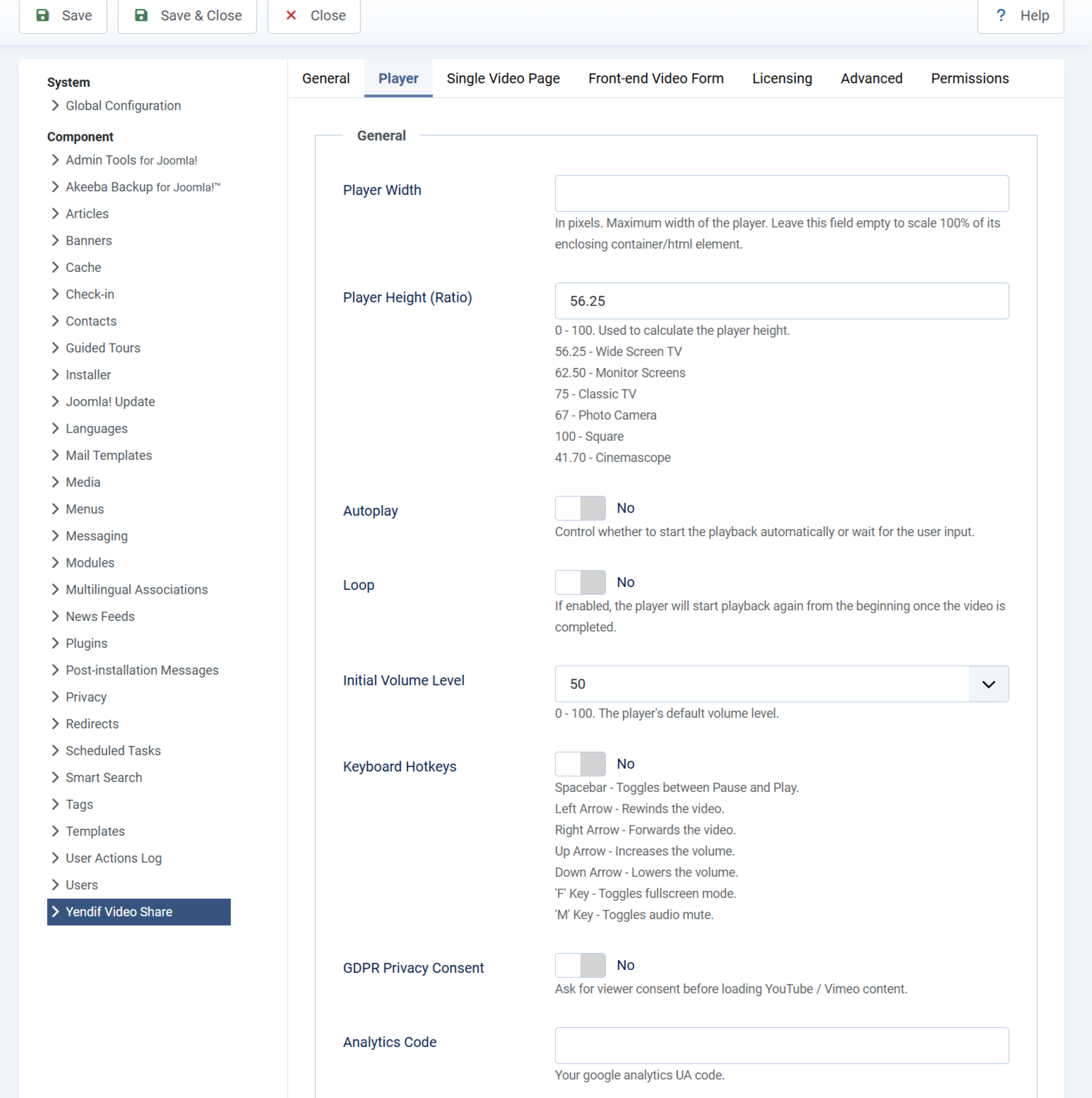
- Player Width — a maximum width in pixels. Leave it empty and the player fills whatever space it is given, which is what you usually want since a video page, a sidebar and an article are all different widths. Default: empty.
- Player Height (Ratio) — the height, as a percentage of the width. Keeping it proportional means the player stays the right shape on every screen. Default: 56.25.
- 56.25 — widescreen 16:9. The right answer for almost everything.
- 62.50 — 16:10, for screen recordings.
- 75 — 4:3, for older footage.
- 100 — square.
- 41.70 — cinemascope.
Setting a fixed Player Width is rarely a good idea site-wide. It caps the player everywhere, including on your video pages where you probably want it as large as the layout allows. If one placement needs a fixed width, set it on that module or article tag instead.
How playback behaves
- Autoplay — start playing as soon as the page loads. Read the note below before turning this on. Default: No.
- Loop — start again from the beginning when the video ends. Default: No.
- Initial Volume Level — starting volume from 0 to 100. Left at –/– the player uses the browser’s own level, which usually means whatever the viewer last chose. Default: –/–.
Autoplay only works silently. Every modern browser blocks autoplay when a video has sound — your setting is simply ignored, with no warning and no error. To make it work, set Initial Volume Level to 0 as well. This is browser policy, not a limitation of the player, and there is no way round it.
Viewers can also change the playback speed themselves, from half speed up to double, using the control bar. That is always available and needs no setting.
Keyboard shortcuts
Keyboard Hotkeys is off by default. Turn it on and viewers get the shortcuts they already know from other video sites.
- Spacebar — play and pause.
- Left arrow — rewind.
- Right arrow — forward.
- Up arrow — volume up.
- Down arrow — volume down.
- F — fullscreen on and off.
- M — mute and unmute.
Worth turning on for training, courses and anything long, where people pause and rewind constantly. Worth leaving off on a page with a background video, where a stray spacebar press would stop it.
Choosing which controls appear
Open Options → Player → Player Controls. Each control is its own Show or Hide switch.
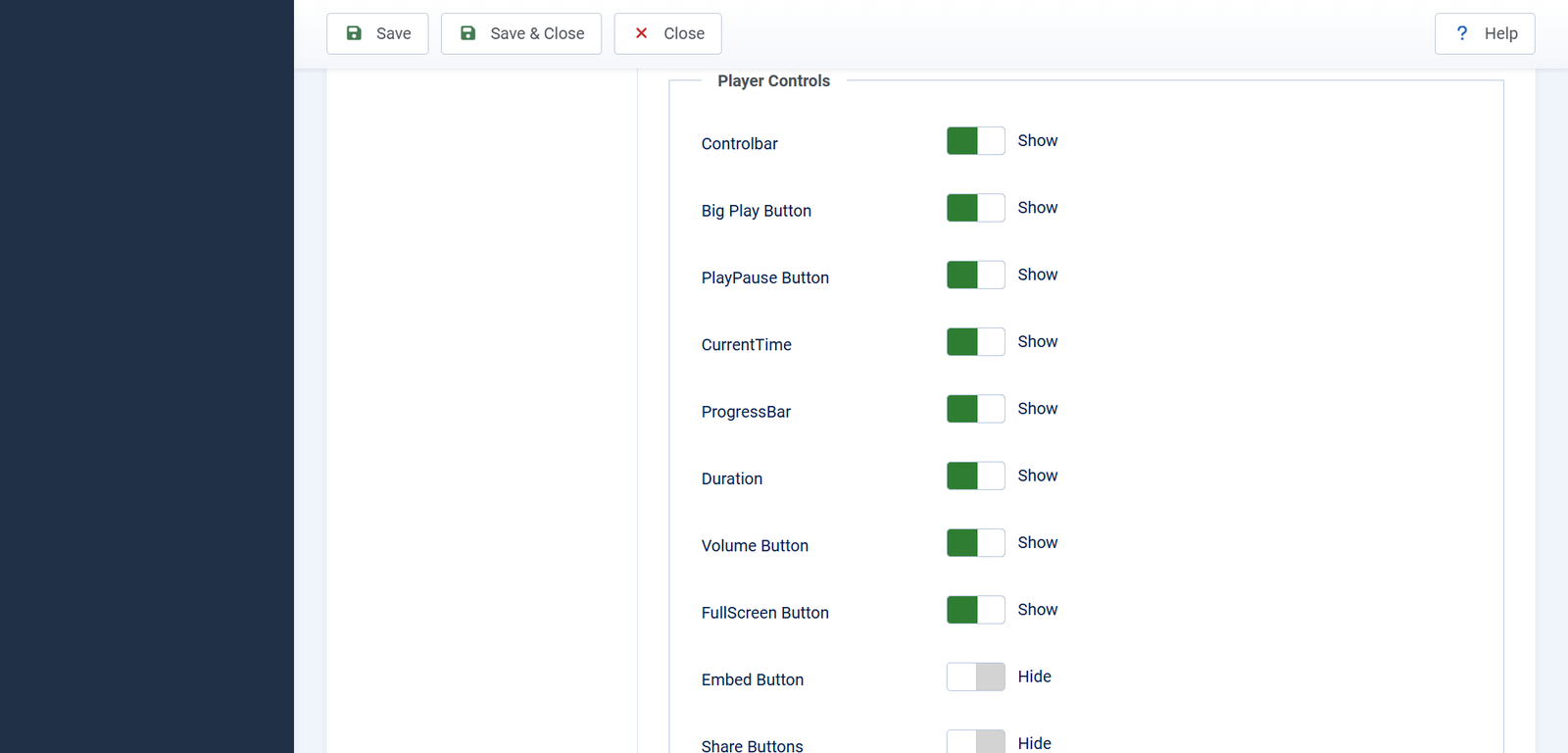
- Controlbar — the whole bar along the bottom. See the note below, as this one overrules the rest. Default: Show.
- Big Play Button — the large play button over the poster image before playback starts. Default: Show.
- PlayPause Button — play and pause within the control bar. Default: Show.
- CurrentTime — how far through the video the viewer is. Default: Show.
- ProgressBar — the seek bar. Hide it to stop viewers skipping ahead. Default: Show.
- Duration — the total length. Default: Show.
- Volume Button — volume and mute. Default: Show.
- FullScreen Button — fullscreen. Default: Show.
- Embed Button — gives viewers code to embed your video on their own site. Premium feature. Default: Show.
- Share Buttons — links for sharing to social networks. Premium feature. Default: Show.
- Download Button — lets viewers download the video file. Premium feature. Default: Hide.
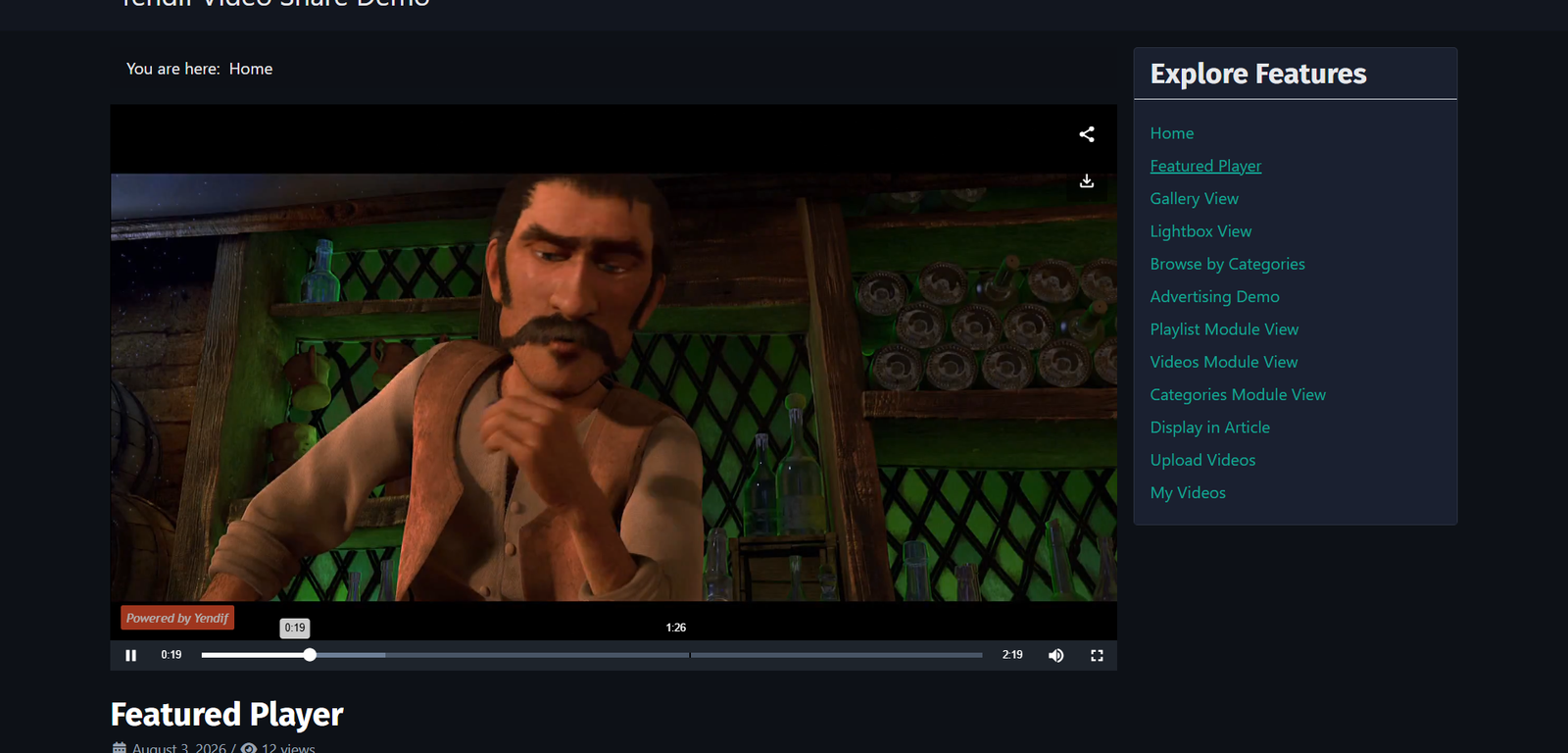
Controlbar beats everything else. Set it to Hide and the entire bar disappears, whatever the individual switches say. So if you are hiding controls one by one and nothing changes, check Controlbar first — and if you want no controls at all, hide that one rather than the other eight.
Three combinations worth knowing
- A silent background video — Controlbar Hide, Big Play Button Hide, Autoplay Yes, Loop Yes, Initial Volume Level 0.
- A training video nobody can skip through — ProgressBar Hide, Download Button Hide, everything else as normal.
- Maximum reach for your content — Embed Button Show, Share Buttons Show, so people can spread it for you.
Hiding the progress bar stops casual skipping, but it is not real enforcement — a determined viewer can still seek with keyboard shortcuts if those are enabled. For a course where completion genuinely matters, use a course extension that tracks progress.
Putting your logo on the player
A watermark keeps your name on your videos wherever they end up. The settings are under Options → Licensing, alongside your license key.
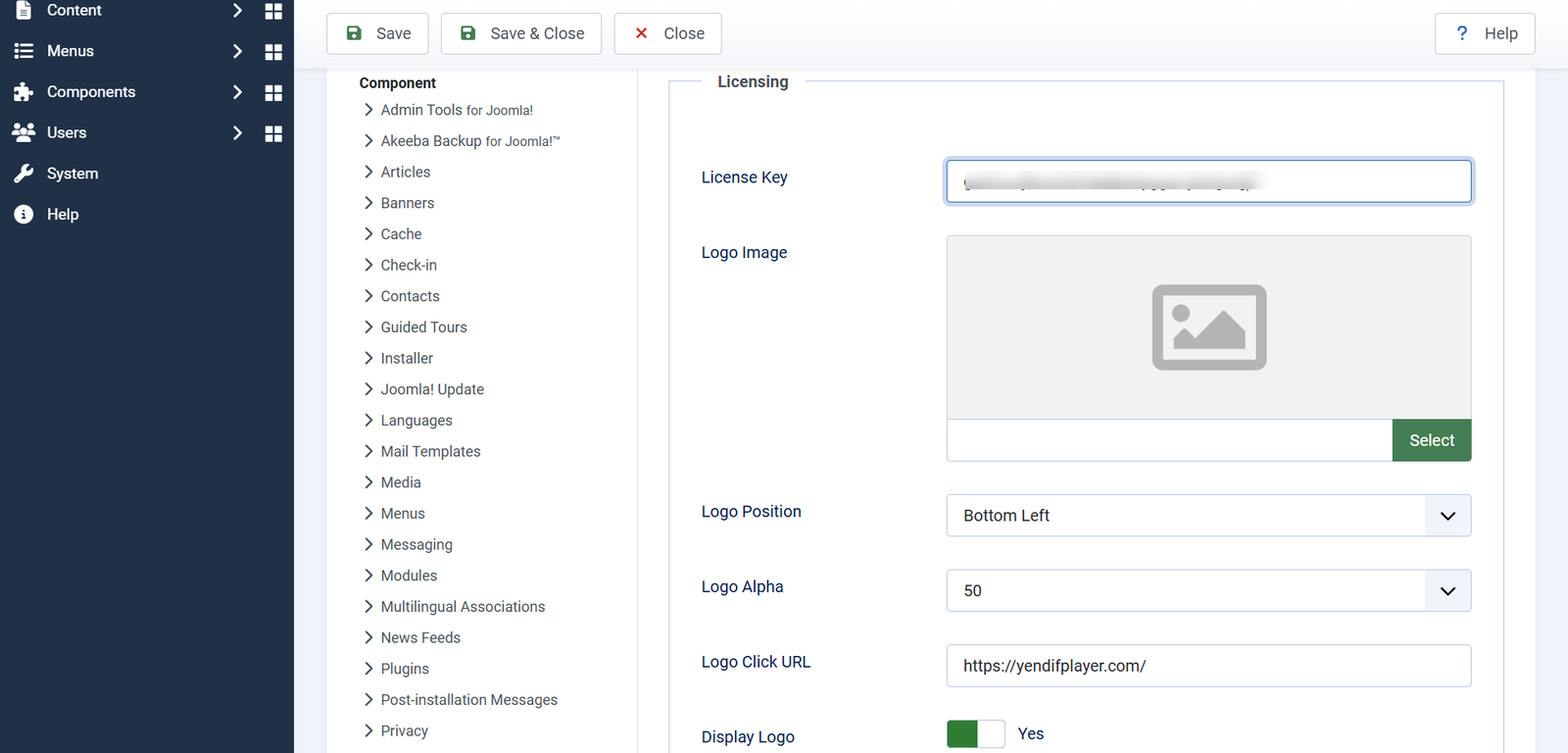
- Logo Image — the watermark. A PNG with a transparent background works best. Default: empty.
- Logo Position — Top Left, Top Right, Bottom Left or Bottom Right. Default: Bottom Left.
- Logo Alpha — how transparent it is, from 0 to 100. Lower is subtler. Default: 50.
- Logo Click URL — where a click on the logo goes. Leave it empty and the logo is not clickable. Default: empty.
- Display Logo — turns the watermark on and off without clearing the settings. Default: Yes.
- Copyright Text — the message shown when a viewer right-clicks the player. Default: empty.
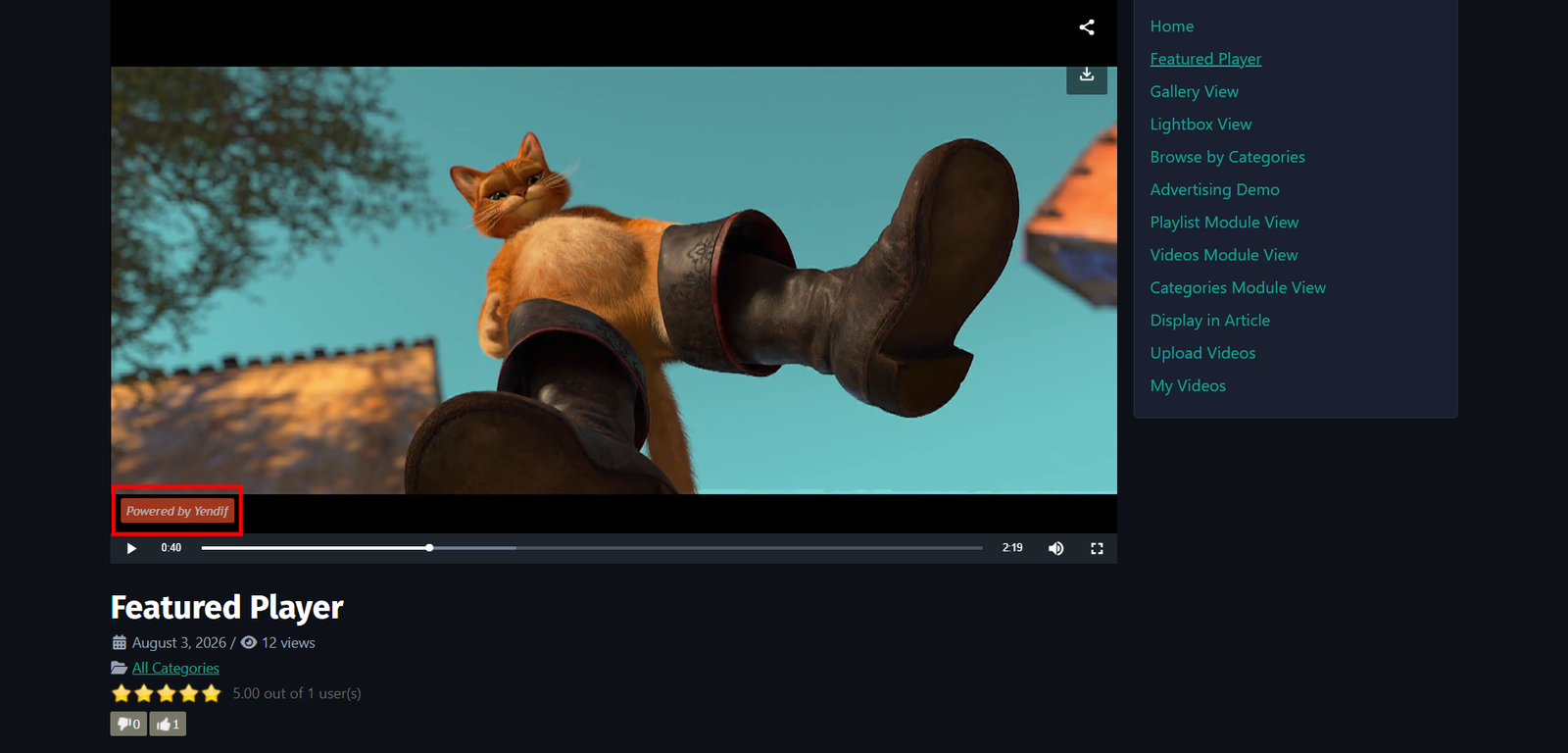
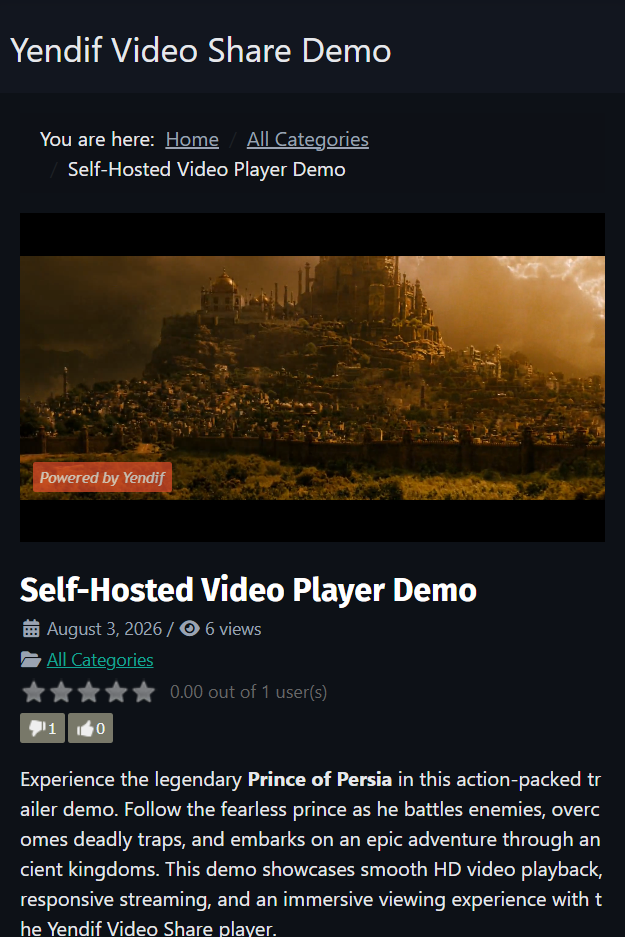
Keep it small and quiet. A watermark at around 40 to 50 alpha is visible enough to identify a copy without competing with the video. Bottom Left keeps it clear of the fullscreen button, which sits bottom right. And use a wordmark rather than a detailed logo — it has to read at thumbnail size.
Copyright Text is a small touch worth using. Something like © 2026 Your Company. All rights reserved. appears in place of the browser’s usual right-click menu.
Tracking plays in Google Analytics
Put your Google Analytics ID into Analytics Code, under Options → Player → General, and the player reports what viewers do — so video engagement shows up alongside the rest of your site’s numbers.
Leave it empty and nothing is sent.
This is separate from the Views Count shown on your thumbnails, which the component records itself — once per visitor session, not once per page load. The two numbers will not match, and neither is wrong.
Different settings in different places
Everything above is your site default. Any of it can be changed for one page, one module or one article.
- One gallery or video page — the Player group on that menu item’s Yendif Video Share tab.
- One Player or Playlist module — the Player section of that module’s settings.
- One video inside an article — parameters on the tag, for example
{yendifplayer videoid=42 controlbar=0 autoplay=1 volume=0}. See Add a video to any article or page.
Menu item and module settings start at Use Global, which means “follow the Options screen”. Leave them there unless that placement genuinely needs to differ — it keeps your site consistent and means a single change in Options still reaches everywhere.
Why you cannot restyle the player with CSS
The player runs in its own frame, separate from the rest of your page. That is deliberate and it is mostly good news — your template’s styles cannot break the player, and the player’s styles cannot leak into your site.
The trade off is that your Custom CSS cannot reach inside it. Shape the player through the settings on this page instead: the control switches, the ratio, the watermark and the right-click text.
CSS still applies to everything around the player — titles, descriptions, ratings, related videos and the gallery. That is covered in Change how your gallery looks.
If something goes wrong
- Autoplay does nothing. The browser blocks autoplay with sound. Set Initial Volume Level to 0.
- Hiding a control changes nothing. Controlbar is hidden, so the whole bar is gone already. Set Controlbar to Show, then hide the individual controls you do not want.
- The embed, share or download buttons never appear. All three are premium features. Add your license key under Options → Licensing.
- The player is too tall or too short. The ratio does not match the footage. Set Player Height (Ratio) to 56.25, or 100 for square, or 75 for older 4:3 video.
- The player is small on wide screens. Player Width is set. Clear it so the player fills its container.
- No watermark. Display Logo is off, or the image URL is wrong. Check both, and open the image URL directly in your browser.
- The watermark hides the fullscreen button. It is positioned bottom right, where that button sits. Move Logo Position to Bottom Left or Top Right.
- A setting works on one page but not another. That page’s menu item or module is overriding it. Set the field back to Use Global there.
- Custom CSS will not restyle the control bar. The player runs in its own frame. Use the control switches instead, as described above.
What to try next
- Ask permission before loading YouTube and Vimeo
To ask viewers for consent before YouTube or Vimeo loads. - Change how your gallery looks
To change the gallery rather than the player. - Build a player with a playlist
To put a player in a sidebar or an article. - Settings reference
To look up any setting in detail.