When your page embeds a YouTube or Vimeo video, the visitor’s browser contacts that company as the page loads — before anyone has pressed play, and before your visitor has agreed to anything. Under GDPR and similar privacy rules, that contact is something you are expected to ask permission for.
Yendif Video Share can hold that request back until your visitor agrees. One setting, and nothing reaches YouTube or Vimeo until someone clicks Accept.
This page explains what the feature does, not what the law requires of you. Privacy rules vary by country and by how your site works. If you need certainty, ask someone qualified.
What the visitor sees
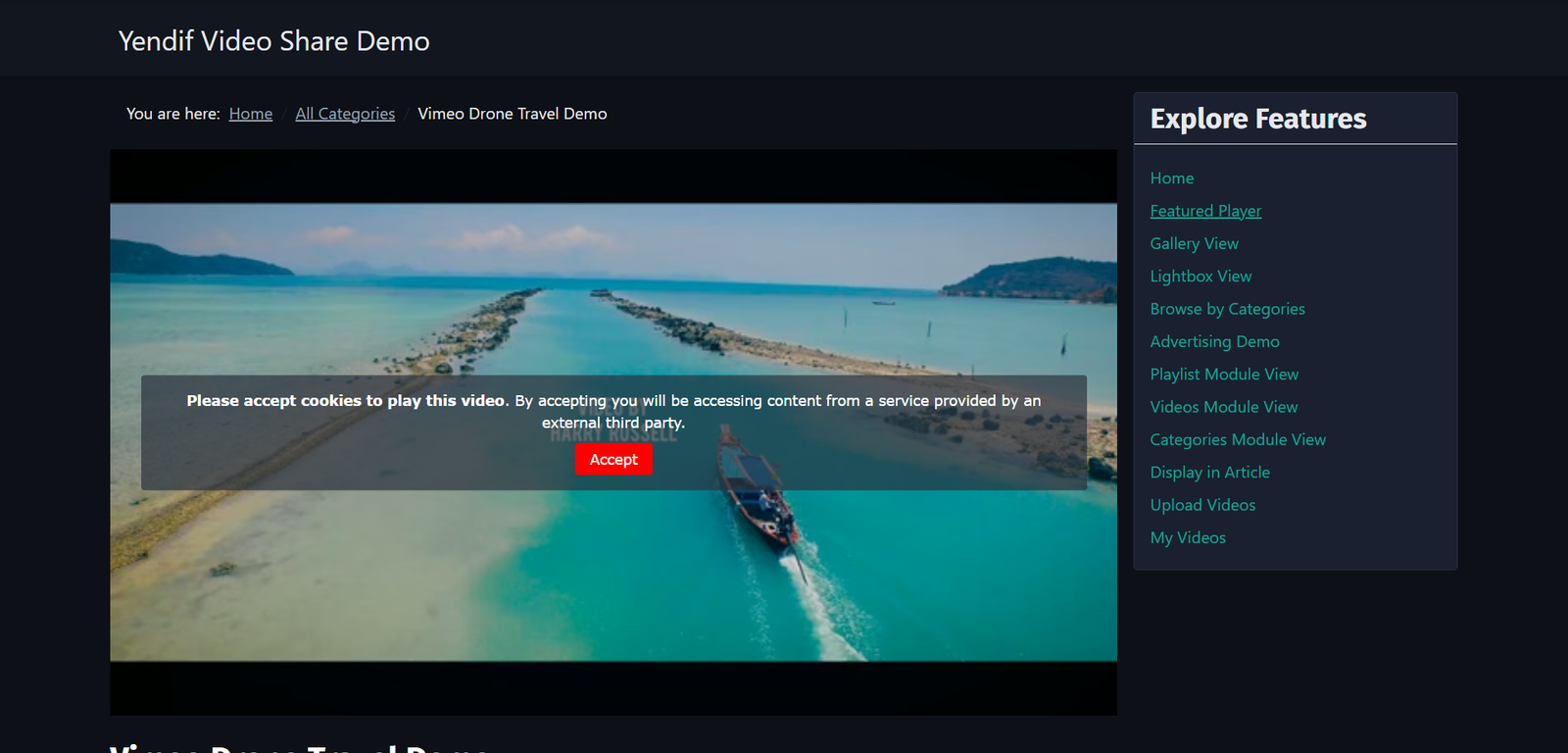
Instead of the video, they get a panel over the video’s own poster image:
Please accept cookies to play this video. By accepting you will be accessing content from a service provided by an external third party.
Accept
Click Accept and the video loads and starts playing immediately — so accepting costs one click, not two.
Step 1: Turn it on
1. Select Components → Yendif Video Share → Videos, click Options, then open Player → General.
2. Set GDPR Privacy Consent to Yes.
3. Click Save & Close.
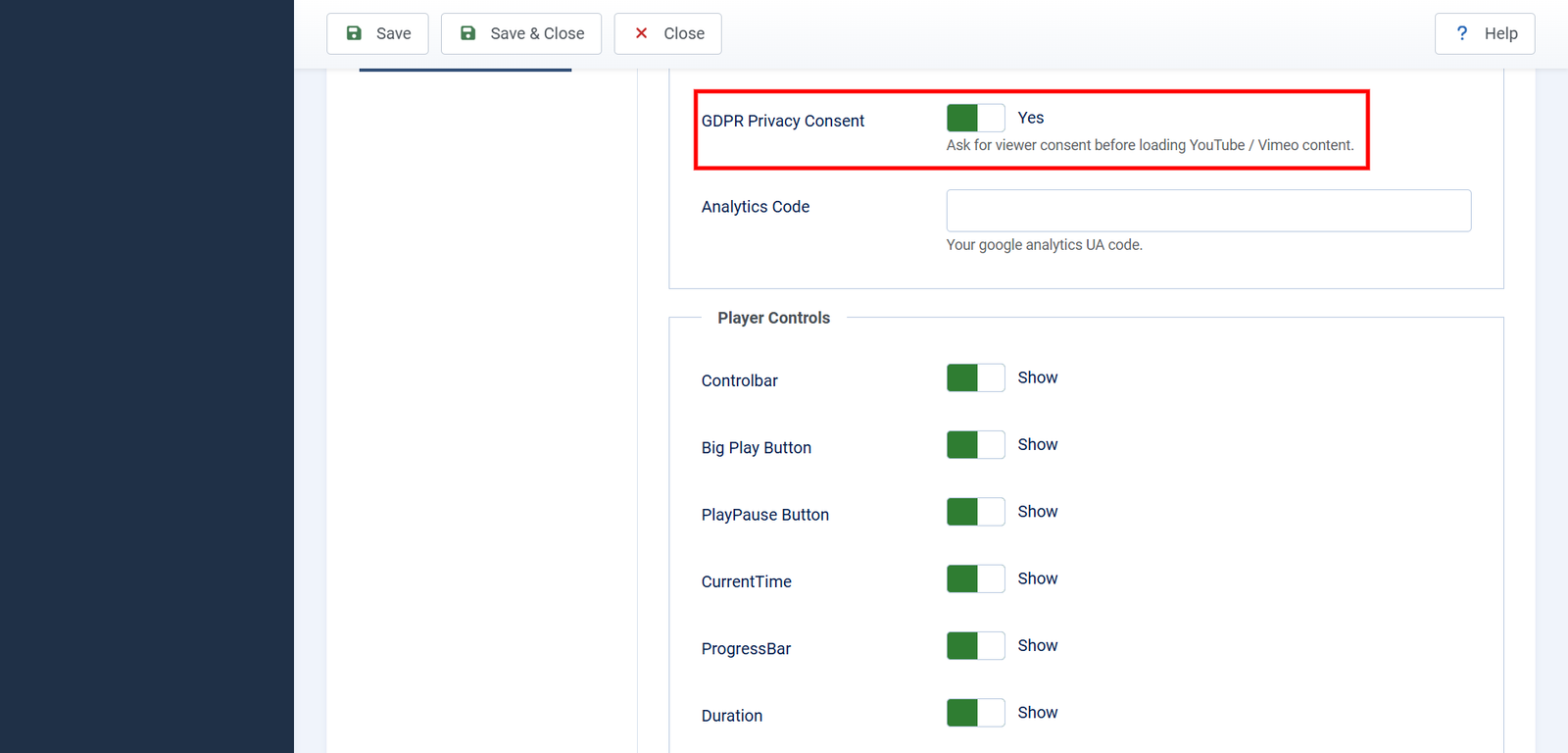
That is the whole setup. There is nothing to configure per video.
Step 2: Make sure your videos have poster images
This is the part that turns a compliance measure into something that looks deliberate.
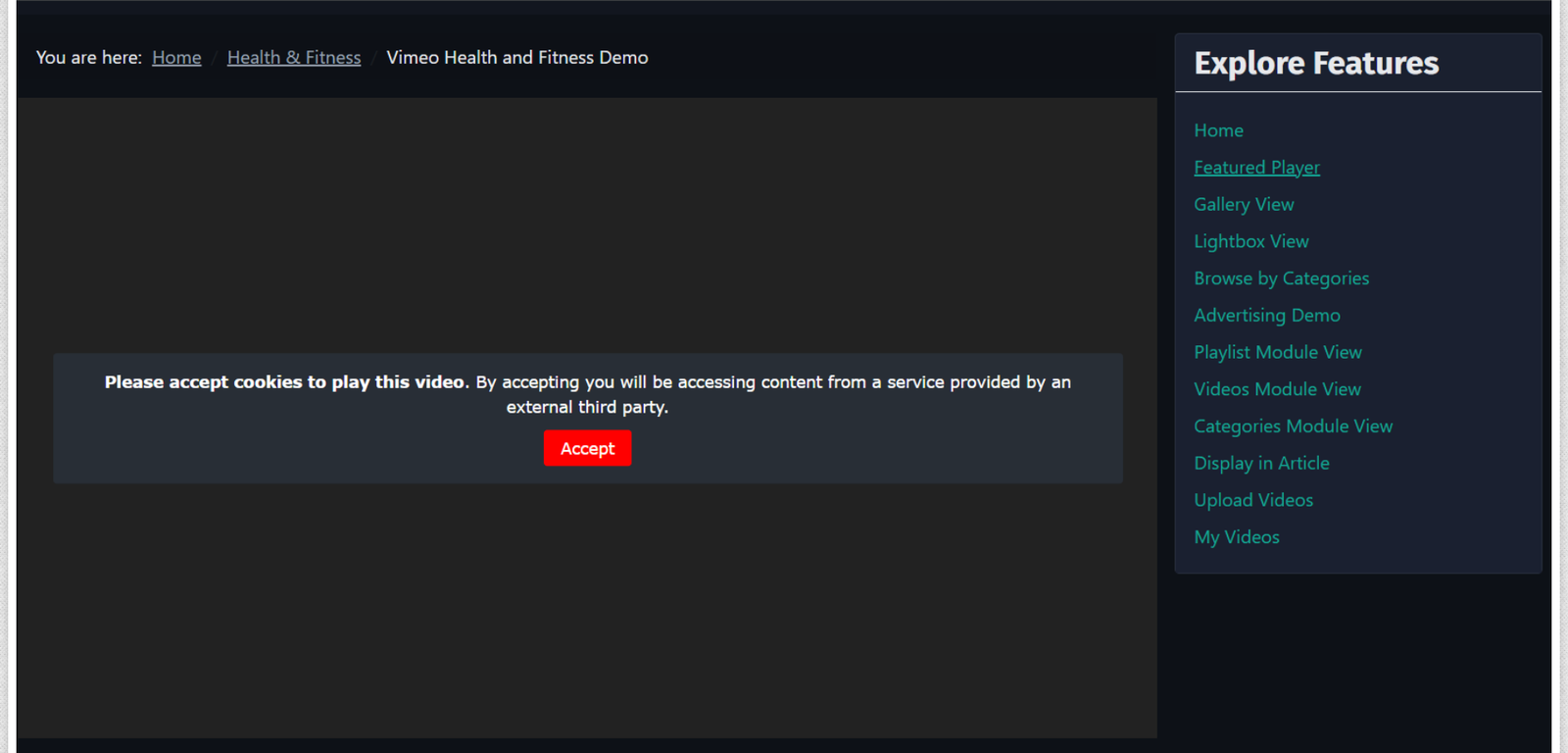
The consent panel sits on top of the video’s Image. With an image, a visitor sees the video they are about to watch and a short explanation. Without one, they see a plain dark rectangle and a request to accept cookies — which reads much more like something has broken.
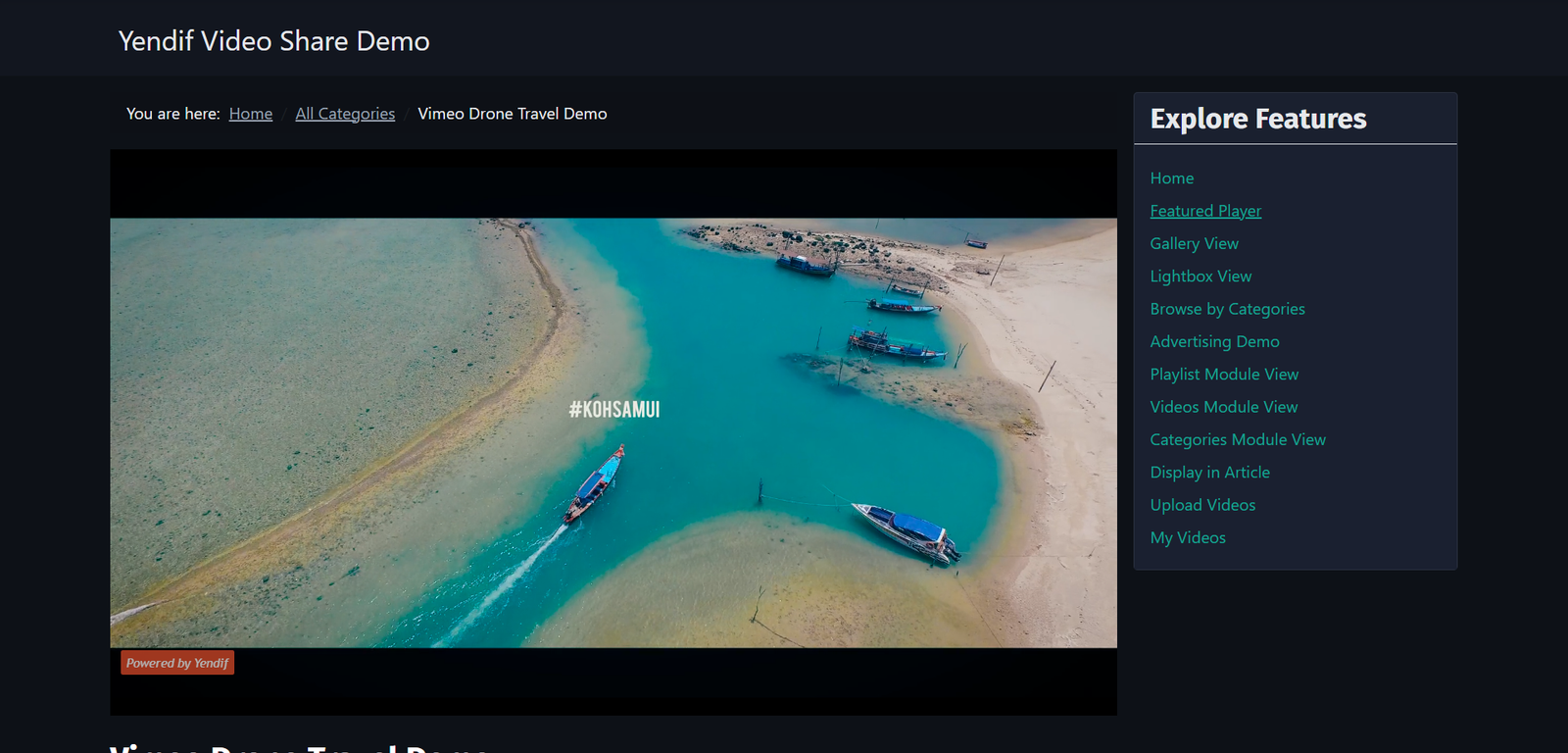
The good news is that YouTube and Vimeo videos fetch their thumbnail automatically when you save them, so most of your library is already covered. Check any video where the Image field is empty and the thumbnail did not come through.
Also set a Default Image under Options → General → Gallery. It is used whenever a video has no image of its own, so no consent panel is ever left bare.
Step 3: Check it works
Open a YouTube or Vimeo video on your site in a private browser window. This matters — if you have already accepted on your own site, you will not see the panel.
Check it worked: the consent panel appears in place of the video. Click Accept and the video loads and plays.
Which videos ask for consent
Only the ones that actually contact somebody else. Your own videos play as normal.
- YouTube — yes. The browser has to contact YouTube.
- Vimeo — yes. The browser has to contact Vimeo.
- Iframe Embed Code — yes. Whatever service the code points at gets contacted.
- Self Hosted / External URL — no. The file comes from your own server, so nobody else is involved.
- HLS / MPEG-DASH — no. The stream comes from your own provider under your own arrangement.
So turning this on costs you nothing on the videos you host yourself — which is a good reason to leave it on even if only part of your library comes from YouTube.
How long consent lasts
Once a visitor accepts, they are not asked again for one week. Every video on your site plays normally for them during that time.
- Consent lasts one week from the moment they accept.
- It covers your whole site, not just the video they were watching.
- It is stored as a cookie named
com_yendifvideoshare_gdpr. - It is flagged secure automatically when your site runs on HTTPS.
If a visitor clears their cookies, or comes back after a week, they are asked again. That is the point — consent is not meant to be permanent.
To test the panel repeatedly while you are setting it up, either use a private window each time, or delete the
com_yendifvideoshare_gdprcookie in your browser’s developer tools.
Changing the wording
The message and the button label come from your language file, so you can rewrite them to match your own privacy policy or your site’s tone. Joomla has a built-in way to do this that survives updates.
1. Select System → Language Overrides.
2. Set the language selector to your site language and Site, then click New.
3. Enter the constant and your replacement text.
COM_YENDIFVIDEOSHARE_PLAYER_GDPR_CONSENT_MESSAGE— the explanation shown to the visitor. Basic HTML is allowed, so you can include a link to your privacy policy.COM_YENDIFVIDEOSHARE_PLAYER_GDPR_CONSENT_BUTTON_LABEL— the button text. Accept by default.
4. Click Save & Close, then check the panel again in a private window.
Use a language override rather than editing the extension’s language file directly. Overrides are kept separately by Joomla, so the next update will not wipe out your wording.
A version worth considering, since it tells the visitor exactly who they are about to contact:
<strong>This video is hosted by YouTube.</strong> Playing it will load
content from YouTube, who may set cookies on your device. See our
<a href="/privacy-policy/">privacy policy</a> for details.
If you already have a cookie banner
Many Joomla sites run a cookie consent extension that shows a banner across the bottom of every page. The two work side by side, and they are not doing the same job.
- What each asks about. A cookie banner asks about your site as a whole. This setting asks about one specific third party, at the moment it matters.
- When each asks. A banner asks on arrival, before anyone has done anything. This setting asks when the visitor wants to watch a video.
- Whether the embed is blocked. A banner usually does not block it, unless configured to. This setting always does.
A banner that a visitor dismisses without reading is weaker consent than a panel sitting on the thing they actually want. Using both is reasonable — and if your banner is capable of blocking third-party embeds itself, check the two are not asking twice for the same thing.
The consent panel keeps its own cookie and does not read your banner’s. So a visitor who accepted everything in your banner will still see the video panel once. If that bothers you, the honest options are to accept the extra click or to turn one of the two off.
The other way to solve this
Worth mentioning because it removes the problem rather than managing it: host the videos yourself. A self hosted video contacts nobody, so there is nothing to ask permission for and no panel between your visitor and your content.
You also get advertising you can sell, no third-party branding, and no dependence on another company’s terms. The trade off is bandwidth and storage. See Set up your first video gallery for adding videos you host.
If something goes wrong
- No panel appears. You accepted earlier, so your cookie is still valid. Test in a private window, or delete the
com_yendifvideoshare_gdprcookie. - No panel on a particular video. It is self hosted or a stream, and those contact nobody. Expected — see the list above.
- The panel is a plain dark rectangle. That video has no poster image. Add an Image to the video, and set a Default Image in the gallery options.
- Accept does nothing. Cookies are blocked in the visitor’s browser. Nothing you can change — without cookies, consent cannot be remembered.
- Visitors are asked again and again. Their browser is clearing cookies, or a privacy extension is removing it. Expected behaviour with those settings.
- Consent is asked twice, once by your banner. The two systems keep separate records. Turn one of them off, or accept the extra click.
- Your new wording does not show. The override was saved for the Administrator side rather than Site. In System → Language Overrides, switch the selector to Site and save it again.
What to try next
- Change how your gallery looks
To make sure every video has a decent poster image. - Set up the player how you want it
To change other player behaviour. - Move your YouTube channel onto your site
To move your videos off YouTube onto your own site. - Settings reference
To look up any setting in detail.