The grid modules show thumbnails that a visitor has to click. Sometimes you want the video itself, playing right there in the page — a welcome message on your homepage, a demo in your sidebar, or a whole series a visitor can work through without ever leaving the page.
Two modules do this. The Player module shows one video. The Playlist module shows one video plus a list of others beside it.
What you will build
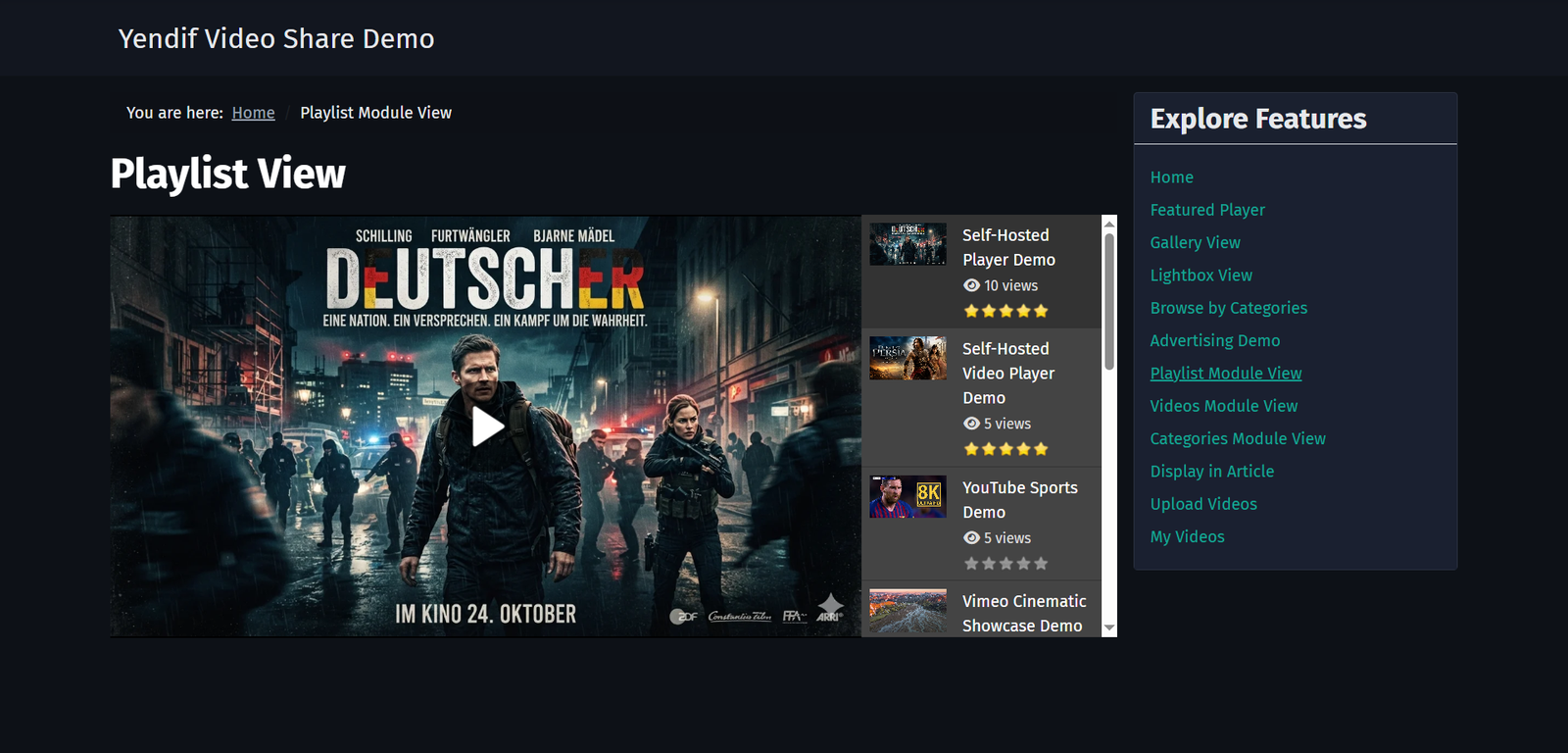
A working player in a template position, with a scrolling list of videos beside it. Clicking an item in the list loads it into the player without reloading the page.
Which of the two do you need?
- One specific video, always the same one — use the Player module with a video pinned.
- One video that changes on its own, newest or most viewed or random — use the Player module with a category and an order.
- A silent looping background clip — use the Player module with the controls switched off.
- Several videos the visitor can choose from — use the Playlist module.
- A course or series played in order, one after another — use the Playlist module with Autoplay Next Video.
Before you start
- A few published videos. If you have not got that far, work through Set up your first video gallery first.
- The name of the template position you want to use.
Step 1: Create a Player module
1. Select Content → Site Modules → New.
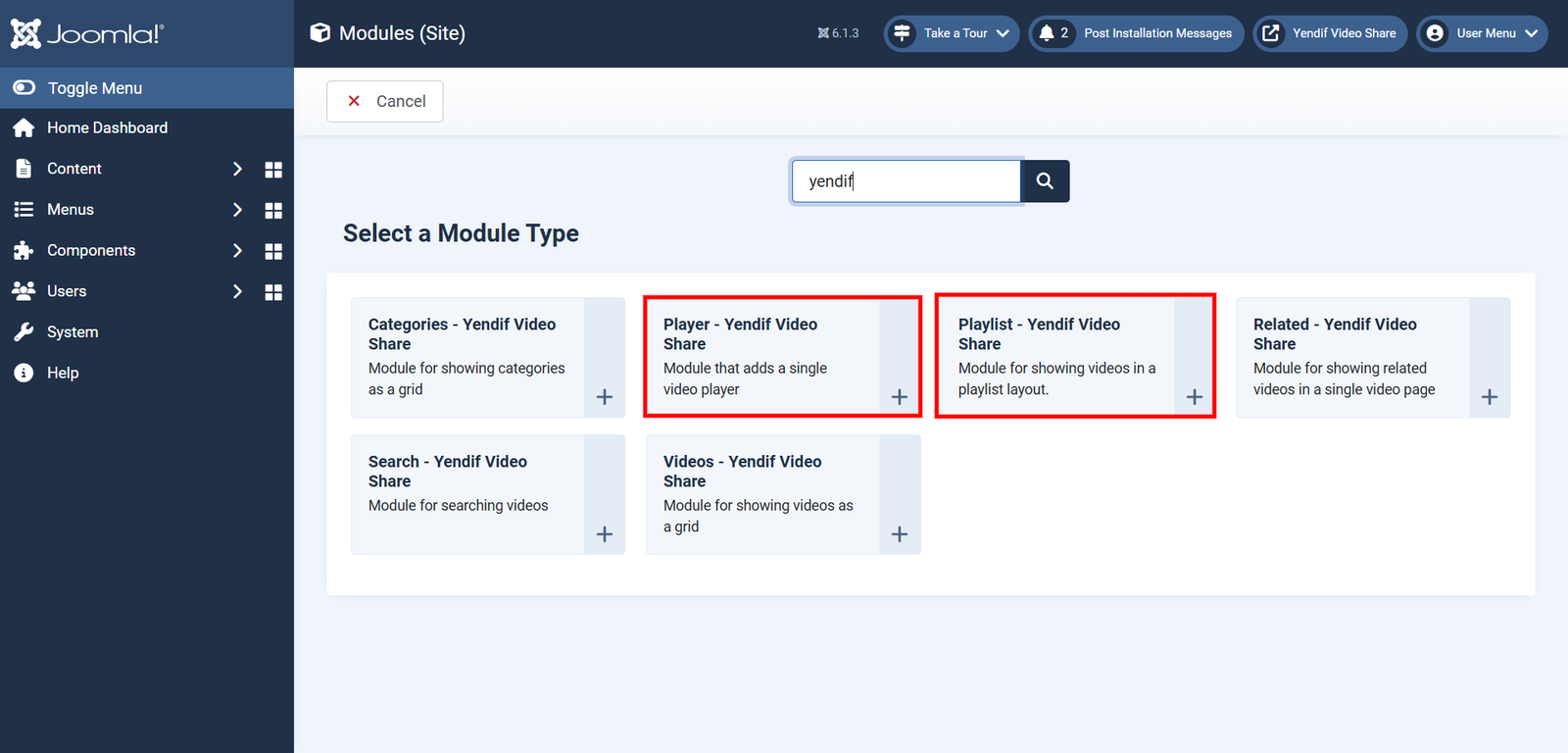
2. Choose Player – Yendif Video Share.
3. Type a Title. If you do not want a heading above the player, set Show Title to Hide in the right hand column — the module still needs a title for your own reference in the module list.
Step 2: Choose the video — two ways
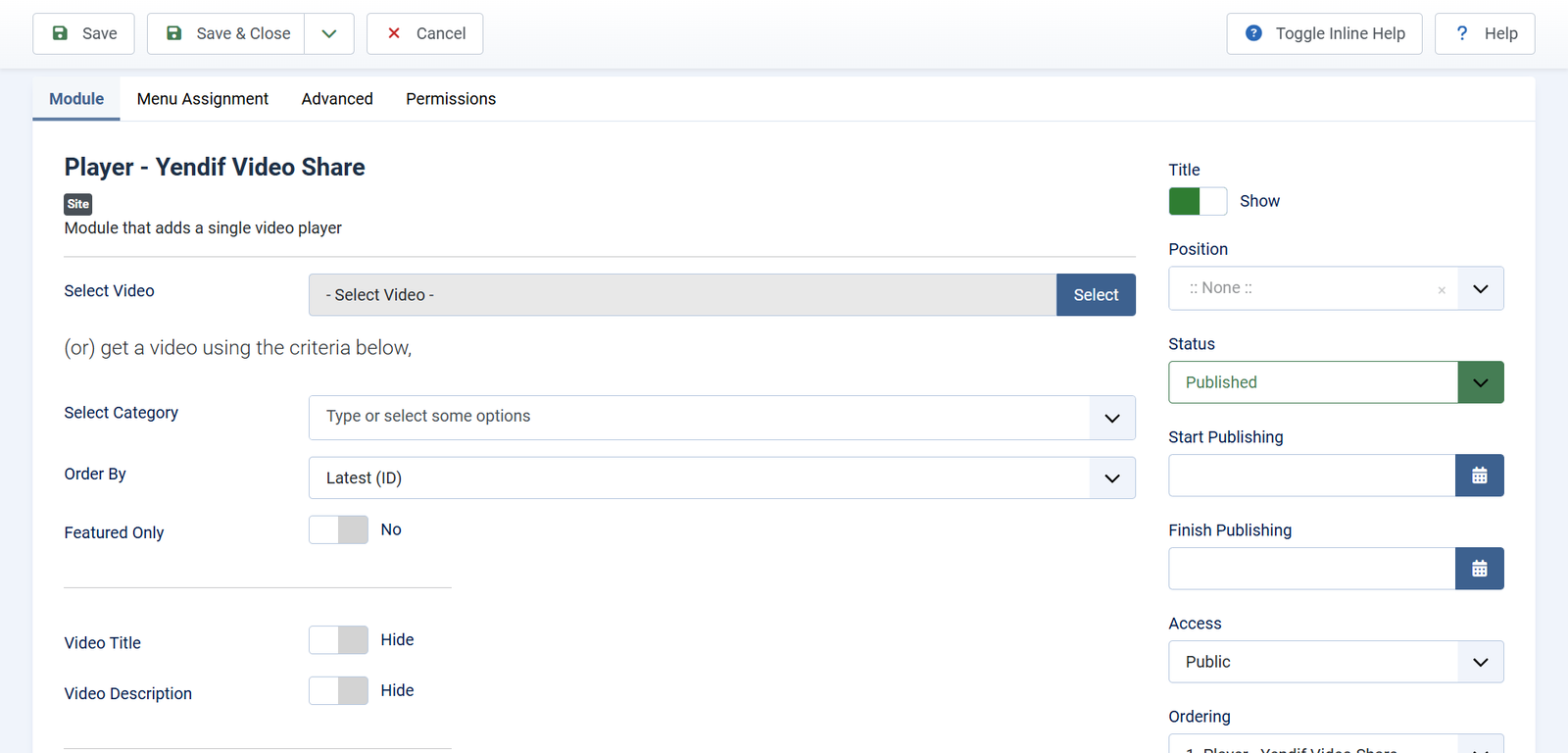
The top of the Module tab gives you a choice, and the form says so: a Select Video field, then a note reading (or) get a video using the criteria below, then a set of criteria. Use one or the other, not both.
Way one: pin a specific video
Click Select beside Select Video, pick your video, and you are done. This module will always play that video until you change it.
The same field also has New and Edit buttons, so you can create a video or fix its details without leaving the module.
Use this for a welcome video, a product demo, or anything that should not change on its own.
Way two: let the module choose
Leave Select Video empty and fill in the criteria instead. The module picks one video every time the page loads.
- Select Category — which categories to choose from. You can pick several. Leave it empty to use your whole library. Default: empty.
- Order By — which video wins. Latest (Date) always shows your newest, Random shows a different one on every page load, Most Viewed shows your most popular. Default: Latest (ID).
- Featured Only — choose only from videos you have marked as Featured. Default: No.
Random plus one category is the most useful combination here. A visitor sees a different video from that topic every time they load the page, and you never have to touch the module again.
Showing the title and description
Two switches below the criteria print the video’s own title and description above the player. Both are set to Hide out of the box, because most people want just the player.
- Video Title — the video’s title, above the player. Default: Hide.
- Video Description — the video’s description, above the player. Default: Hide.
These are worth turning on when the module chooses its own video, since otherwise your visitor has no idea what they are watching.
Step 3: Size it and choose the controls
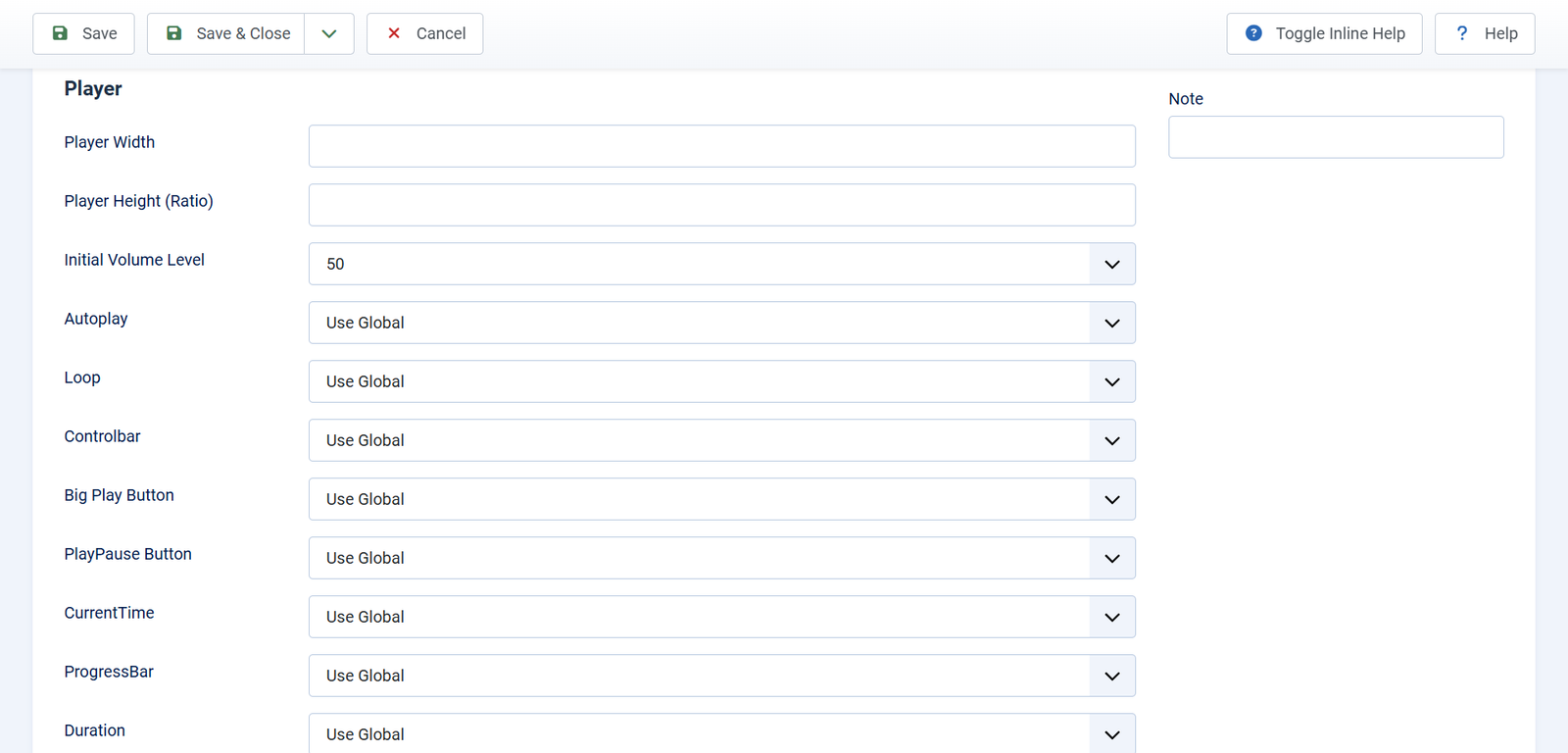
Scroll to the Player heading. Everything below it controls how the player looks and behaves.
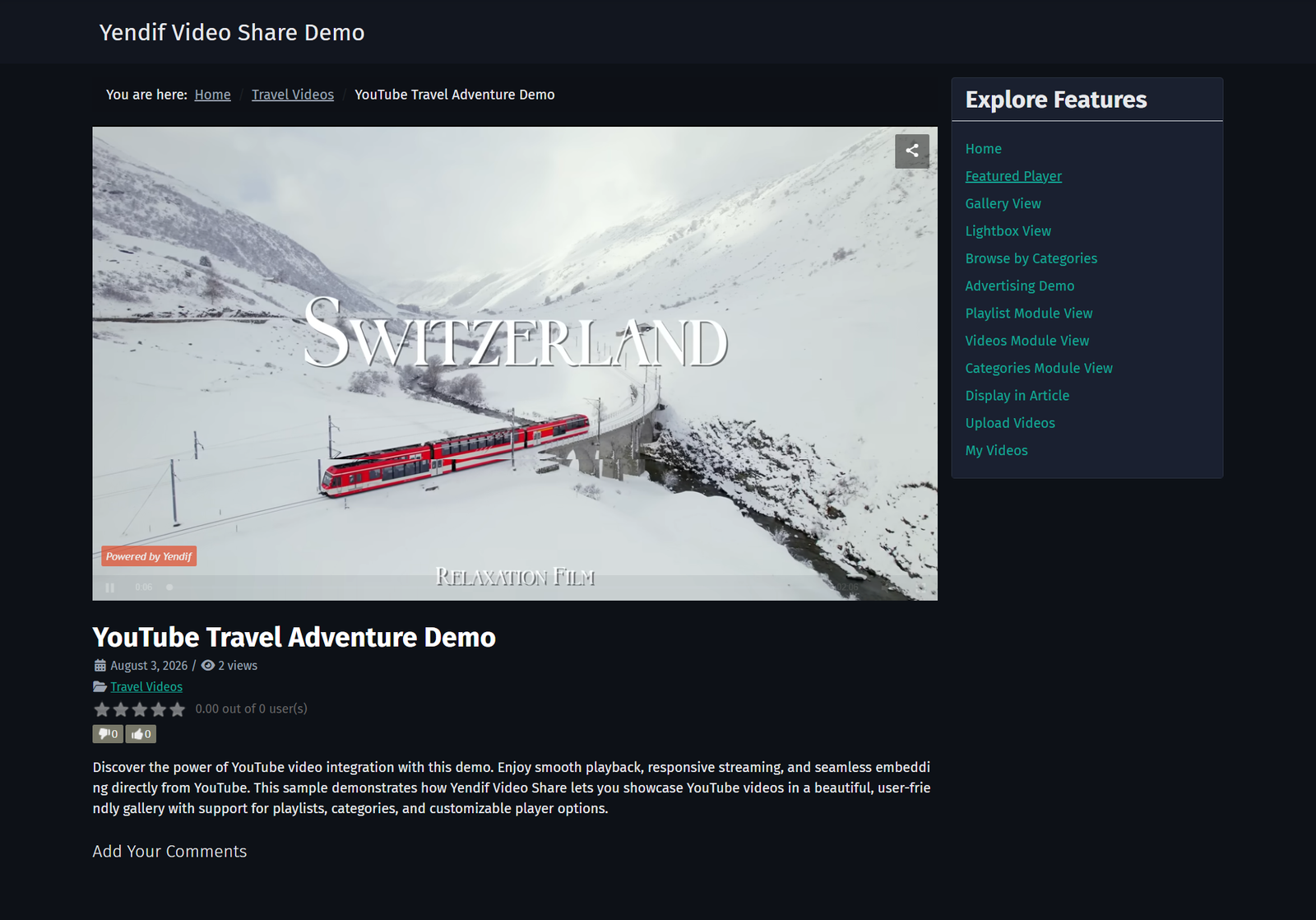
- Player Width — maximum width in pixels. Leave it empty and the player fills its position, which is usually what you want since positions vary in width. Default: empty.
- Player Height (Ratio) — height as a percentage of the width. 56.25 is widescreen, 62.50 suits monitor footage, 75 is old 4:3 video, 100 is square, 41.70 is cinemascope. Default: Use Global.
- Initial Volume Level — starting volume, 0 to 100. Default: 50.
- Autoplay — start playing as soon as the page loads. Default: Use Global.
- Loop — start again when the video ends. Default: Use Global.
Browsers block autoplay when there is sound. To make Autoplay actually work, set Initial Volume Level to 0 as well.
The controls
Each one is a separate Show or Hide switch, all starting at Use Global.
- Controlbar — the whole bar along the bottom. Hiding this hides every control at once, whatever the switches below say.
- Big Play Button — the large play button over the poster image.
- PlayPause Button — play and pause in the control bar.
- CurrentTime — elapsed time.
- ProgressBar — the seek bar.
- Duration — total length.
- Volume Button — volume control and mute.
- FullScreen Button — fullscreen.
- Embed Button — gives visitors code to embed the video elsewhere. Premium feature.
- Share Buttons — social sharing. Premium feature.
- Download Button — lets visitors download the file. Premium feature.
To build a silent background video: set Autoplay to Yes, Loop to Yes, Initial Volume Level to 0, and Controlbar to Hide. Pin a short clip and it plays quietly behind your content with nothing for the visitor to click.
Step 4: Place it and publish it
1. In the right hand column, choose a Position from your template.
2. Check Status is Published.
3. Open Menu Assignment and choose which pages it appears on.
4. Click Save & Close.
Check it worked: load a page where the module is assigned. The player appears in your chosen position and the video plays.
Adding a playlist beside the player
The Playlist module is the Player module plus a list. Visitors click an item and it loads into the player without the page reloading, so they can work through a whole set of videos in one place.
1. Select Content → Site Modules → New and choose Playlist – Yendif Video Share.
2. Set which videos go in the list.
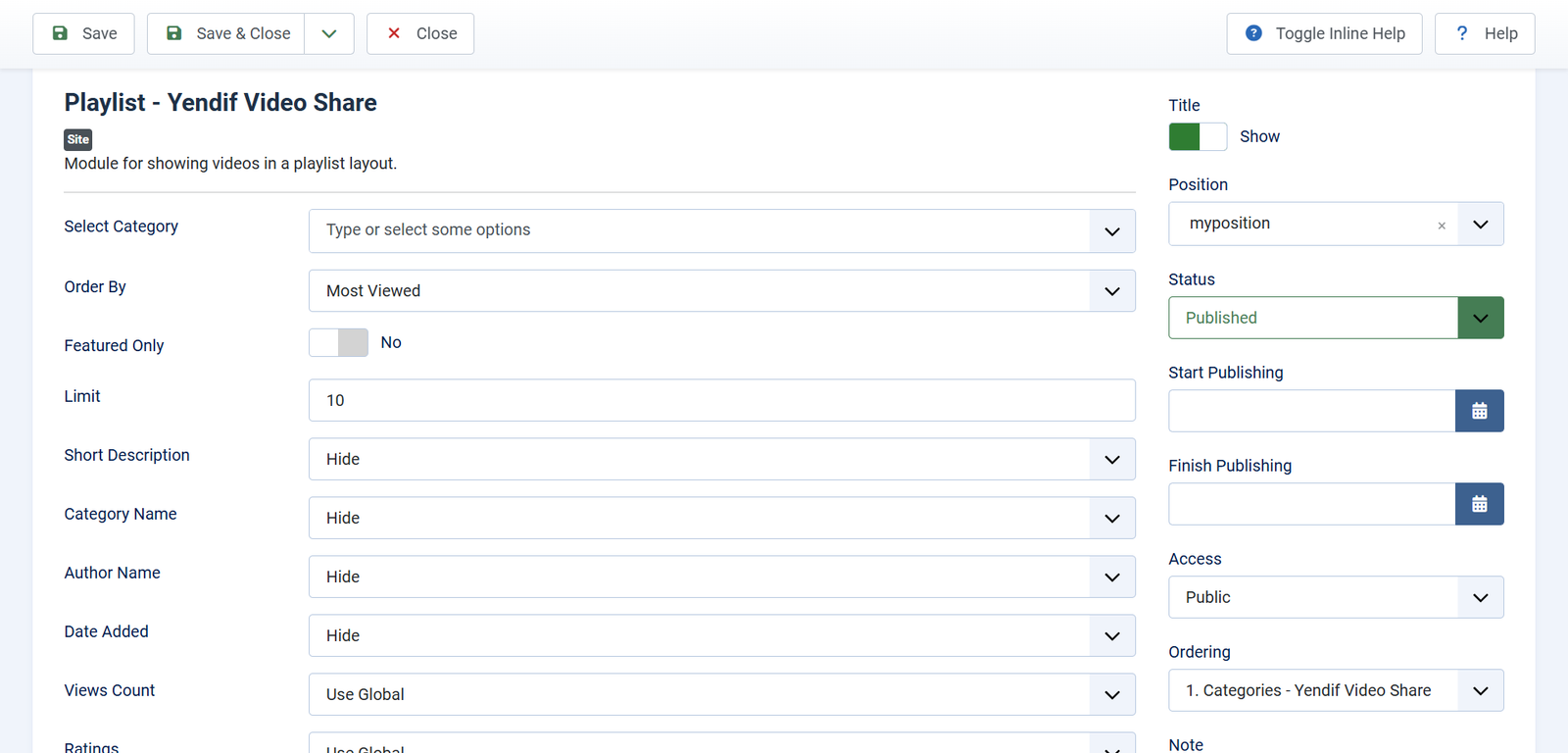
- Select Category — which categories the list draws from. You can pick several. Default: empty.
- Order By — the order of the list. This is also the order Autoplay Next Video follows. Default: Latest (ID).
- Featured Only — include only featured videos. Default: No.
- Limit — how many videos in the list. Default: 10.
3. Choose what shows on each item in the list. In a narrow playlist, less is better.
- Short Description — an excerpt under each title.
- Category Name — which category each video belongs to.
- Author Name — the credited user.
- Date Added — the video’s date.
- Views Count — how many times it has been watched.
- Ratings — the star rating. Premium feature.
4. Scroll to the Playlist heading at the bottom and decide where the list sits.
- Playlist Position — Right puts the list beside the player, Bottom puts it underneath. Default: Use Global, which is Right.
- Playlist Width (px) — width of the list. Only applies when the position is Right. Default: 250.
- Playlist Height (px) — height of the list. Only applies when the position is Bottom. Default: 150.
- Autoplay Next Video — when a video ends, the next one in the list starts on its own. Default: Use Global.
5. Choose a Position, set the Menu Assignment, then Save & Close.
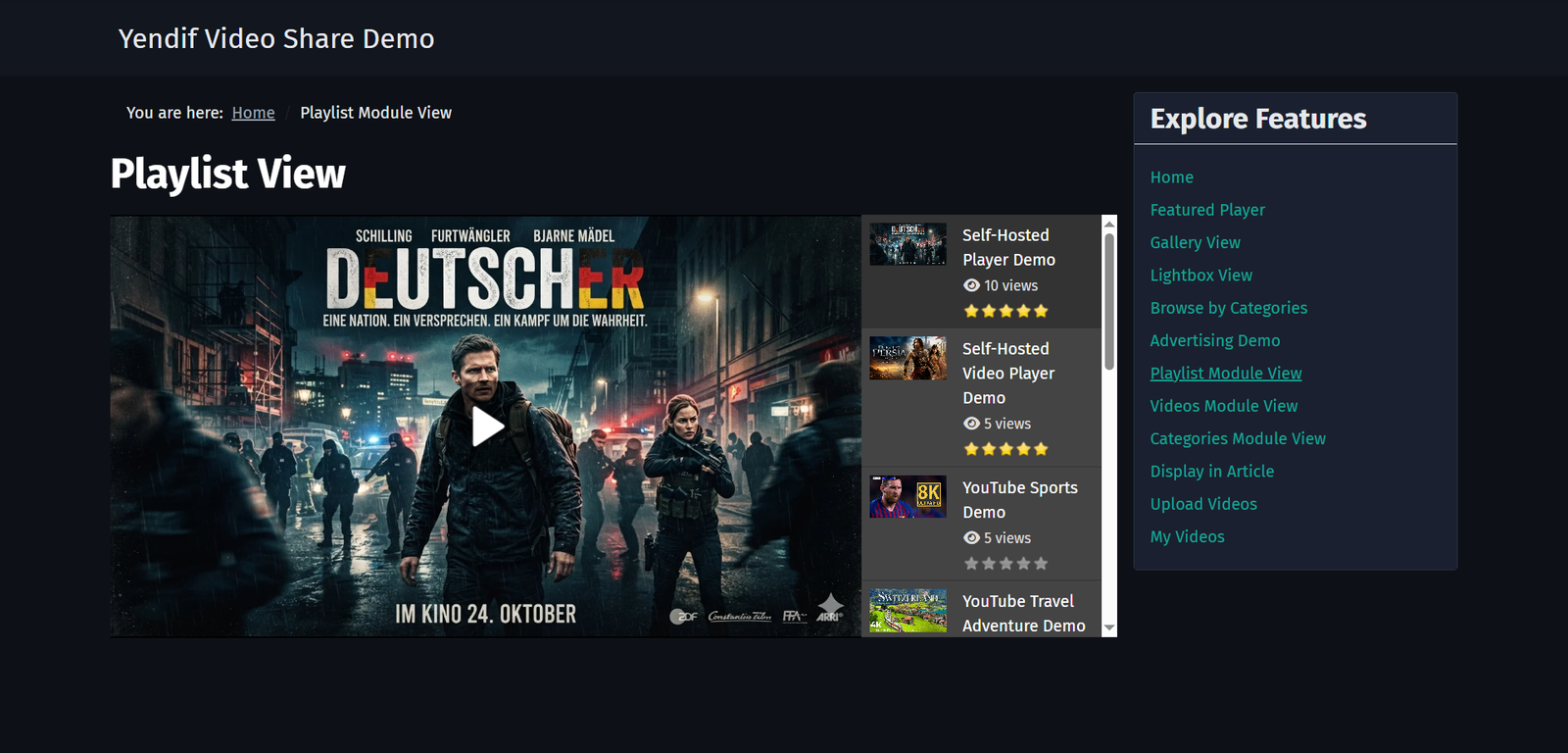
Which position when? Use Right in a wide area — a main content column or a full width row — since the player keeps a sensible size and the list sits neatly alongside. Use Bottom in anything narrow, including a sidebar, because a 250 px list next to a player leaves the player far too small.
Clicking a playlist item swaps the video inside the player rather than opening a new page, which is why this module has no menu item setting. If you would rather send visitors to the full video page, use the Videos module instead.
Five setups worth building
- A welcome video on your homepage — a Player module with the video pinned using Select Video. Assigned to Home only.
- A different video on every visit — a Player module with Select Video left empty, a category chosen, Order By set to Random, and Video Title turned on.
- A silent background clip — a Player module with Autoplay Yes, Loop Yes, Initial Volume Level 0 and Controlbar Hide.
- A course played in order — a Playlist module with Order By set to Custom Ordering and Autoplay Next Video Yes. Drag the videos into sequence in the Videos list.
- A “watch our latest” block in a sidebar — a Playlist module with Playlist Position Bottom, Limit 5, and most metadata switched off.
If something goes wrong
- Nothing appears. No position chosen, the module is unpublished, or the wrong pages are assigned. Check Position, Status and the Menu Assignment tab.
- “No items found.” The category has no published videos, or Featured Only is on and nothing is featured. Publish videos in that category, or set Featured Only to No.
- The player is tiny. The playlist is taking the width — common in a sidebar. Set Playlist Position to Bottom, or reduce Playlist Width.
- The player is very tall or very short. The ratio does not suit the footage. Set Player Height (Ratio) to 56.25 for widescreen, 100 for square, or 75 for old 4:3 video.
- Autoplay does nothing. The browser blocks autoplay with sound. Set Initial Volume Level to 0.
- Changing Playlist Width does nothing. The position is set to Bottom, where width does not apply. Use Playlist Height instead, or switch the position to Right.
- The embed, share or download buttons never appear. They are premium features. Add your license key under Options → Licensing.
What to try next
- Add a video to any article or page
To put a playlist inside an article instead of a module position. - Put videos on your homepage and sidebar
To show a grid of thumbnails rather than a player. - Set up the player how you want it
To change the player defaults for your whole site at once. - Settings reference
To look up any setting in detail.