You do not have to send visitors to your gallery to watch a video. A short tag drops a player straight into any Joomla article — a product page, a blog post, a landing page, a support answer.
The tag looks like this, and goes wherever you want the player to appear:
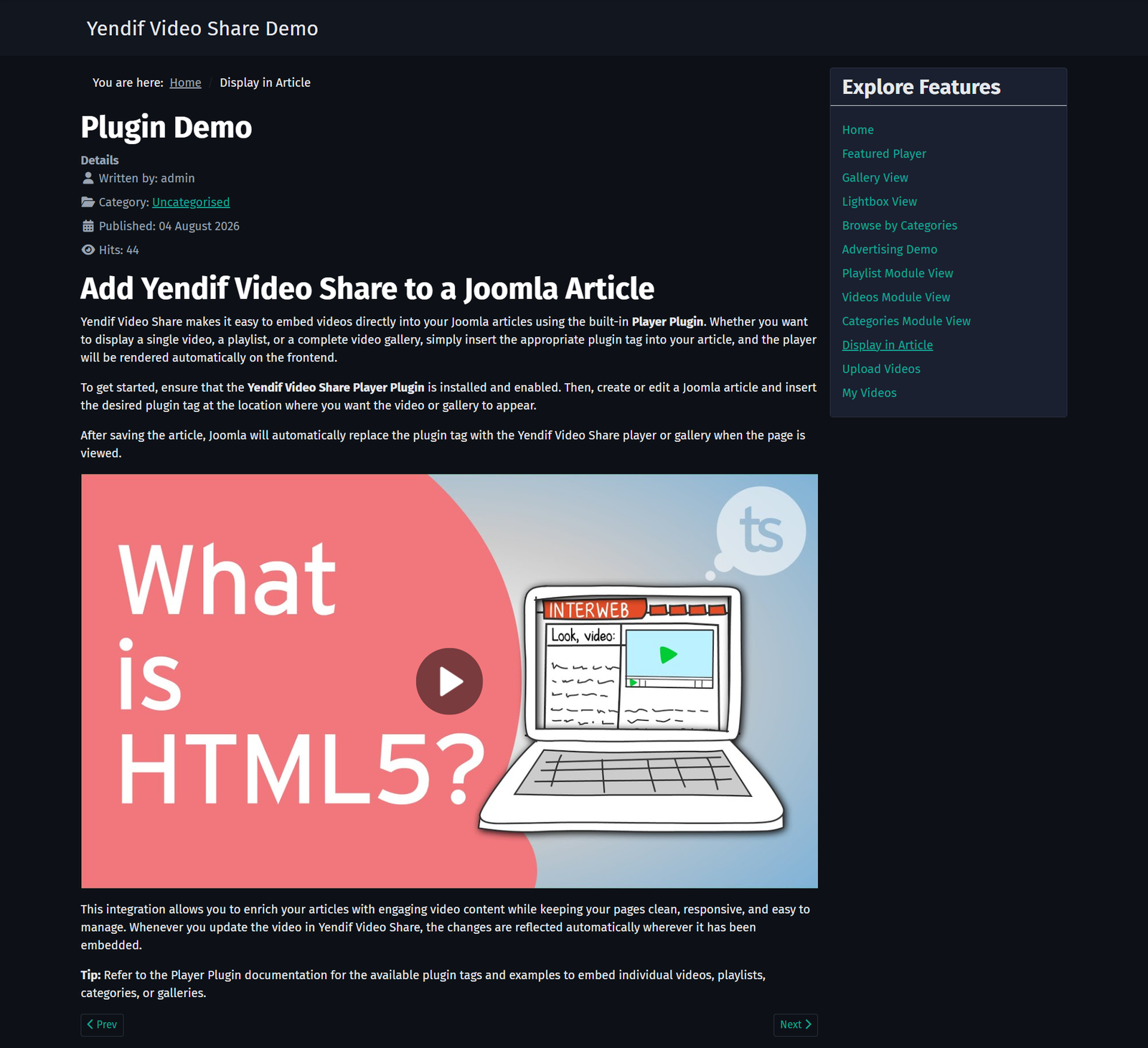
{yendifplayer videoid=42}What you will build
An article with a working player between two paragraphs of text, sized and behaving exactly as you want it.
Before you start
The tag is handled by a plugin, and the plugin has to be enabled. The installer switches it on for you, so this is a quick check rather than a task.
1. Select System → Plugins and search for yendif.
2. Confirm that Player – Yendif Video Share is enabled.
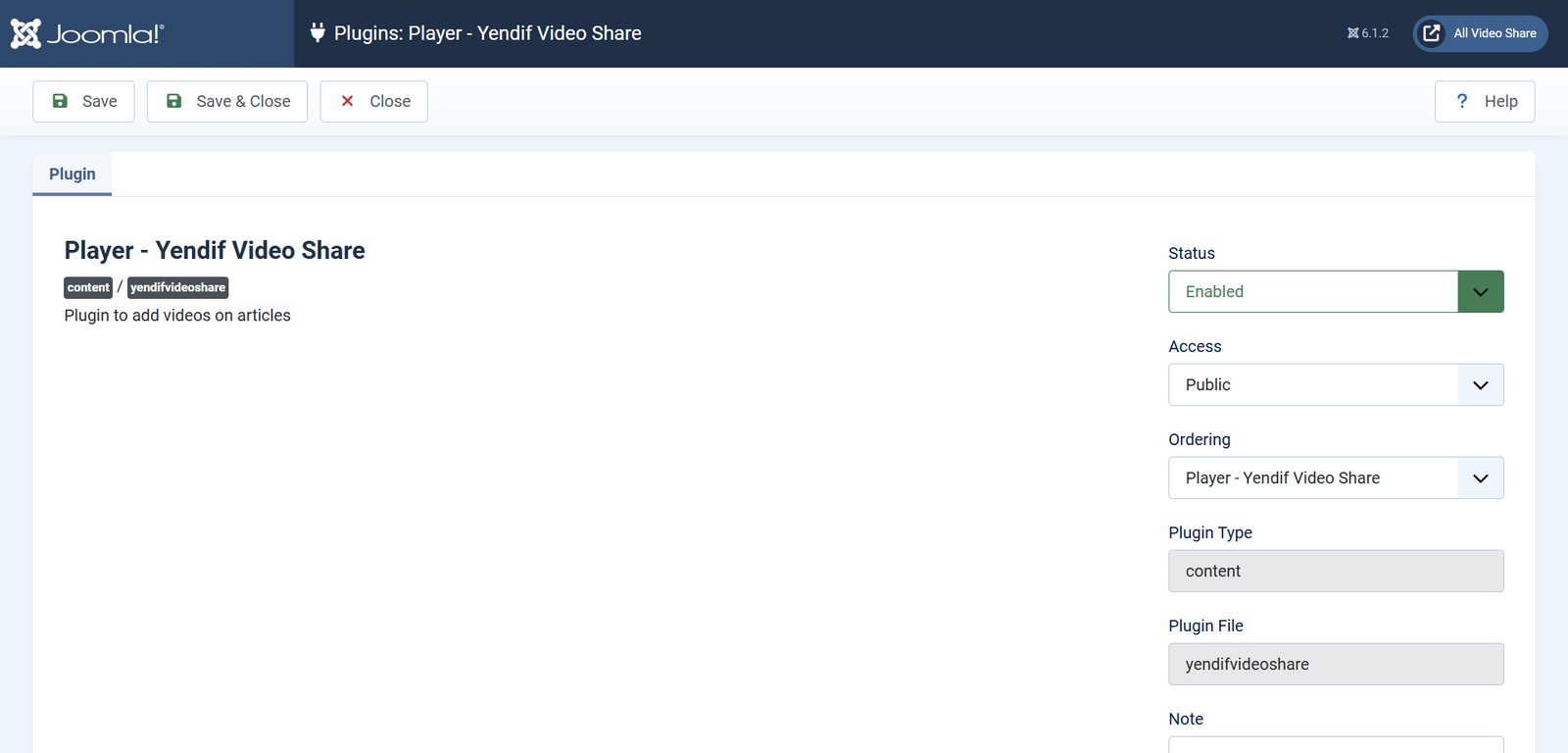
If the tag ever shows on your site as literal text —
{yendifplayer videoid=42}printed on the page — this plugin is disabled. That is the first thing to check.
Step 1: Find your video’s ID
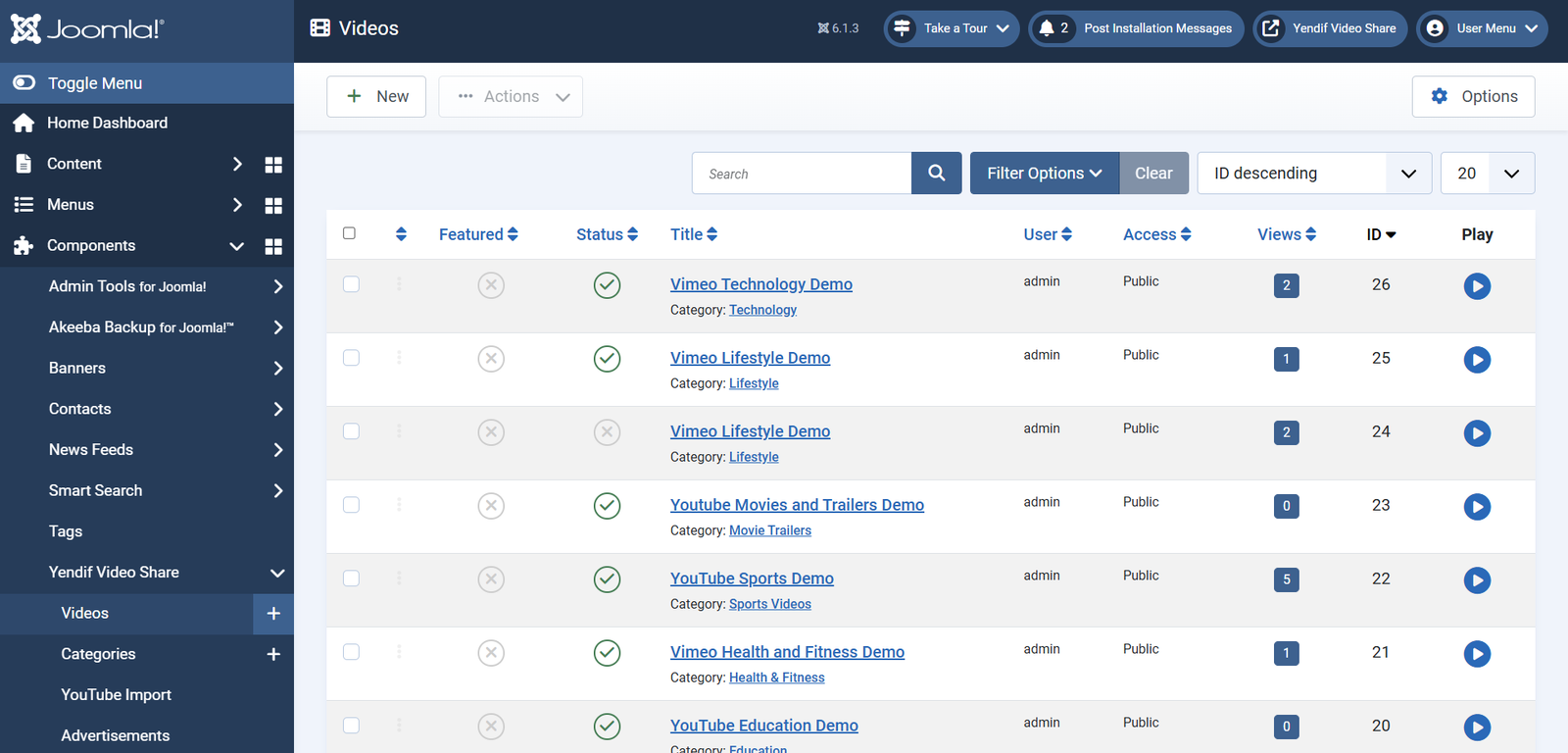
1. Select Components → Yendif Video Share → Videos.
2. Look at the ID column on the right of the list. That number is what goes in the tag.
Step 2: Put the tag in your article
1. Open your article in Content → Articles.
2. Click Toggle Editor below the editing area to switch off the visual editor. This matters — see the note underneath.
3. Type the tag on a line of its own, where you want the player to appear:
{yendifplayer videoid=42}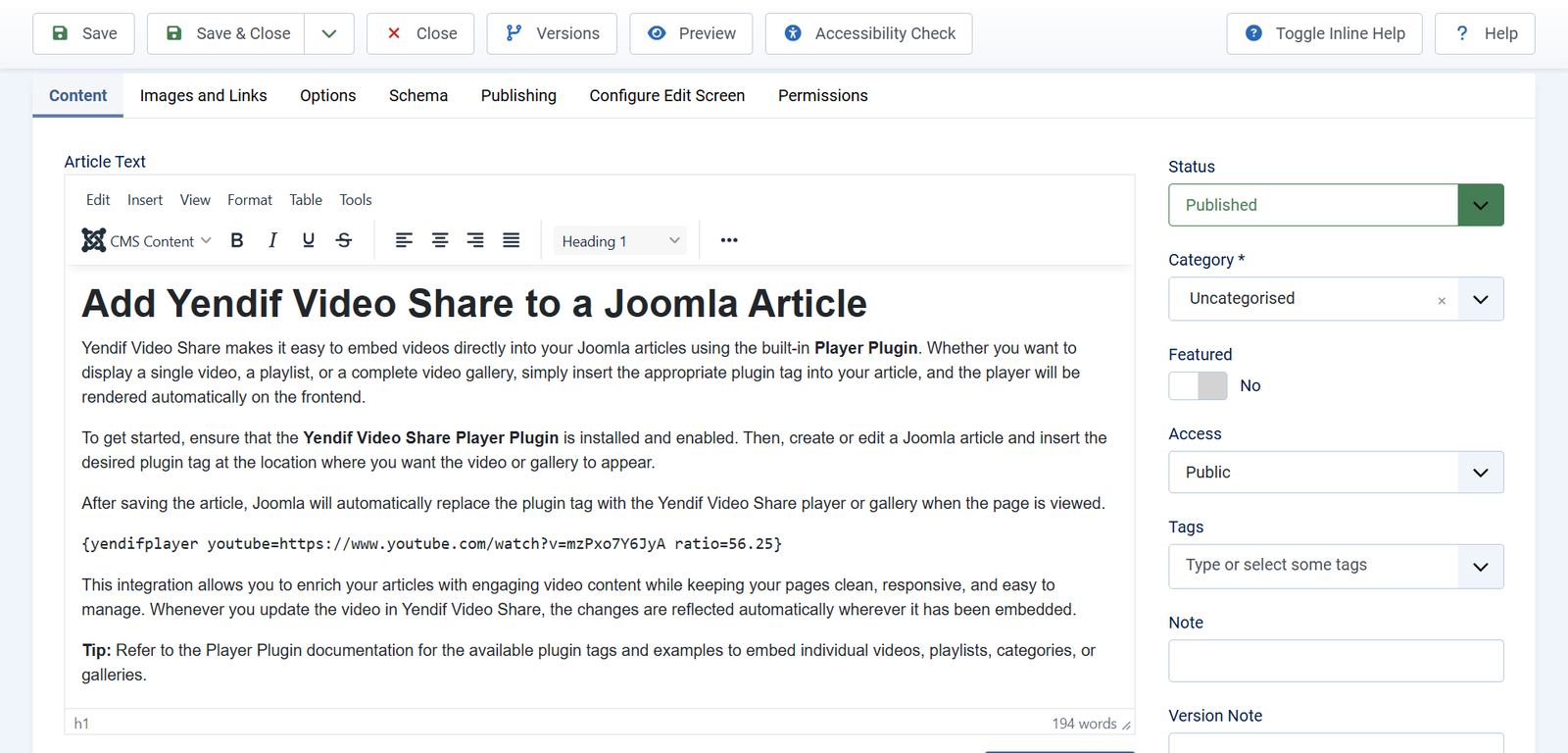
4. Click Save & Close, then view the article on your site.
Check it worked: the player appears where the tag was, filling the width of your article, and the video plays.
Always type the tag with the editor toggled off. TinyMCE and similar editors like to wrap what you type in markup, convert the curly braces, or split the tag across two elements — and a broken tag simply prints as text. Toggling the editor off puts you in plain code, where what you type is what gets saved.
Step 3: Size it and set it up
By default the player fills the width of its container and uses your global player settings. Add parameters to the tag to change that for this one player.
A player 640 pixels wide that starts muted and loops:
{yendifplayer videoid=42 width=640 autoplay=1 volume=0 loop=1}A player with no controls at all, for a silent background clip:
{yendifplayer videoid=42 autoplay=1 volume=0 loop=1 controlbar=0 playbtn=0}A square player, for a vertical or social clip:
{yendifplayer videoid=42 ratio=100}Every parameter for a single player
videoid— which video to play, using the ID from the Videos list. A number.width— maximum width of the player in pixels. Leave it out and the player fills its container. A number.ratio— height as a percentage of the width. 56.25 is widescreen, 75 is classic TV, 100 is square, 41.70 is cinemascope. 0 to 100.autoplay— start playing on load. 0 or 1.loop— start again when the video ends. 0 or 1.volume— starting volume. 0 to 100.controlbar— the whole control bar. Setting this to 0 hides every control at once. 0 or 1.playbtn— the large play button over the poster image. 0 or 1.playpause— the play and pause button in the control bar. 0 or 1.currenttime— the elapsed time readout. 0 or 1.progress— the progress bar. 0 or 1.duration— the total time readout. 0 or 1.volumebtn— the volume control. 0 or 1.fullscreen— the fullscreen button. 0 or 1.embed— the embed button. Premium feature. 0 or 1.share— the share buttons. Premium feature. 0 or 1.Itemid— which menu item any links from the player should use. A menu item ID.
Anything you leave out falls back to your settings under Components → Yendif Video Share → Videos → Options → Player. So set your site-wide preferences there once, and use tag parameters only for the exceptions.
Browsers block autoplay when there is sound. If you want a video to start on its own, pair
autoplay=1withvolume=0— otherwise the browser will quietly ignore you.
Four rules that catch people out
The tag is deliberately simple, and that simplicity has consequences. These four are worth reading before you write a complicated tag.
1. Spaces separate parameters, so values cannot contain spaces
Every space in the tag starts a new parameter. A value with a space in it breaks everything after it.
{yendifplayer videoid=42 width=640}         works
{yendifplayer videoid = 42 width = 640}     broken
{yendifplayer mp4=https://x.com/my clip.mp4} broken
No spaces around the equals sign, and no spaces inside a value. If a file URL contains spaces, rename the file.
2. Quotes are removed, not respected
Quoting a value does not protect a space inside it. Quotes are stripped out before the tag is read, so the space still breaks the tag.
{yendifplayer videoid="42"}          works, but the quotes do nothing
{yendifplayer label="My Video"}      still broken
3. Adding catid changes what the tag does
A tag with catid in it stops being a single player and becomes a player with a playlist. This is by design, but it surprises people who add catid expecting it to filter something.
{yendifplayer videoid=42}    one player
{yendifplayer catid=3}       player plus playlist
4. Two playlists in one article need a uid each
If you put more than one playlist tag in the same article, give each one a different uid number so they do not interfere with each other.
{yendifplayer catid=3 uid=1}
{yendifplayer catid=7 uid=2}
Adding a playlist instead of one video
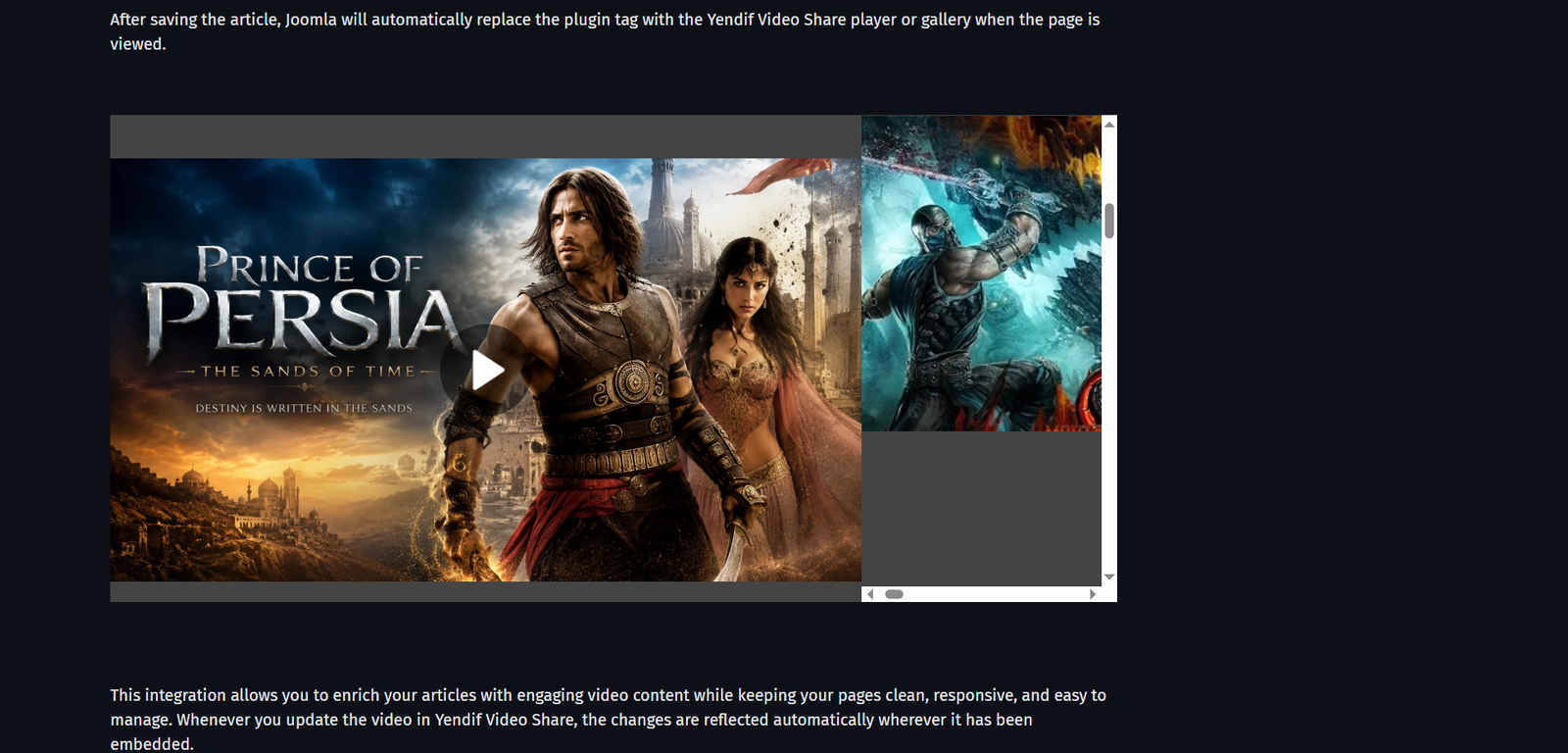
Give the tag a category instead of a video and you get a player with a list of videos beside it. Visitors pick what to watch without leaving your article.
{yendifplayer catid=3}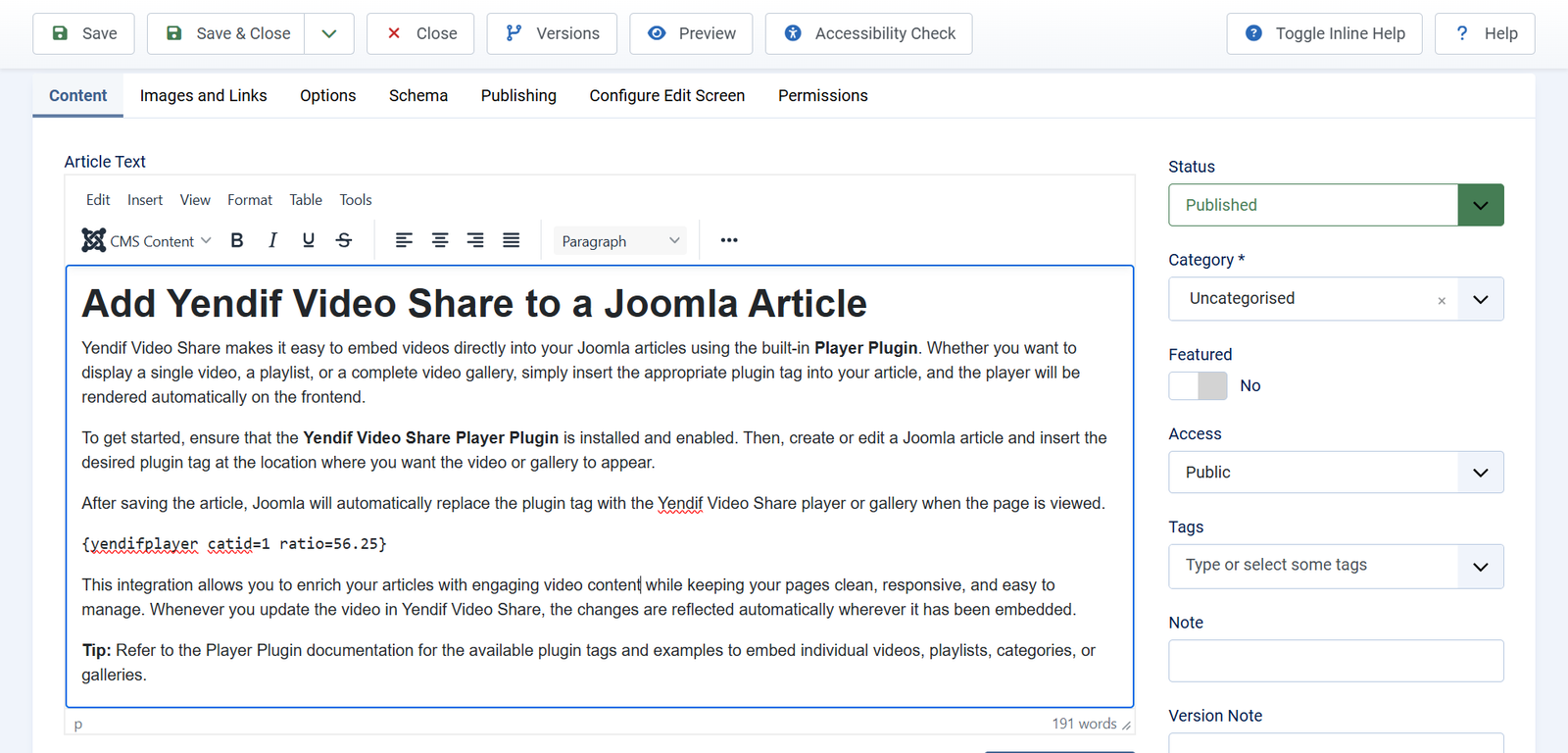
Pull from more than one category by separating the IDs with commas, and control the rest with the parameters below:
{yendifplayer catid=3,7 limit=8 orderby=most_viewed playlist_position=bottom}catid— which categories to draw from. Comma separated, no spaces. Category IDs.limit— how many videos in the playlist. A number, default 10.orderby— which videos come first. latest, date_added, most_viewed, most_rated, a_z, z_a, random or ordering.filterby— set it tofeaturedto include only featured videos. none or featured.playlist_position— where the list sits relative to the player. right or bottom.playlist_width— width of the list in pixels, when it is on the right. A number, default 250.playlist_height— height of the list in pixels, when it is at the bottom. A number, default 150.autoplaylist— move to the next video automatically when one ends. 0 or 1.uid— a unique number, needed only if the article has more than one playlist. A number.
The player parameters from the earlier table — ratio, autoplay, volume, controlbar and the rest — work here too.
Playing a series or a course? Use
orderby=orderingand drag the videos into sequence in the Videos list. Addautoplaylist=1and your visitor watches the whole series without touching anything.
Playing a video without adding it to your library
For a one-off video you do not need a record in your library at all. Give the tag a source and it builds a player on the spot.
{yendifplayer youtube=https://www.youtube.com/watch?v=XXXXXXXXXXX}

{yendifplayer mp4=https://example.com/clip.mp4 image=https://example.com/poster.jpg}

{yendifplayer hls=https://example.com/stream.m3u8}youtube— a YouTube video URL.vimeo— a Vimeo video URL.mp4— an MP4 file URL.mp4_hd— a higher quality MP4, giving viewers a quality selector.webm— a WebM file URL.ogv— an OGV file URL.hls— an HLS playlist URL, for live and adaptive streams.dash— an MPEG-DASH manifest URL.image— the poster image shown before playback.captions— a WebVTT subtitle file URL.
This is convenient, but a video added this way is not in your library — it will never appear in your gallery, your modules, your search results or your view counts. For anything you want to keep, add it under Components → Yendif Video Share → Videos and use
videoidinstead.
Where else the tag works
Anywhere Joomla runs its content plugins over your text. In practice:
- Articles — yes, including the intro text.
- Custom HTML modules — yes, if you set Prepare Content to Yes on the module’s Options tab.
- Category descriptions — usually yes, depending on your template.
- Contact and other component descriptions — varies. Try it and see.
- Template files — no. Use a module position instead.
Tags are skipped when Joomla indexes your content for Smart Search, so your search results never contain
{yendifplayer …}as literal text.
If something goes wrong
- The tag prints as text on the page. The plugin is disabled, or your editor mangled the tag. Enable Player – Yendif Video Share in System → Plugins, then retype the tag with the editor toggled off.
- Nothing at all appears where the tag was. The tag was recognised but the video could not be found — usually a wrong
videoid. Check the ID against the ID column in the Videos list. - A playlist appears when you wanted one video. The tag contains
catid. Remove it and usevideoidinstead. - Some parameters are ignored. A space crept in, either around an equals sign or inside a value. Remove every space except the ones separating parameters.
- The player is far too tall or short. The
ratiovalue does not suit the video. Use 56.25 for widescreen, 100 for square, 75 for old 4:3 footage. - Autoplay does nothing. The browser is blocking it because the video has sound. Add
volume=0alongsideautoplay=1. - Two playlists in one article misbehave. They share an identifier. Give each one its own
uid.
What to try next
- Build a player with a playlist
To put a player in a template position rather than an article. - Put videos on your homepage and sidebar
To show a grid of videos on your homepage. - Set up the player how you want it
To change the player defaults for your whole site. - Settings reference
To look up any setting in detail.