Adding a hundred videos by hand is nobody’s idea of a good afternoon. Point the importer at a YouTube playlist, channel or search instead, and it creates the video records for you — then keeps watching for new uploads if you want it to.
YouTube import is a premium feature. If you see an upgrade message instead of the form, add your license key under Options → Licensing first.
What you will build
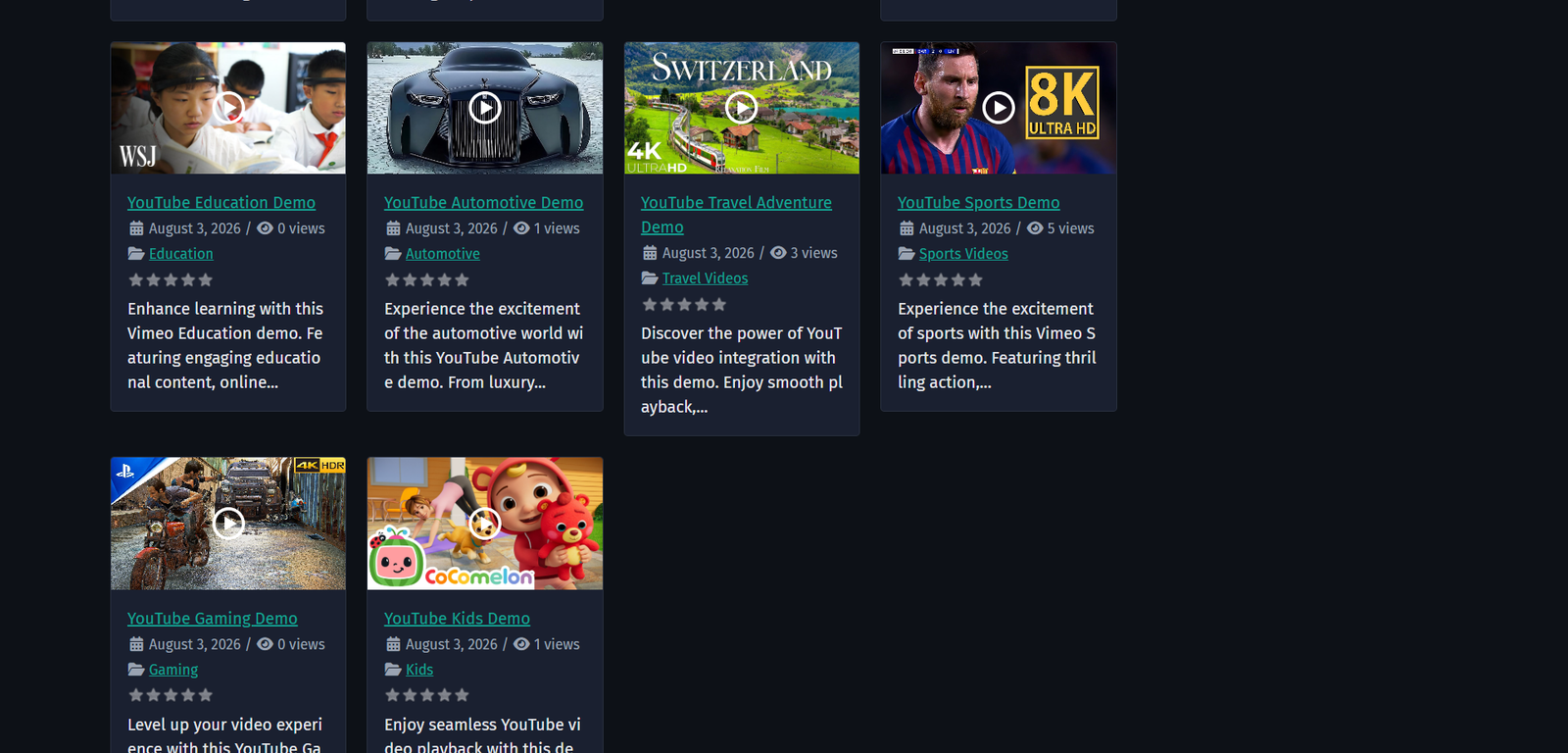
Your YouTube back catalogue living in your own gallery, on your own site, under your own categories — with new uploads appearing automatically.
Step 1: Add a YouTube API key
Nothing imports without this. YouTube requires a key before it will tell any application what is in a playlist or a channel, so this is the first job.
1. Go to the Google Cloud Console and sign in.
2. Create a project, or open one you already have.
3. Enable the YouTube Data API v3 for that project.
4. Create an API key credential and copy it.
5. In Joomla, select Components → Yendif Video Share → Videos, click Options, then open Advanced → API Keys.
6. Paste the key into YouTube API Key and click Save & Close.
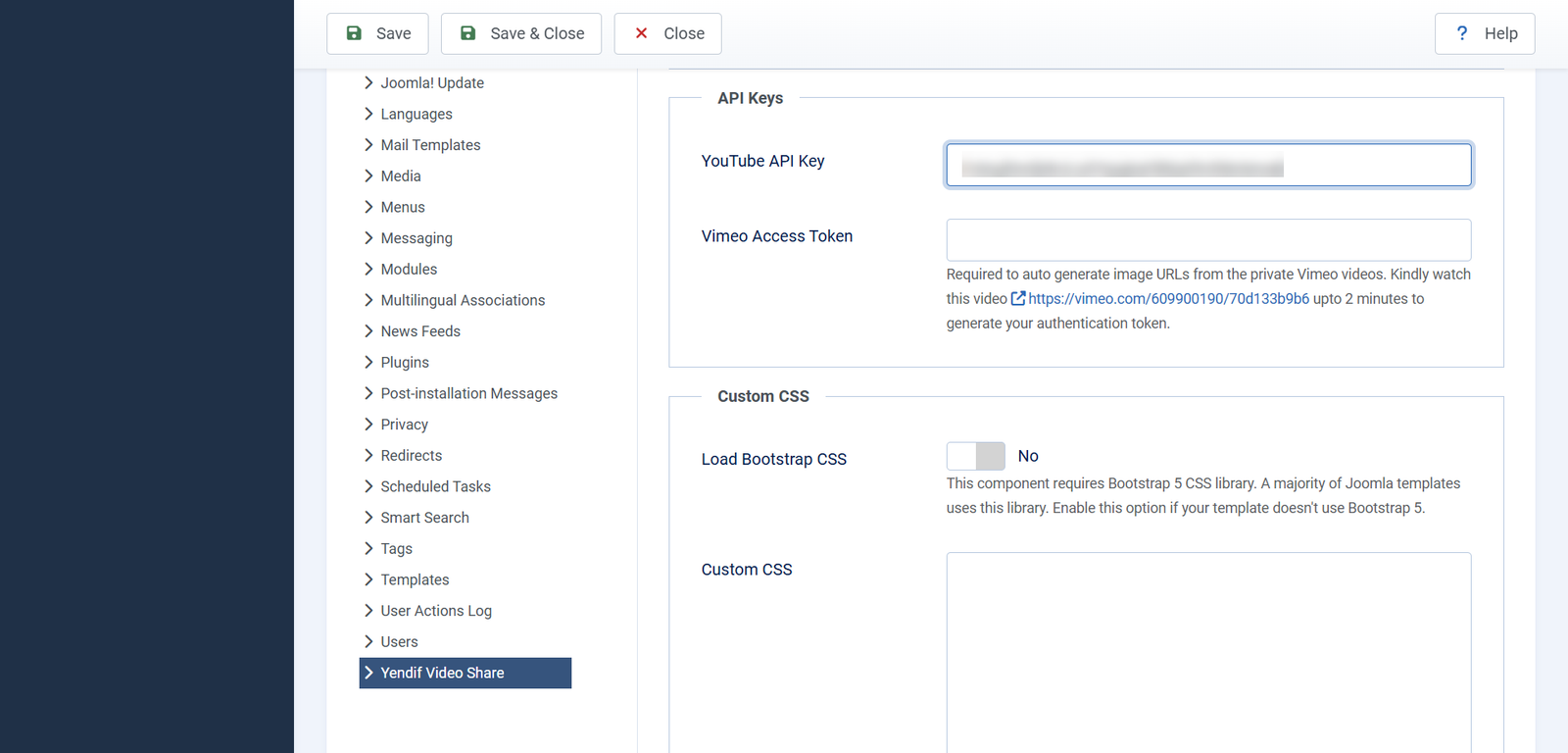
Check it worked: the key is only tested when an import runs, so you will confirm it in step 5. If it is missing or wrong you will see YouTube API Key Invalid or Missing at that point.
The API key is used for importing only. Playing YouTube videos on your site does not need one, so if you are not importing you can skip this page entirely.
Step 2: Choose what to import
1. Select Components → Yendif Video Share → YouTube Import → New.
2. Type a Title. This is for your own reference in the imports list, so name it after the source — Main channel, Product demos playlist.
3. Pick a Source Type and fill in the field that appears.
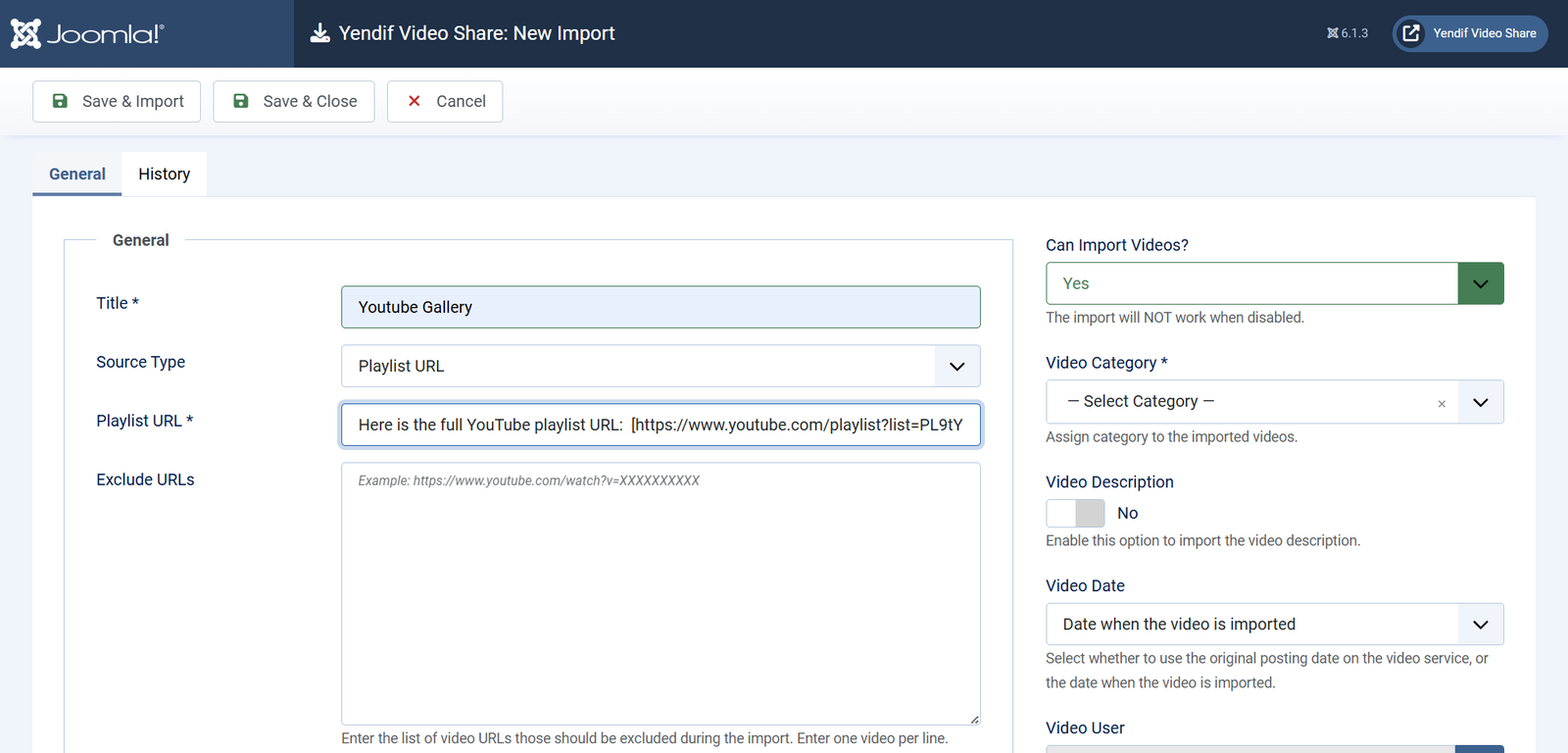
- Playlist URL — supply
https://www.youtube.com/playlist?list=XXXXXXXXXX. Best for a curated set, and the most predictable option to start with. - Channel URL — supply
https://www.youtube.com/channel/XXXXXXXXXX. Brings in everything a channel has published. - Username — supply a channel username, such as
Joomla. For older channels that still use a username rather than a channel ID. - Search Keyword — supply search terms, where a space means AND,
-means NOT and|means OR. For gathering videos on a topic from across YouTube. This one also gets its own Order By setting: Date, Rating, Relevance, Title or Views Count. - Custom YouTube URLs — supply one video URL per line. For a specific hand-picked list.
The source cannot be changed later. Once you save, the Source Type and its URL are locked — you can adjust everything else, but a different source means a new import. Check the URL before saving.
Importing your own channel? Use Channel URL rather than Username. Channel IDs never change; usernames are a legacy feature and are not available on newer channels.
Step 3: Decide how the videos arrive
The right hand column controls what the imported videos look like once they land. Getting these right first saves editing dozens of records afterwards.
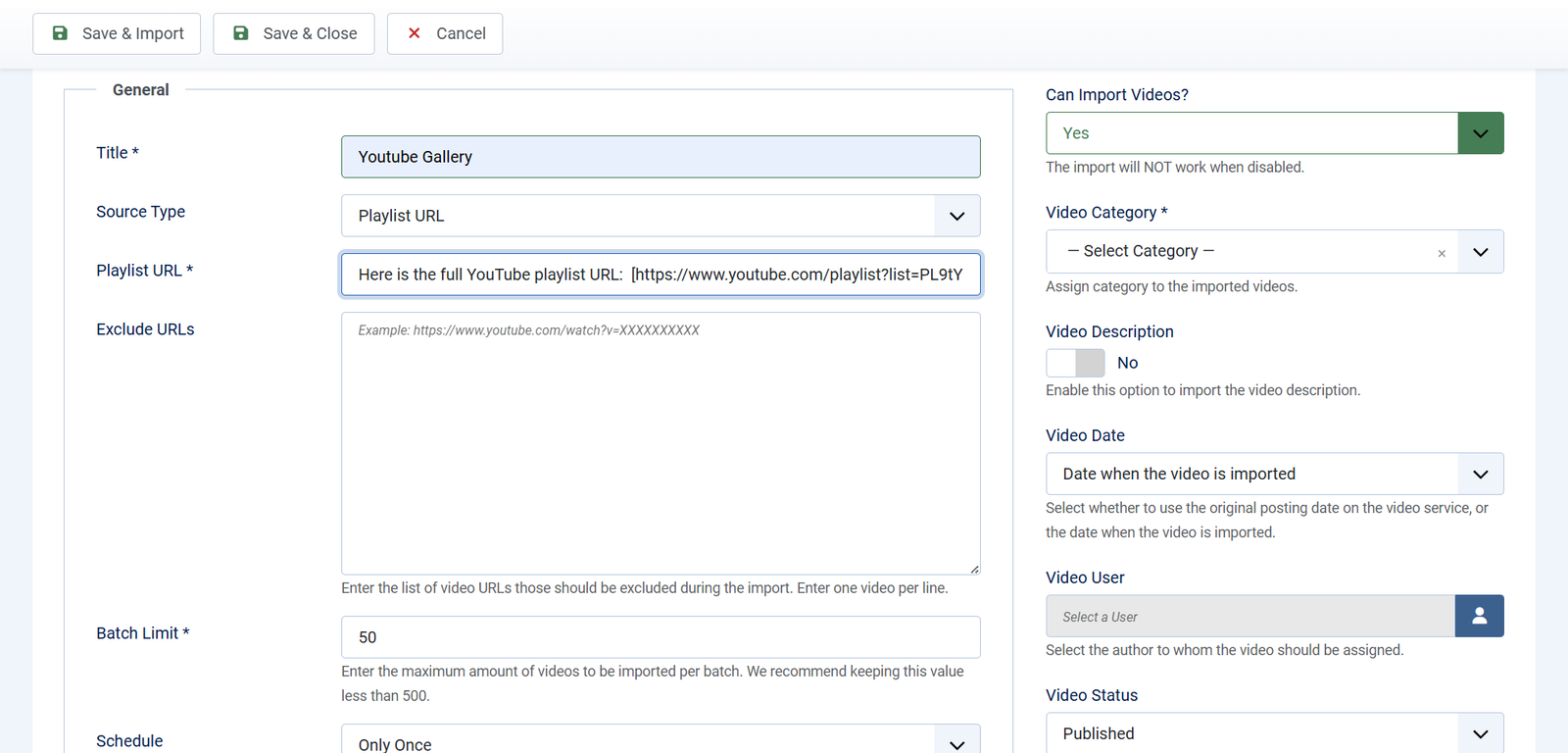
- Can Import Videos? — set this to No to pause the import without deleting it. Nothing is imported while it is off. Default: Yes.
- Video Category — the category every imported video is filed under. Required. Default: — Select Category —.
- Video Description — copy the YouTube description into your video record. Default: No.
- Video Date — Original date on the YouTube website keeps the real publish date, while Date when the video is imported stamps them all with today. Default: Date when the video is imported.
- Video User — which of your Joomla users is credited as the author. Default: none.
- Video Status — whether imported videos are published straight away or held back for review. Default: Published.
Set Video Date to the original date if you are importing a back catalogue. Otherwise every video shares today’s date, and your Latest (Date) ordering becomes meaningless — a hundred videos all published the same second, in no useful order.
Importing something large or unfamiliar? Set Video Status to Unpublished for the first run. You can review what arrived, delete anything you do not want, then publish the rest in one go from the Videos list.
Step 4: Set the batch size
Imports run in batches rather than all at once, because a thousand videos in a single request would exhaust your server’s time limit.
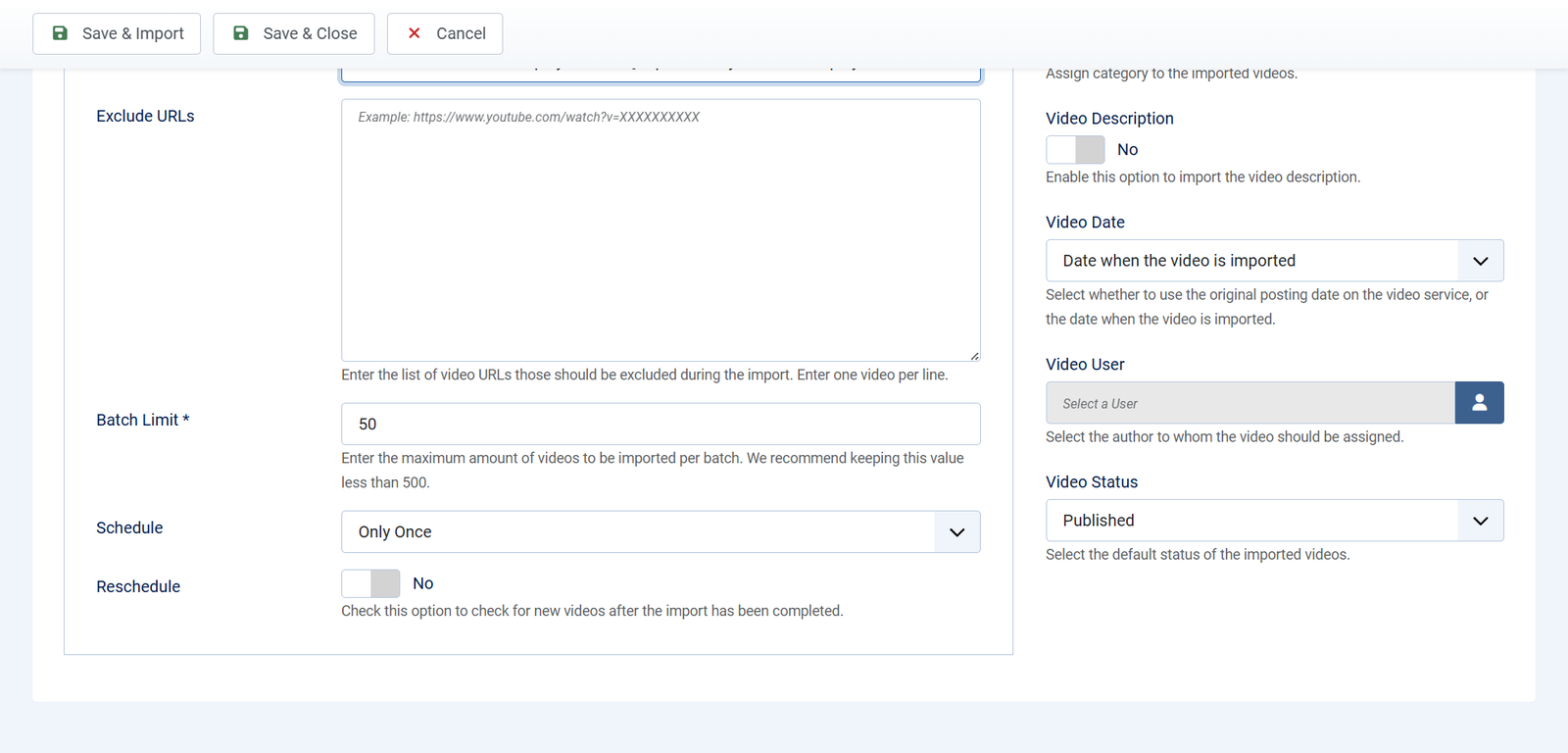
- Batch Limit — the maximum number of videos imported in one run. Keep it under 500, and lower it to 25 if runs are timing out. Default: 50.
- Exclude URLs — video URLs to skip, one per line. Applied on every run, so excluded videos never come back. Default: empty.
Click Save when you are ready.
Step 5: Run the first import
Click Save & Import in the toolbar. The first batch runs immediately. Give it a moment — the component is talking to YouTube and writing records.
Check it worked: a status panel appears in the right hand column with running totals.
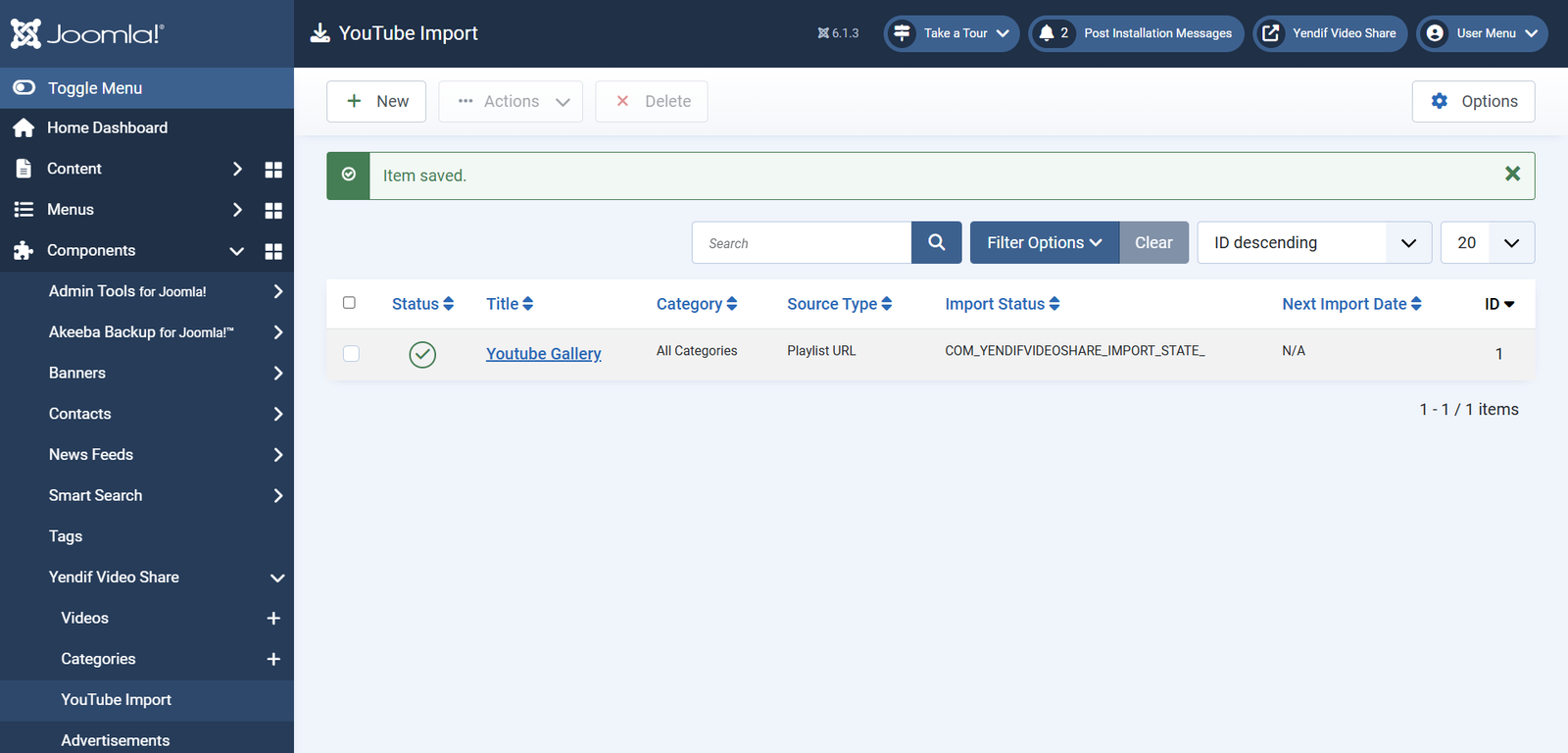
- Import Status — Imported means a one-off run finished. Scheduled means another run is due. Rescheduled means it will keep checking for new videos. Completed means there is nothing left to fetch. Paused means Can Import Videos? is set to No.
- Imported — how many videos have been created. This is a link, so click it to see exactly those videos.
- Excluded — how many were skipped because of your Exclude URLs list.
- Ignored — how many were already in your library, so were not duplicated.
- Next Import Date — when the next run is due, or N/A for a one-off.
Now open Components → Yendif Video Share → Videos. Your imported videos are there with their titles and thumbnails, ready to appear on your site.
Step 6: Import the rest
If your source has more videos than your batch limit, the toolbar button changes to Import Next Batch. Click it again for the next batch, and keep going until the status reads Completed.
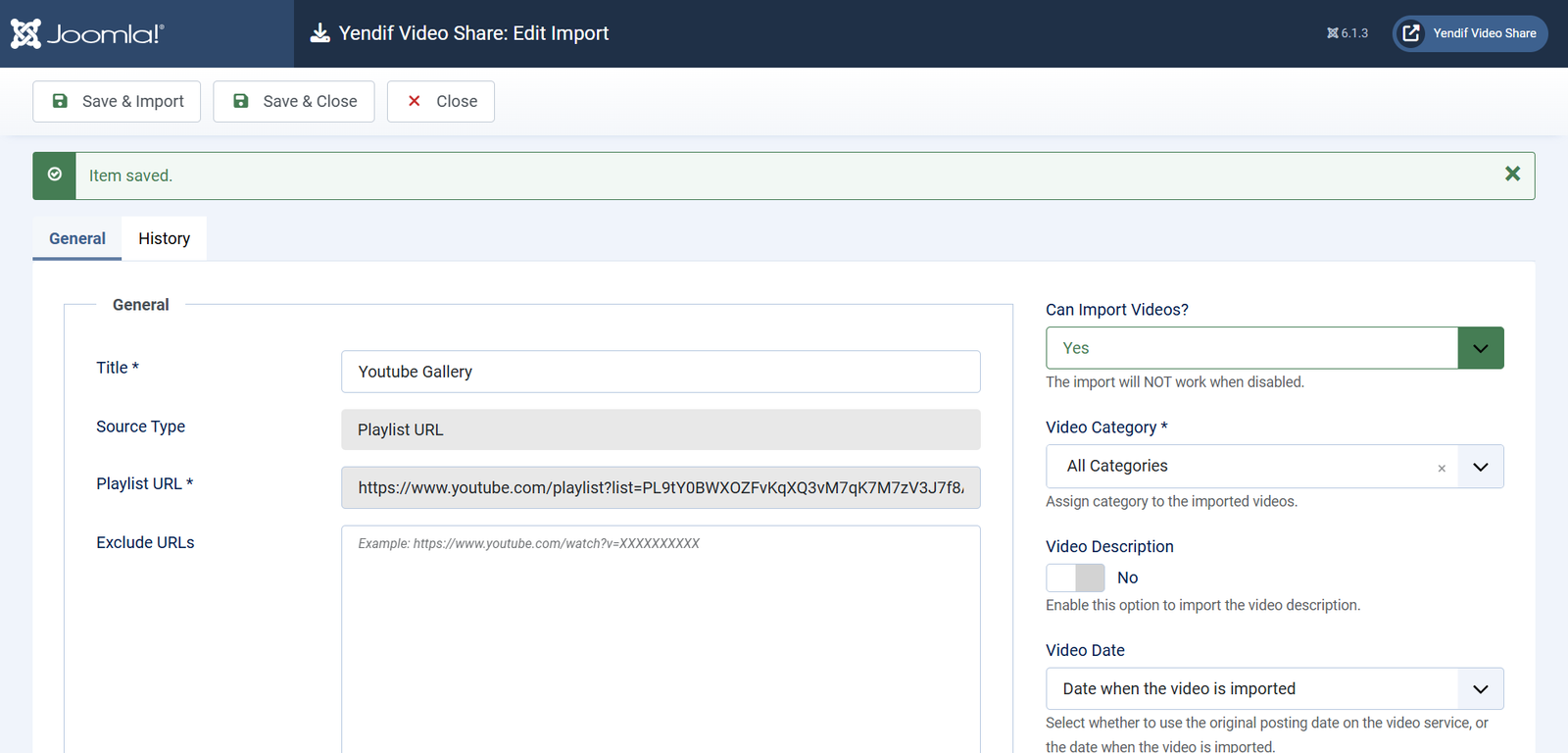
Every batch is recorded on the History tab, and each line links to the videos that batch created — useful if you need to undo one particular run.
Keeping it up to date automatically
Two settings turn a one-off import into something that maintains itself.
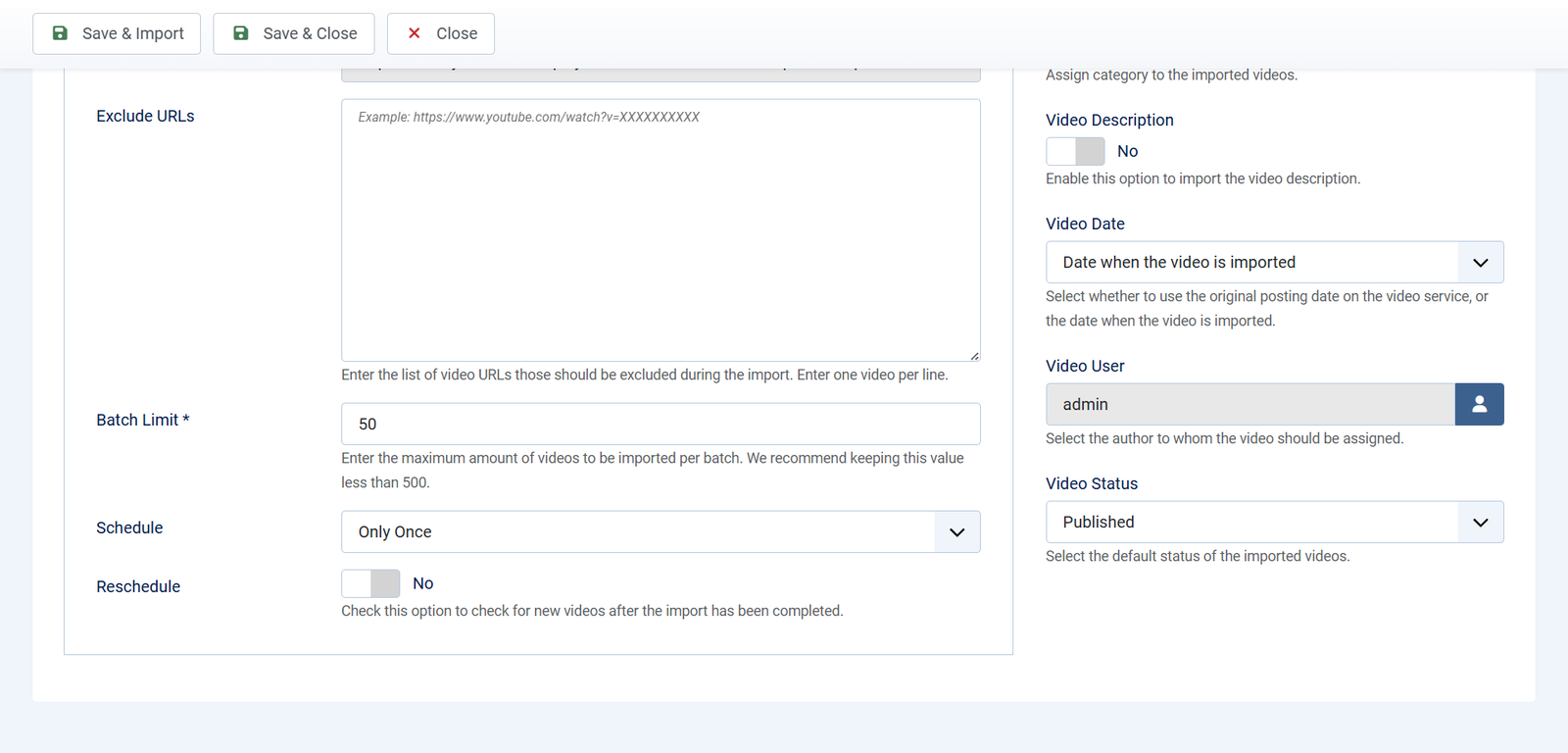
- Schedule — how often the next batch runs: Only Once, Every 1 Hour, Every 1 Day, Every 1 Week or Every 1 Month. Default: Only Once.
- Reschedule — keep checking for new videos after everything has been imported. Without this, the import stops for good once it reaches Completed. Default: No.
For a channel you want mirrored on your site, set Schedule to Every 1 Day and Reschedule to Yes. New uploads then appear on your site within a day, with no work from you.
How scheduled imports actually run — please read this one.
There is no cron job. Scheduled imports are triggered by visits to your website. Each time someone loads a page on the front end, the component checks whether an import is due and runs one batch if it is.
Two consequences worth knowing. A site with no visitors imports nothing — so if your traffic is thin and the schedule matters, point a cron job or an uptime monitor at any public page on your site to keep things ticking. And working in the Joomla admin does not count: imports only fire from front-end page loads, so nothing will happen while you sit watching the import screen.
Only one import runs per page load, and the component locks it while it runs — so two visitors arriving at the same moment cannot cause the same videos to be imported twice.
Leaving out videos you do not want
Importing a whole channel usually brings a few things you would rather not publish. There are two ways to deal with them, and the second is easier.
Before importing
Paste the video URLs into Exclude URLs, one per line. They are skipped on every run.
After importing
Just delete the video from your Videos list. Its URL is added to that import’s Exclude URLs automatically, so the next run will not bring it back.
This is the behaviour that makes scheduled channel imports practical. Import everything, delete the handful you do not want, and they stay gone — no list to maintain by hand.
What imported videos look like
Each imported video is an ordinary video record. You can edit it, feature it, move it to another category or add it to a related list, exactly as if you had created it by hand.
Filled in for you:
- The title, from YouTube.
- Source Type, set to YouTube.
- The YouTube URL.
- The thumbnail, fetched automatically.
- Category, author and status, as you chose in step 3.
- The description, if you enabled it.
Left for you to add, if you want them:
- Duration — add it by hand if you want the badge on the thumbnail.
- Meta Keywords and Meta Description.
- Related videos, unless you set them.
- Featured, which stays off.
- Preroll and postroll advertisements.
Editing an imported video does not disconnect it from the import. It keeps its link to the import that created it, so a later run will not create a duplicate.
If something goes wrong
When a run fails, the reason appears as a red banner at the top of the import form. Here is what each message means.
- An upgrade message instead of the form. YouTube import is a premium feature. Add your license key under Options → Licensing.
- “YouTube API Key Invalid or Missing.” No key, a mistyped key, or the YouTube Data API v3 is not enabled on your Google project. Check Options → Advanced → API Keys, and confirm the API is enabled in the Google Cloud Console.
- “Import source not found.” The URL is wrong, or the playlist or channel is private or deleted. Open the URL in a private browser window — if you cannot see it while logged out, neither can the importer.
- “No videos found matching your query.” The source is empty, or a search term matched nothing. Widen the search, or check the playlist actually contains public videos.
- Nothing imports, and no error appears. Can Import Videos? is set to No. Set it to Yes and save.
- Scheduled imports never run. They are triggered by front-end visits, not by cron. Point a cron job or uptime monitor at a public page on your site.
- A run stops part way through. The batch is hitting your server’s PHP time limit. Lower Batch Limit to 25 and use Import Next Batch more often.
- All videos share the same date. Video Date is set to the import date. Change it to Original date on the YouTube website — videos already imported keep the old date and need editing by hand.
- Imports stop working after months of success. You have probably exhausted your daily YouTube API quota. Check it in the Google Cloud Console; a longer Schedule and a smaller Batch Limit both use less.
What to try next
- Ask permission before loading YouTube and Vimeo
To ask visitors for consent before YouTube content loads. - Put videos on your homepage and sidebar
To show your newly imported videos on your homepage. - Get your videos found in search
To get your imported videos into site search. - Settings reference
To look up any setting in detail.