A library nobody can search is a library nobody uses. There are three separate things people mean by “search my videos”, and they are set up in different places — so it is worth knowing which one you actually want.
- A search box that searches only videos — set up the Search module. See Part 1.
- Videos appearing in your site’s main search, beside articles — set up Joomla Smart Search. See Part 2.
- Videos found on Google — sort out your URLs and metadata. See Part 3.
Most sites want the first two. All three are quick.
Part 1: A search box for your videos
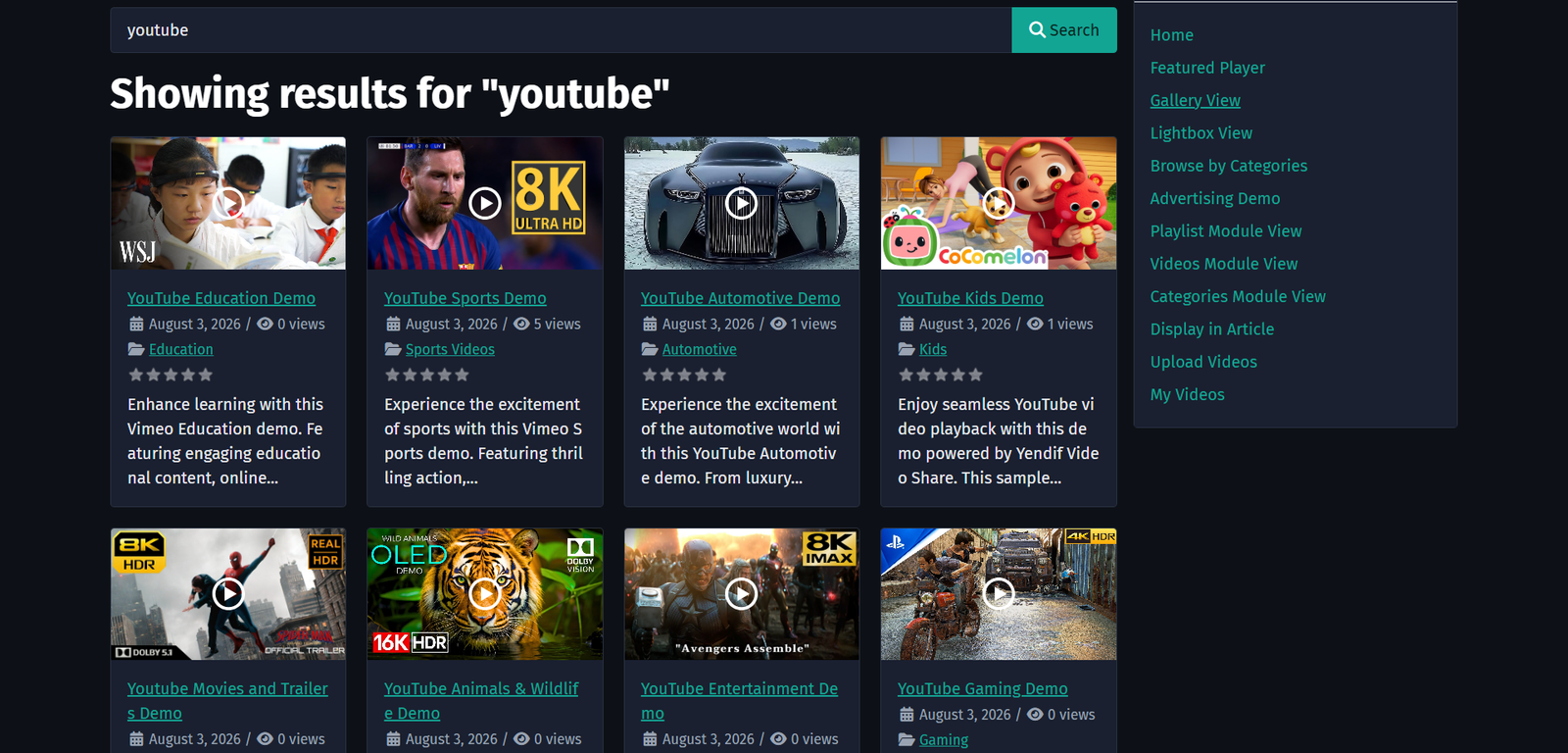
This gives visitors a box that searches your video library and nothing else. Results come back as a normal video grid.
Add the module
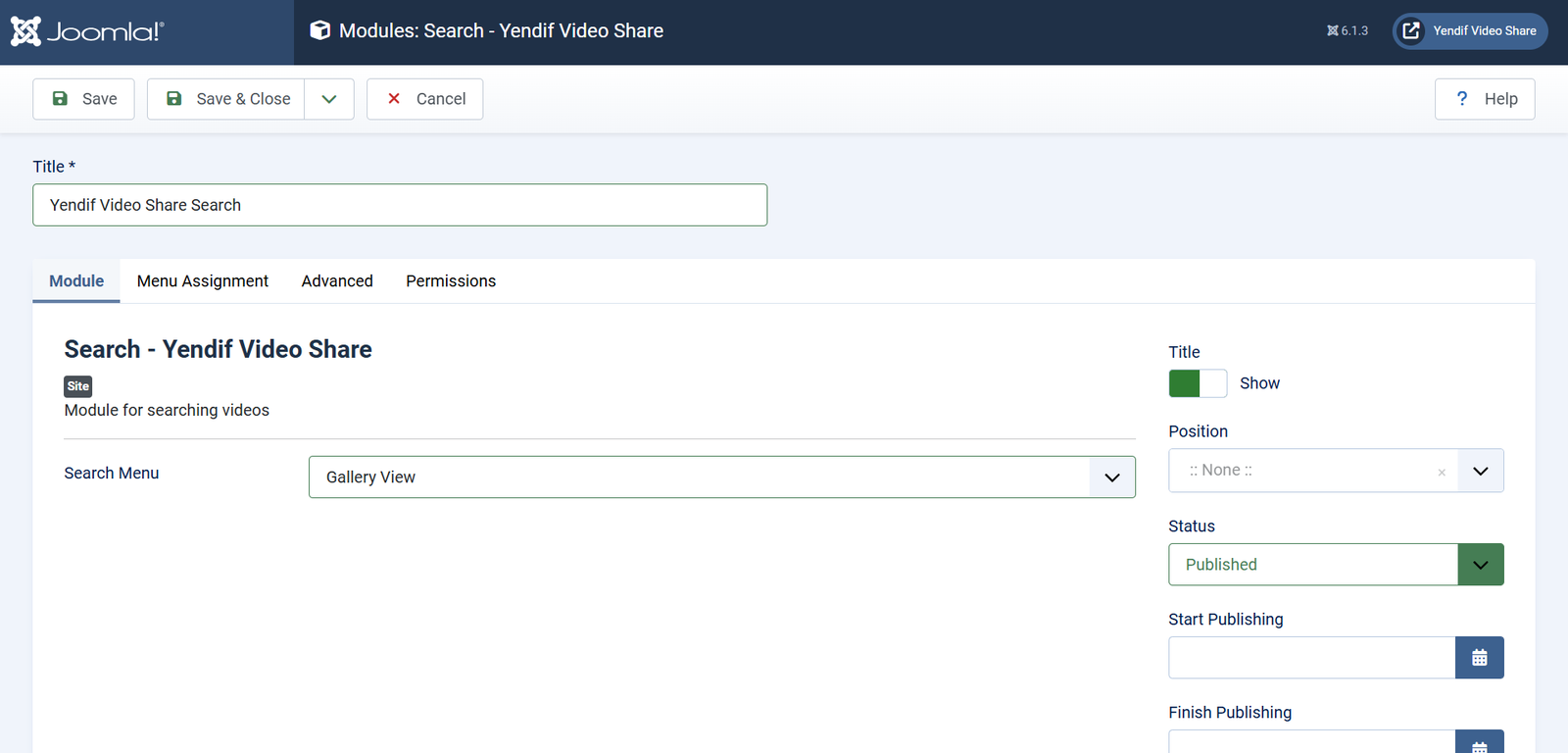
1. Select Content → Site Modules → New and choose Search – Yendif Video Share.
2. Type a Title, such as Search videos.
3. Set Search Menu to the menu item where results should appear. Choose one of your Yendif menu items — the Videos Layout item is the natural choice.
4. Choose a Position, set Menu Assignment to On all pages, then Save & Close.
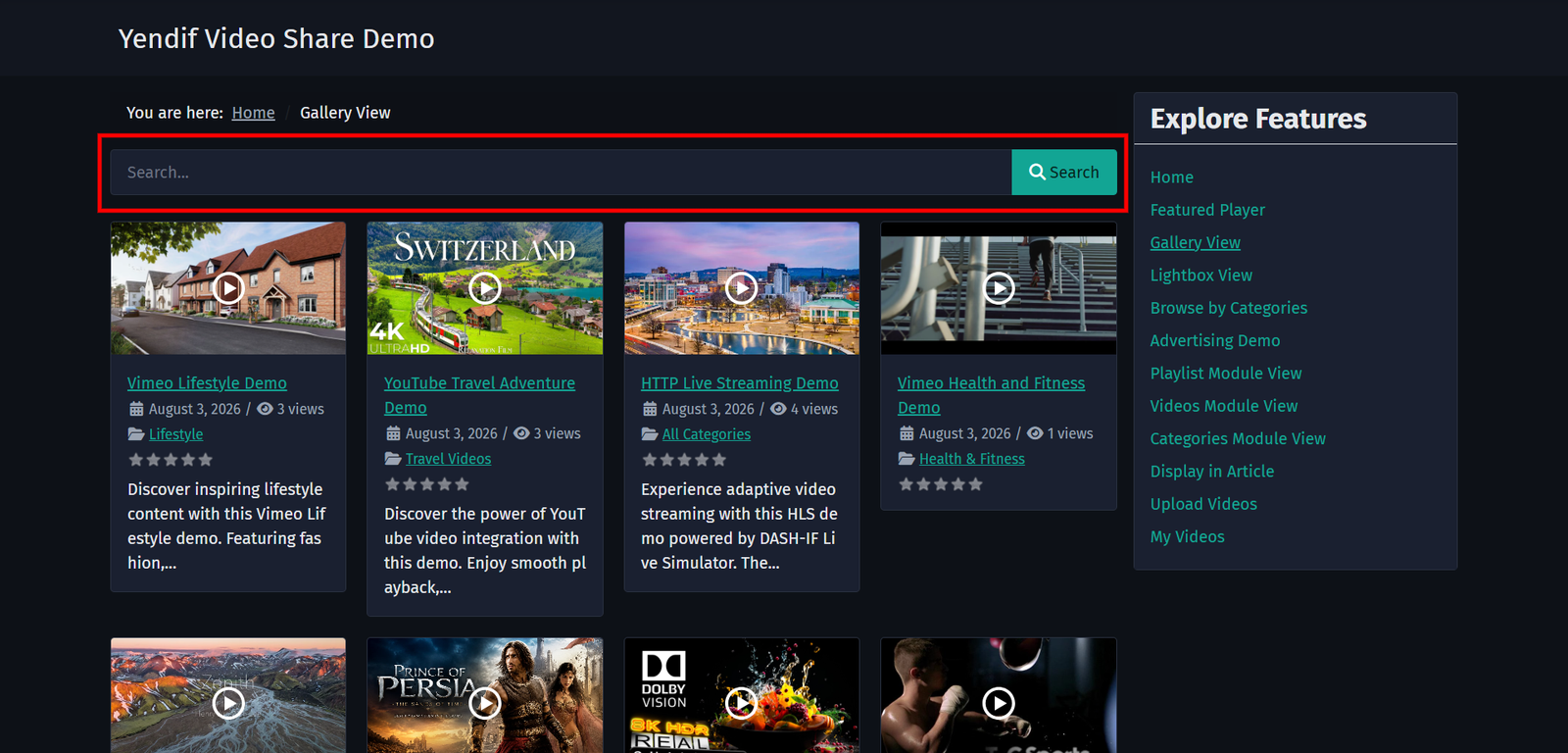
Check it worked: type a word you know appears in a video title and press search. The results page lists matching videos.
Set Search Menu. It decides which page renders the results, and therefore which template, module positions and grid settings they inherit. Left unset, results can land on whatever page the visitor happened to be on, which rarely looks right.
What the search actually looks at
A search term is matched against four fields on each video, so a match anywhere counts.
- Title — the obvious one.
- Description — anything you have written about the video.
- Meta Keywords — your chance to add words that are not in the title. See the tip below.
- Meta Description — also searched.
Use Meta Keywords as search synonyms. Because the field is searched, it is the ideal place for the words your visitors will actually type but you would never put in a title — abbreviations, misspellings, product codes, alternative names. A video called “Fitting the XR-40 bracket” could carry keywords like
xr40, mounting, install, how to.
There is also a shortcut for administrators: searching id:42 jumps straight to the video with that ID. Handy when you are checking a specific record.
The search box on the video page
Single video pages carry their own search box, above the player, without needing the module. It is on by default.
Turn it off at Options → Single Video Page → Search Form if you would rather rely on the module, or if it duplicates a search box your template already provides.
Part 2: Videos in your site’s main search
Joomla has its own site-wide search called Smart Search. With one plugin enabled, your videos appear in those results alongside your articles and contacts.
Step 1: Enable both plugins
This is the step people miss. Two plugins are involved, and Yendif’s one does nothing on its own.
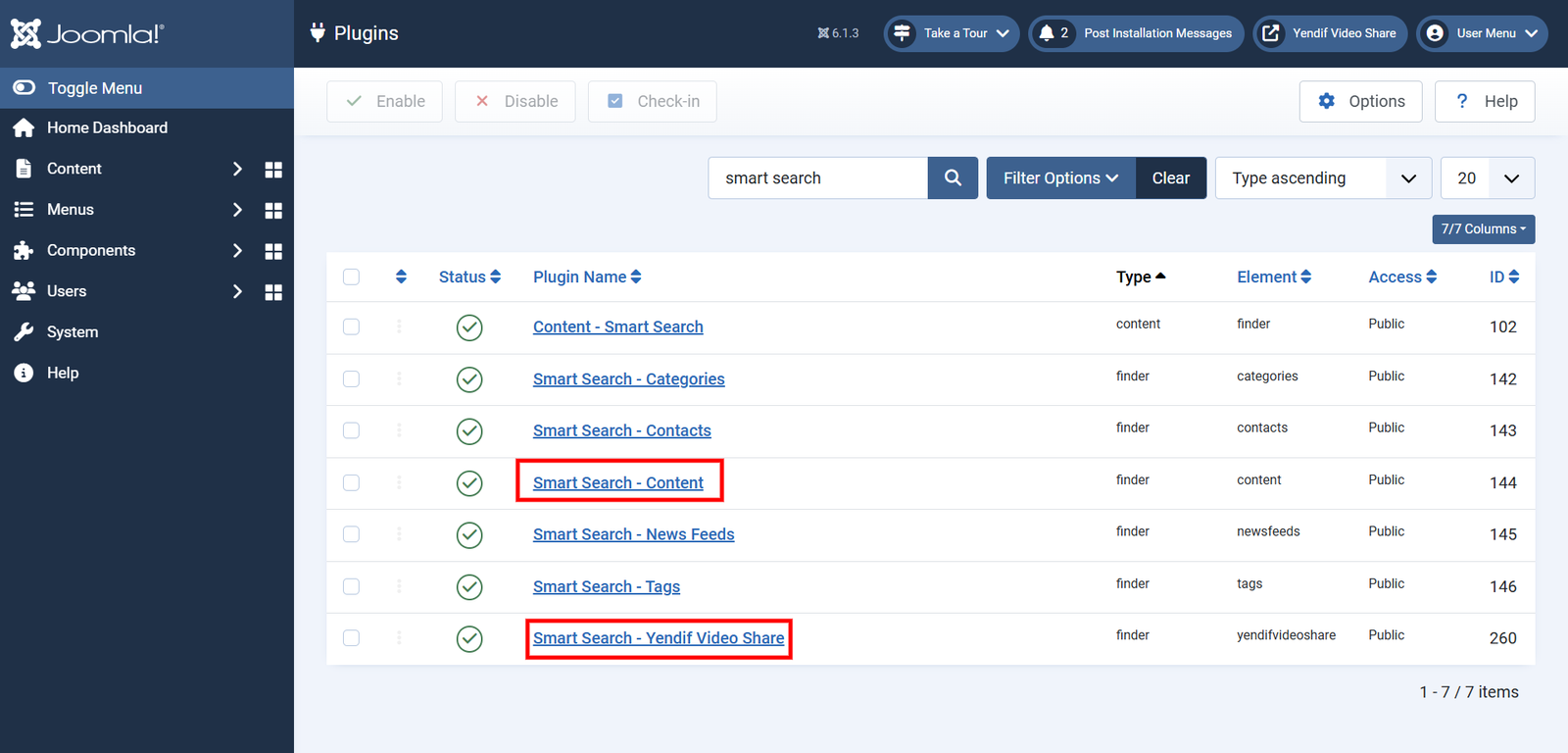
1. Select System → Plugins and search for smart search.
2. Make sure both of these are enabled.
- Content – Smart Search — Joomla’s own indexer. Nothing gets indexed without it.
- Smart Search – Yendif Video Share — feeds your videos to that indexer. Enabled for you during installation.
Step 2: Build the index
From now on, videos are indexed as you add and change them. Videos that already existed need indexing once.
1. Select Components → Smart Search → Index.
2. Click Index in the toolbar and wait for it to finish.
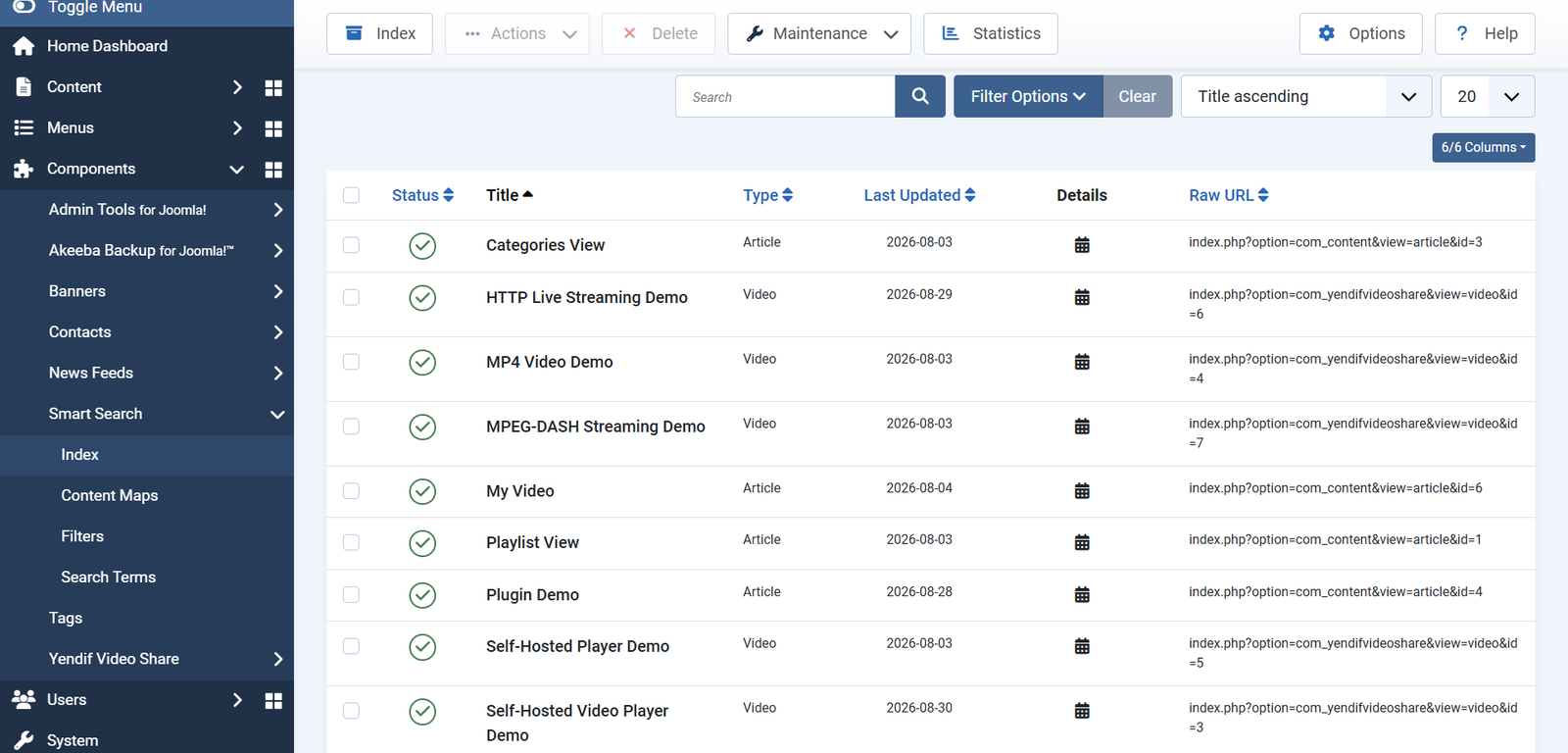
Check it worked: your videos appear in the index list, with Video as their type.
Step 3: What your visitors get
Videos now appear in your Smart Search results, and they arrive with labels Smart Search can filter on.
- Type: Video — lets visitors narrow a search to videos only, ignoring articles and everything else.
- Category — lets them narrow to one of your video categories.
- Author — lets them narrow to one contributor.
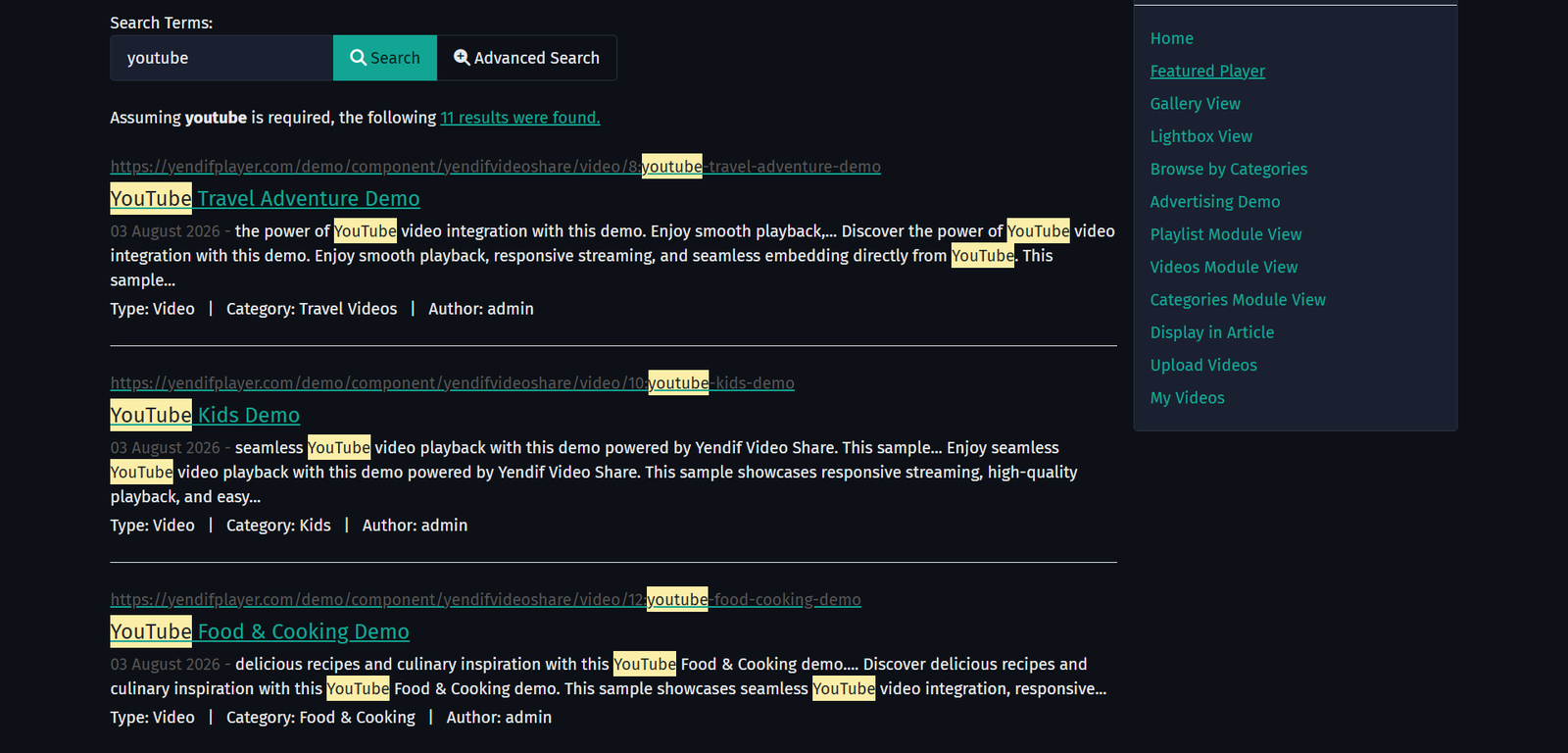
Unpublished videos, and videos in unpublished categories, are kept out of the results — so the index respects your publishing decisions without any extra work.
Videos you add with a
{yendifplayer}tag in an article are not indexed as literal tag text, so your search results stay clean.
Part 3: Being found on Google
Four things make the difference here, and three of them take a minute each.
Readable URLs
Turn on Search Engine Friendly URLs in System → Global Configuration → Site, and your video pages get readable addresses built from their aliases, nested under their category.
Then set Category Menu and Video Menu under Options → Advanced → SEO, so those URLs stay stable rather than depending on which page a visitor arrived from. This is covered in Set up your first video gallery.
Set each video’s Alias deliberately and then leave it alone. Changing an alias changes the URL, which breaks any existing links and loses whatever ranking that page had earned.
Metadata on every video
Each video has its own Meta Keywords and Meta Description, on the Advanced tab of the video form. Categories have the same fields.
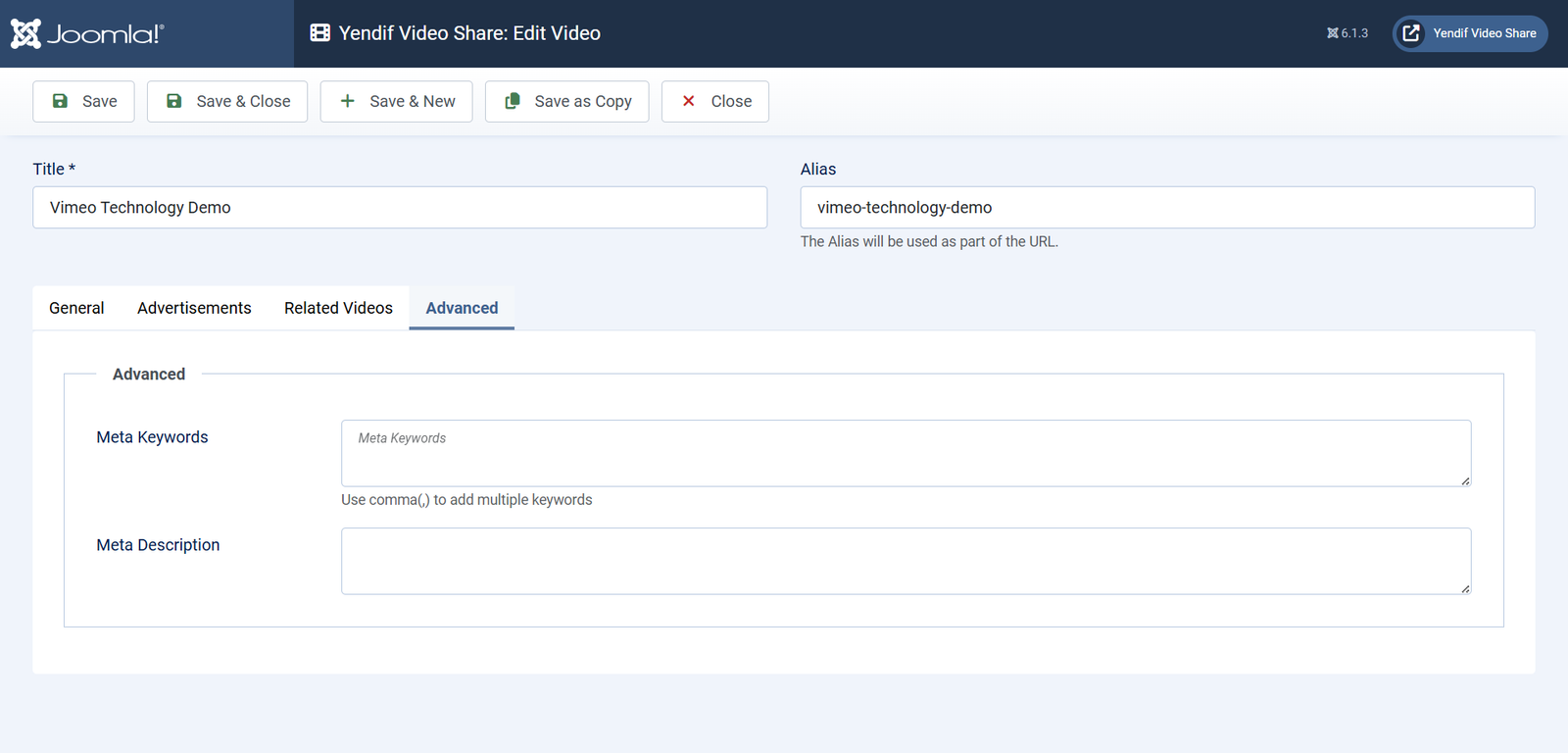
The Meta Description is what Google is likely to print under your link, so write it for a person deciding whether to click. It also doubles as the summary used when your page is shared on social media.
Social previews, already done
Every video page publishes the tags social networks read, so a shared link shows the video’s title, description and thumbnail rather than a bare URL. Nothing to switch on — just make sure each video has a good Image and a Meta Description.
Video rich results, if you want them
Google can show a video thumbnail beside a search result, but only when a page carries structured data describing the video. Yendif Video Share does not add that markup itself.
If those rich results matter to you, there are two routes:
- A Joomla SEO extension that adds video structured data to your pages.
- A template override of the video layout, adding the markup yourself. See Change how your gallery looks for how overrides work.
Your videos will be indexed and rank without it. This affects how the result looks, not whether it appears.
A note on sitemaps
Joomla does not generate an XML sitemap on its own, and neither does this component. If you use a sitemap extension, check whether it can index Yendif Video Share pages — most work by crawling your menus, which means the two menu items from the setup guide are usually enough for it to find everything.
RSS feeds
One more way people find and follow your videos. Turn on Options → General → RSS Feed → RSS Feed and your gallery and category pages offer a feed.
- RSS Feed — adds a feed link to your gallery and category pages. Default: No.
- Feed Icon — a custom icon for the feed link. Default: empty.
- Feed Limit — how many videos the feed contains. Default: 20.
Individual menu items can override the switch, so you can offer a feed on one gallery page and not another.
If something goes wrong
- Videos missing from Smart Search. Joomla’s own Content – Smart Search plugin is disabled, or the index was never built. Enable both plugins, then run Components → Smart Search → Index.
- Only recently added videos appear in Smart Search. Indexing happens as you save, so older videos were never indexed. Run the index once to catch up.
- A video search finds nothing. The term is not in the title, description or meta fields. Add the words people search for to Meta Keywords.
- Search results appear on an odd looking page. Search Menu is not set on the module. Set it to one of your Yendif menu items.
- Search results show videos a visitor cannot watch. Access levels protect playback, not listings. Expected — see Restrict videos to registered members.
- URLs still contain index.php and long query strings. SEF URLs are off in Joomla. Turn them on in System → Global Configuration → Site.
- Google shows the wrong description. Google prefers page content when a meta description is missing or weak. Write a specific Meta Description for the video.
- No thumbnail beside a Google result. Video structured data is not present. See Video rich results above.
What to try next
- Set up your first video gallery
To get your menu items and URLs set up properly. - Change how your gallery looks
To change how search results and galleries look. - Move your YouTube channel onto your site
To import a whole channel, then index it. - Settings reference
To look up any setting in detail.