Not every video should be public. You might be running paid training, a members’ library, an internal channel for staff, or simply keeping a few videos back for subscribers. Yendif Video Share uses Joomla’s own access levels for this, so if you already restrict articles you will recognise the whole process.
What you will build
Videos that only logged-in members can watch. Everyone else sees the title and description, and a polite message in place of the player.
How it works, in one paragraph
Every video has an Access setting. Joomla checks whether the current visitor’s user groups grant them that access level. If they do, the video plays. If they do not, the player is replaced with a permission notice.
There is one thing to understand before you plan a members’ library, because it shapes everything else.
Restricted videos still appear in your galleries.
Access levels protect playback, not visibility. A video restricted to members still shows its thumbnail, title and description in your gallery pages, modules and playlists — to everybody. What a non-member cannot do is watch it.
For most people selling access this is exactly right: visitors can see what they would get, which is what persuades them to sign up. But if you need videos completely hidden from non-members, see Hiding videos entirely further down.
Step 1: Create an access level for your members
Joomla ships with Public, Registered, Special and Super Users. Registered is enough if all you want is “logged-in visitors only” — skip to step 3 if so.
For a paid tier, make your own level so you can control exactly who is in it.
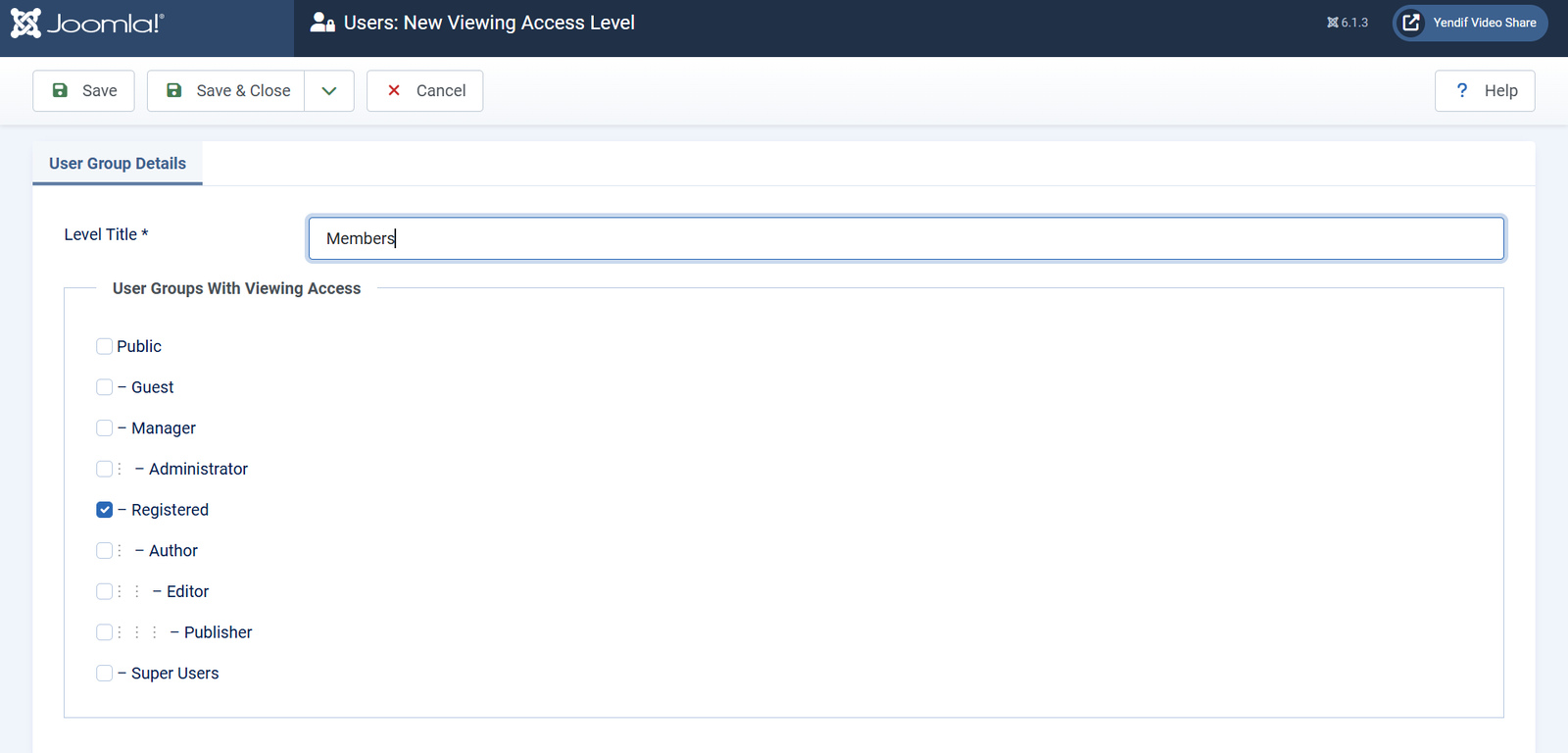
1. Select Users → Access Levels → New.
2. Type a Level Title, for example Members.
3. Tick the user groups that should have this access. Create a new group first under Users → Groups if you need one.
4. Click Save & Close.
Step 2: Put your members in the group
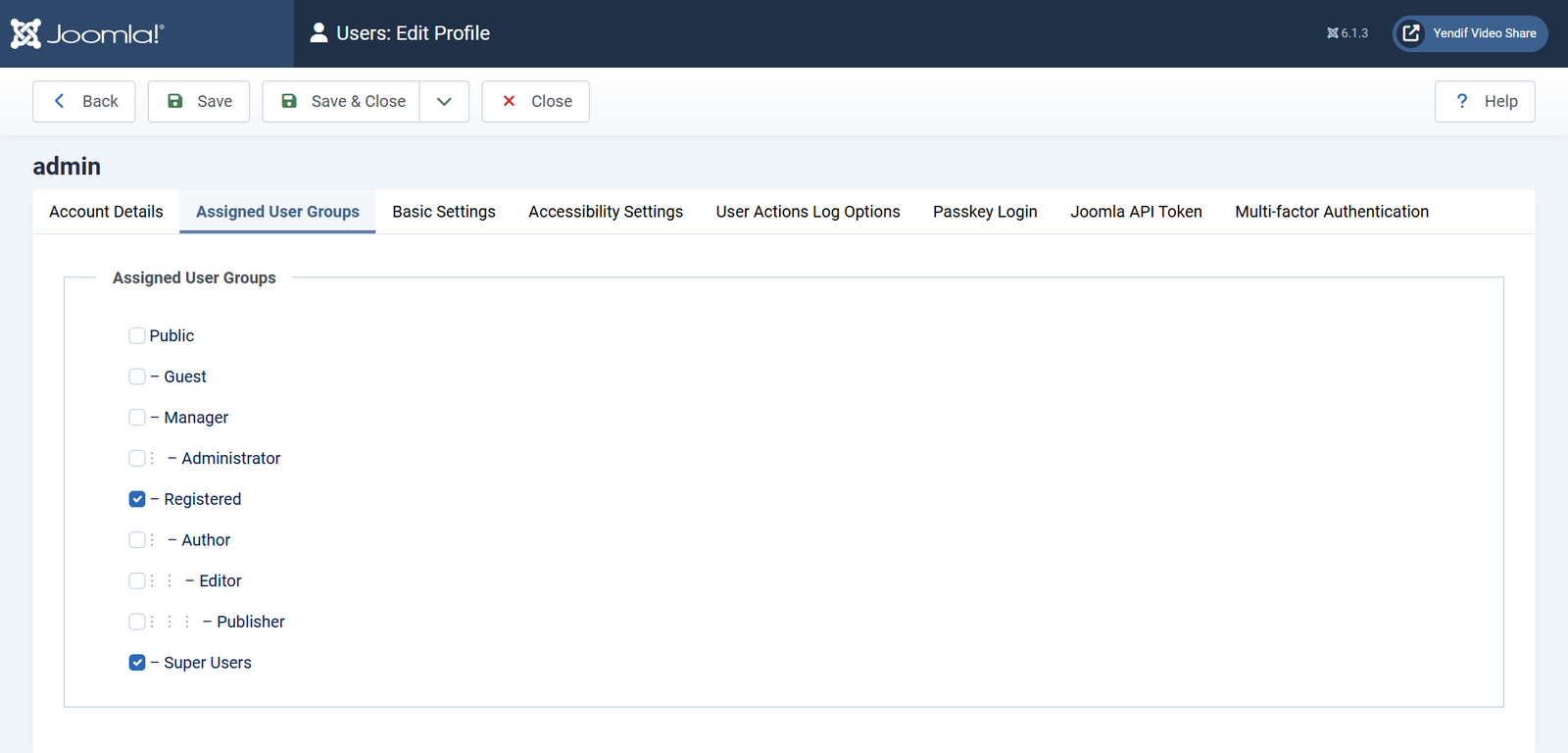
1. Select Users → Manage and open a user.
2. Open Assigned User Groups and tick your members group.
3. Click Save & Close.
Doing this by hand is fine for a handful of members. If you are selling access, a membership or subscription extension should manage group membership for you — see Charging for access below.
Step 3: Restrict the video
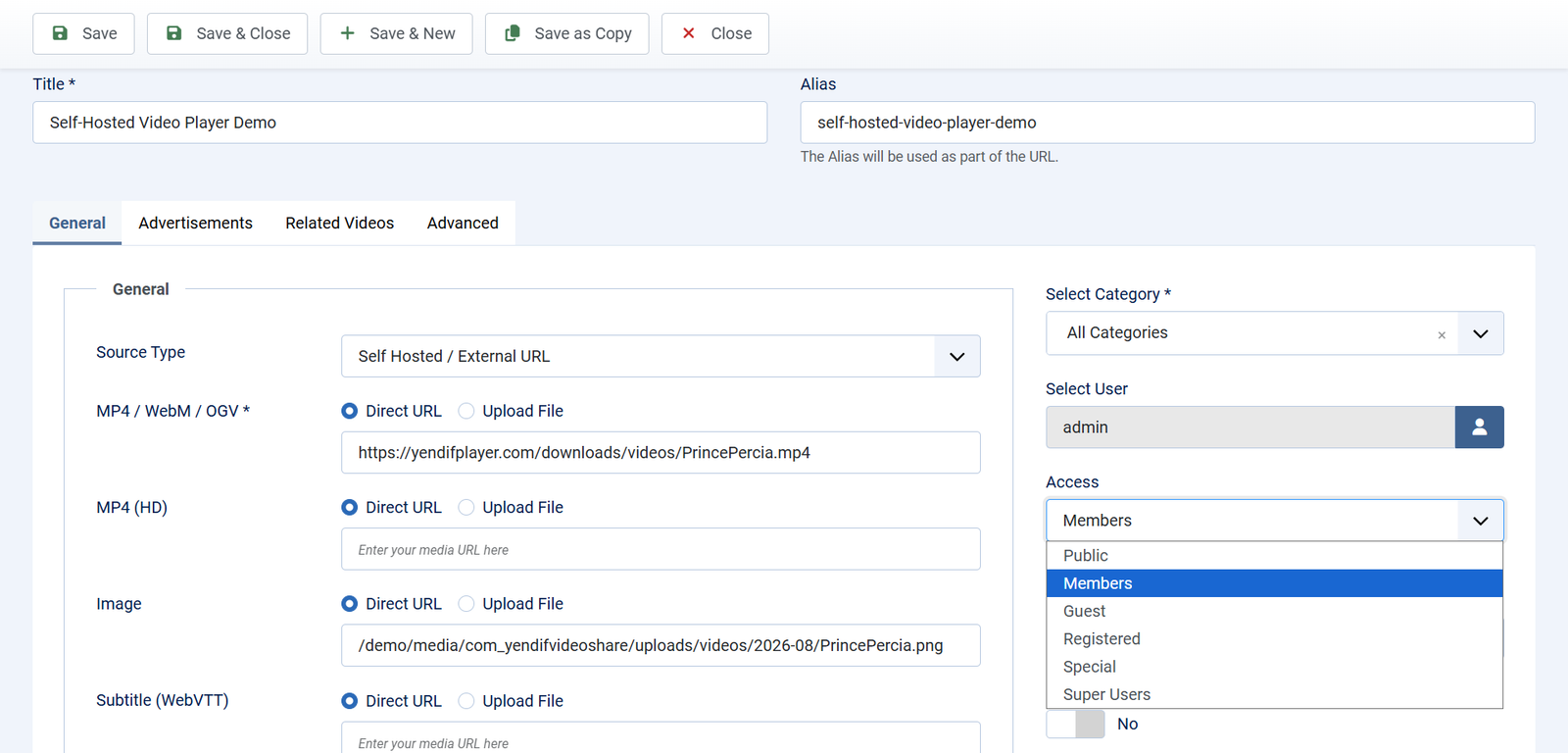
1. Open the video under Components → Yendif Video Share → Videos.
2. In the right hand column, set Access to Members.
3. Click Save & Close.
To restrict several videos at once, tick them in the Videos list and use Actions → Batch.
Step 4: Check it as a visitor would see it
Open the video page in a private or incognito browser window, so you are not logged in.
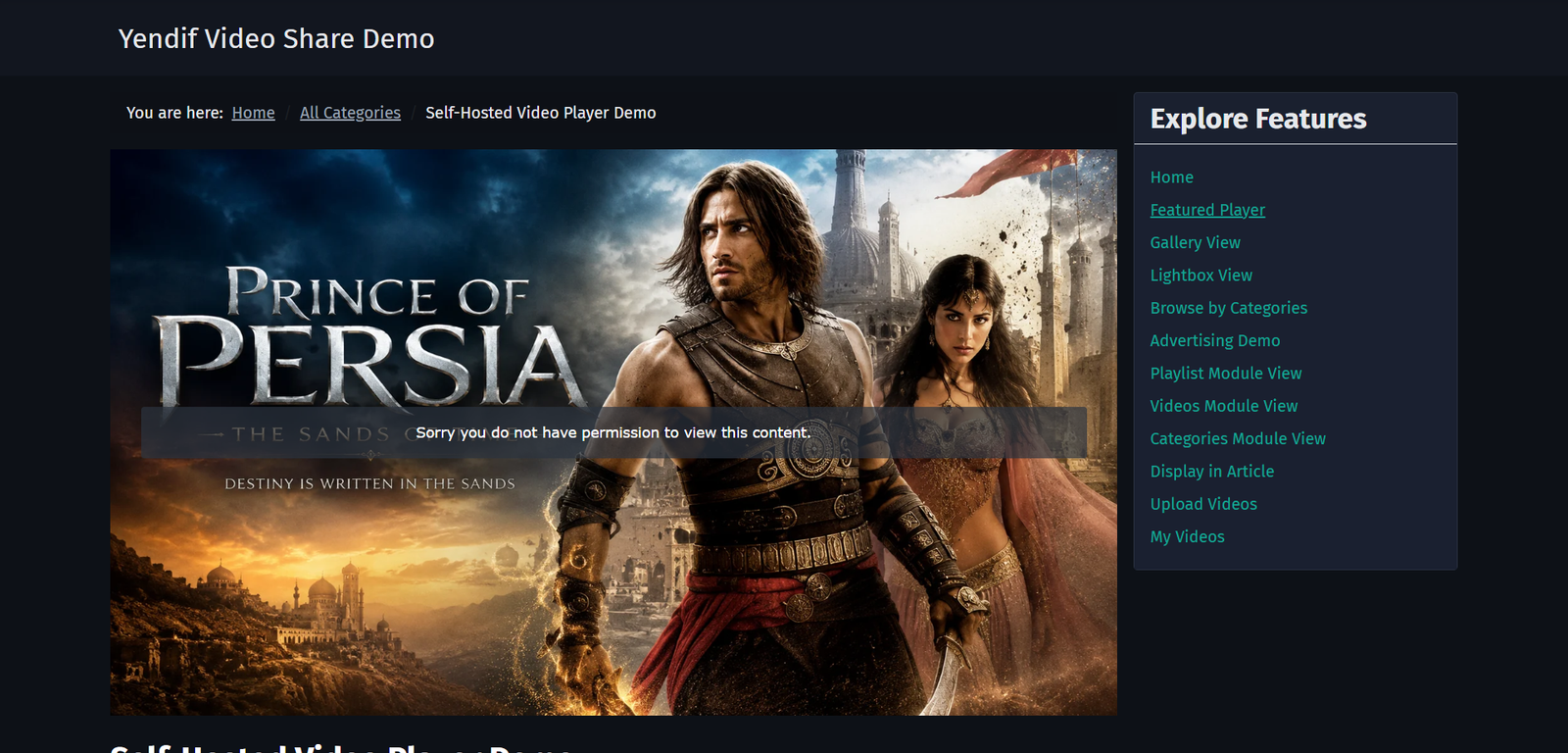
Check it worked: where the player should be, you see Sorry you do not have permission to view this content.
Here is precisely what changes for someone without access.
A non member still sees the video’s title, the author, date and view count line, and the full description.
A non member does not see any of these, all of which are hidden along with the player:
- The video itself — a permission notice appears in its place.
- The category link.
- Ratings and likes.
- Comments.
- Related videos.
- The search box.
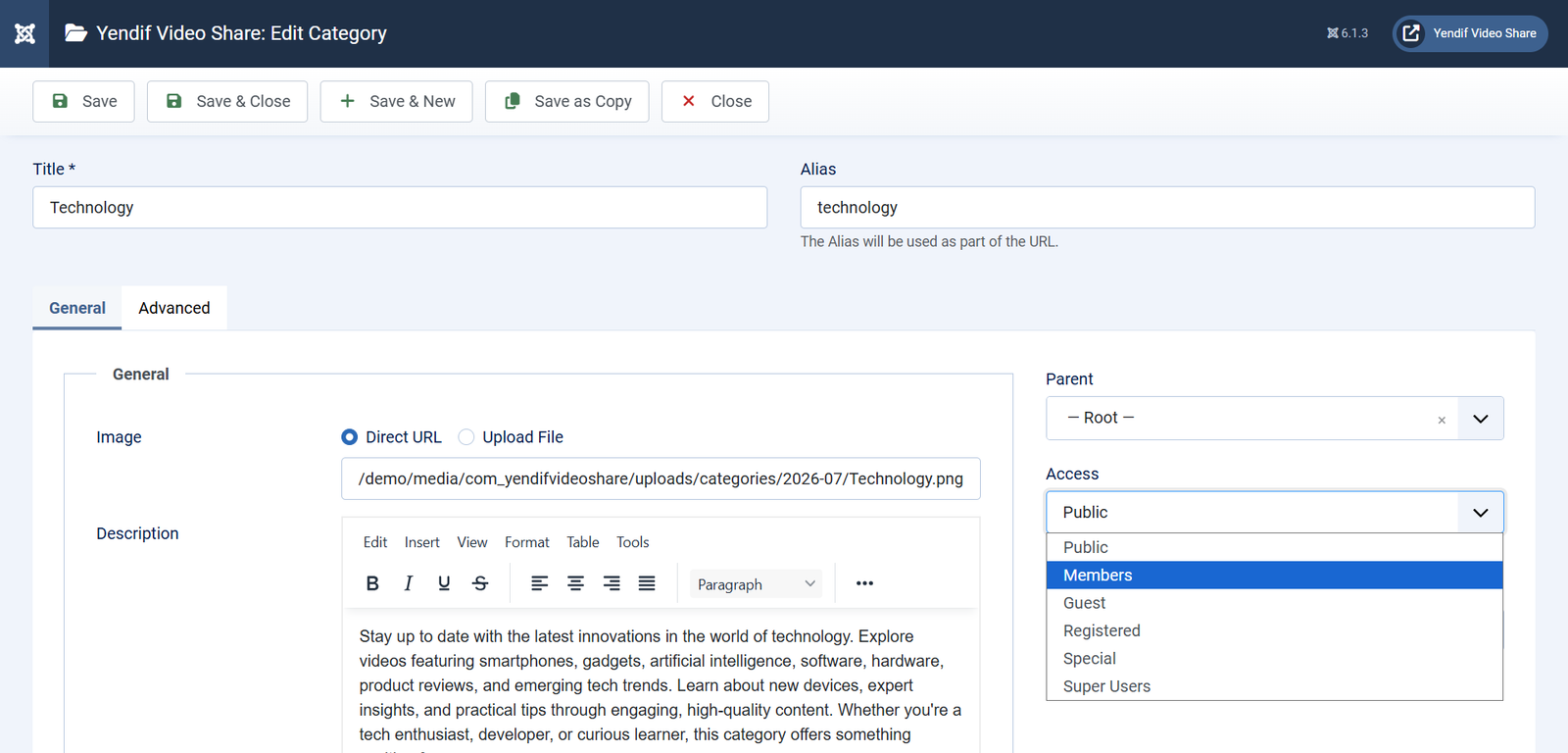
Notice that the title and description stay visible. That is useful — write the description as a sales pitch for what is behind the wall, and add a login or sign-up link to it.
Restricting a whole category
Categories have their own Access field, which is the tidier way to run a members’ library — put the paid content in a category and set the level once.
Open the category under Components → Yendif Video Share → Categories and set Access.
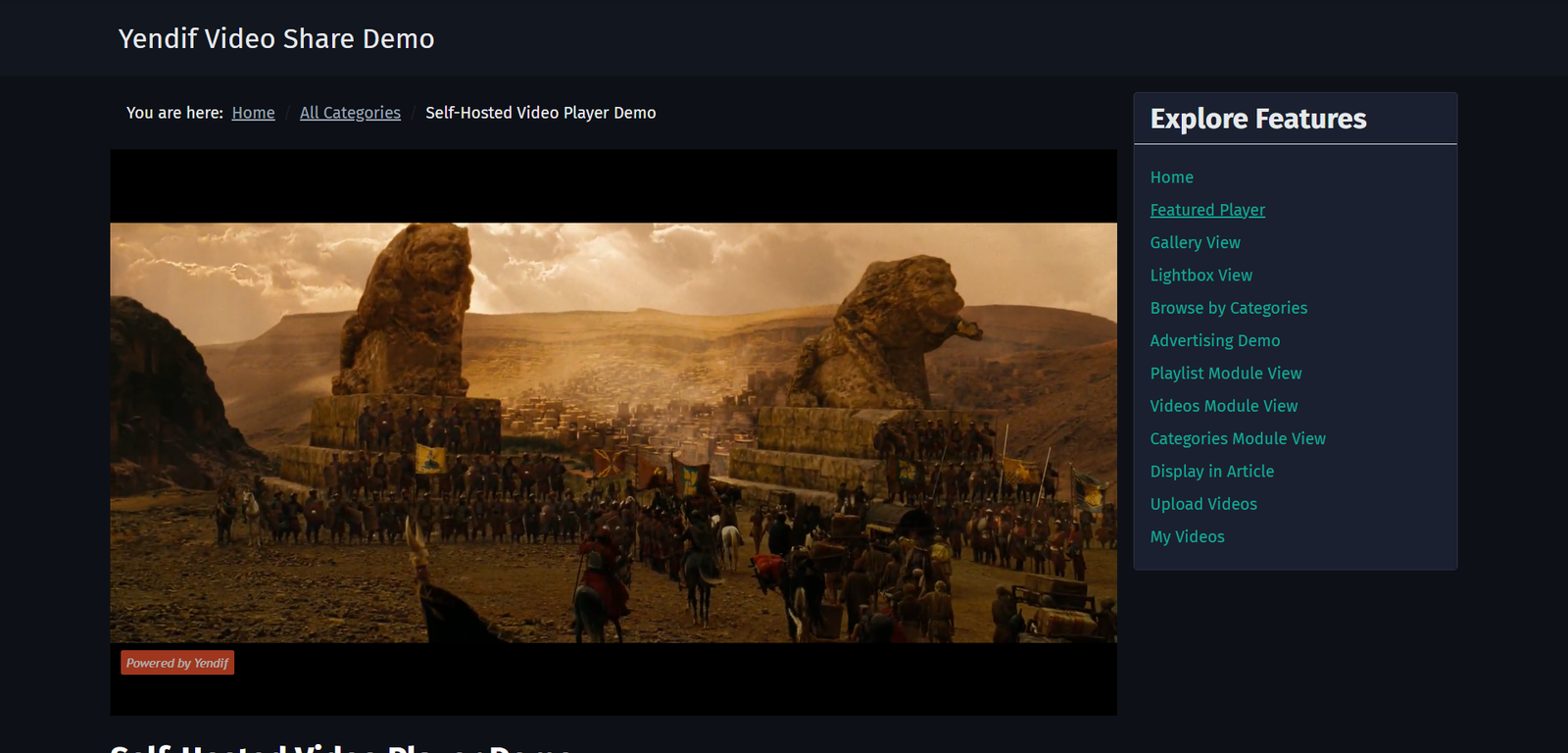
Set the Access level on the videos as well, not only on the category. The video’s own level is what the player checks before it plays, so a public video in a restricted category is still watchable by anyone who reaches it directly.
The quickest way to do both: set the level on the category, then tick every video in it and apply the same level with Actions → Batch.
Authors can always watch their own videos
One exception is built in. The user named in a video’s Select User field can always watch that video, whatever its access level and whatever groups they belong to.
This is deliberate, and useful when members submit videos from the front end — someone can always see their own upload, even if it sits in a category they have not paid for.
It also means you cannot hide a video from the person credited as its author. If a video must be invisible to a particular member, make sure they are not set as its user.
Hiding videos entirely
If a video must not even be mentioned to non-members, an access level alone is not enough — the thumbnail and title still appear in listings. Combine it with one of these.
- A members-only gallery page. Create a Categories Layout menu item pointed at your members category, and set the menu item’s Access to Members. This is reliable and the usual answer — just take care that no public module pulls from that category.
- Keep them out of public modules. On every public Videos or Playlist module, name the categories you want shown rather than leaving Select Category empty. An empty category setting means “everything”, which is how restricted videos usually leak onto a homepage.
- Unpublish until needed. Set Status to Unpublished, or use Start Publishing to release on a date. Nobody sees them at all this way, members included.
Whichever you choose, the video content itself is always protected. These techniques control whether people can see that it exists — not whether they can watch it.
Charging for access
Yendif Video Share does not take payments. It does not need to — it reads Joomla’s access levels, and Joomla membership extensions are built to manage exactly those.
The arrangement is simple:
- A membership, subscription or e-commerce extension handles signup and payment.
- On payment, it adds the customer to a Joomla user group.
- That group is attached to your Members access level.
- Your restricted videos become watchable, with no further work from you.
When a subscription lapses, the extension removes the user from the group and access closes again by itself.
Any membership extension that assigns Joomla user groups on payment will work. That is the only feature you need from it, so check for that specifically when you are choosing one.
One more thing about self hosted files
Access levels stop people watching through your site. They do not make a video file unreachable to somebody who already has its direct URL.
For most sites this is a reasonable position — the same is true of nearly every video platform, and a determined viewer can always record their screen. But if your content is genuinely valuable, take these steps as well.
- Set Download Button to Hide, under Options → Player → Player Controls, so you are not handing out the URL.
- Add a watermark under Options → Licensing, so copies are identifiable.
- Use Copyright Text, also under Licensing, to set the message shown when someone right-clicks the player.
- Host paid content behind a service that issues expiring or signed URLs, if the value justifies it.
If something goes wrong
- Restricted videos still show in the gallery. Expected — access levels protect playback, not visibility. See Hiding videos entirely.
- A member still gets the permission notice. Their user group is not attached to the access level, or they need to log out and back in. Check Users → Access Levels, then have them sign in again.
- You can watch it but your customer cannot. You are a Super User, who can see every access level. Always test in a private browser window.
- One person can watch a video they should not. They are set as the video’s Select User, and authors can always watch their own videos. Change the video’s user.
- A public video in a members category plays for everyone. The player checks the video’s own access level, not the category’s. Set the level on the videos too, using Actions → Batch.
- Members lost access after a change. An access level was renamed or a group unticked. Check Users → Access Levels and confirm the group is still ticked.
What to try next
- Let your members upload their own videos
To let members upload videos as well as watch them. - Settings reference
To control who can add, edit and publish videos. - Earn money from your videos
To earn from advertising instead of charging for access. - Set up the player how you want it
To add a watermark or a right-click notice.