Your license key unlocks the premium features and removes the Powered by Yendif badge from your player. It takes about a minute to add, and it is worth doing before you set anything else up — several features stay switched off until the key is in place, and hunting for a button that was never enabled wastes an afternoon.
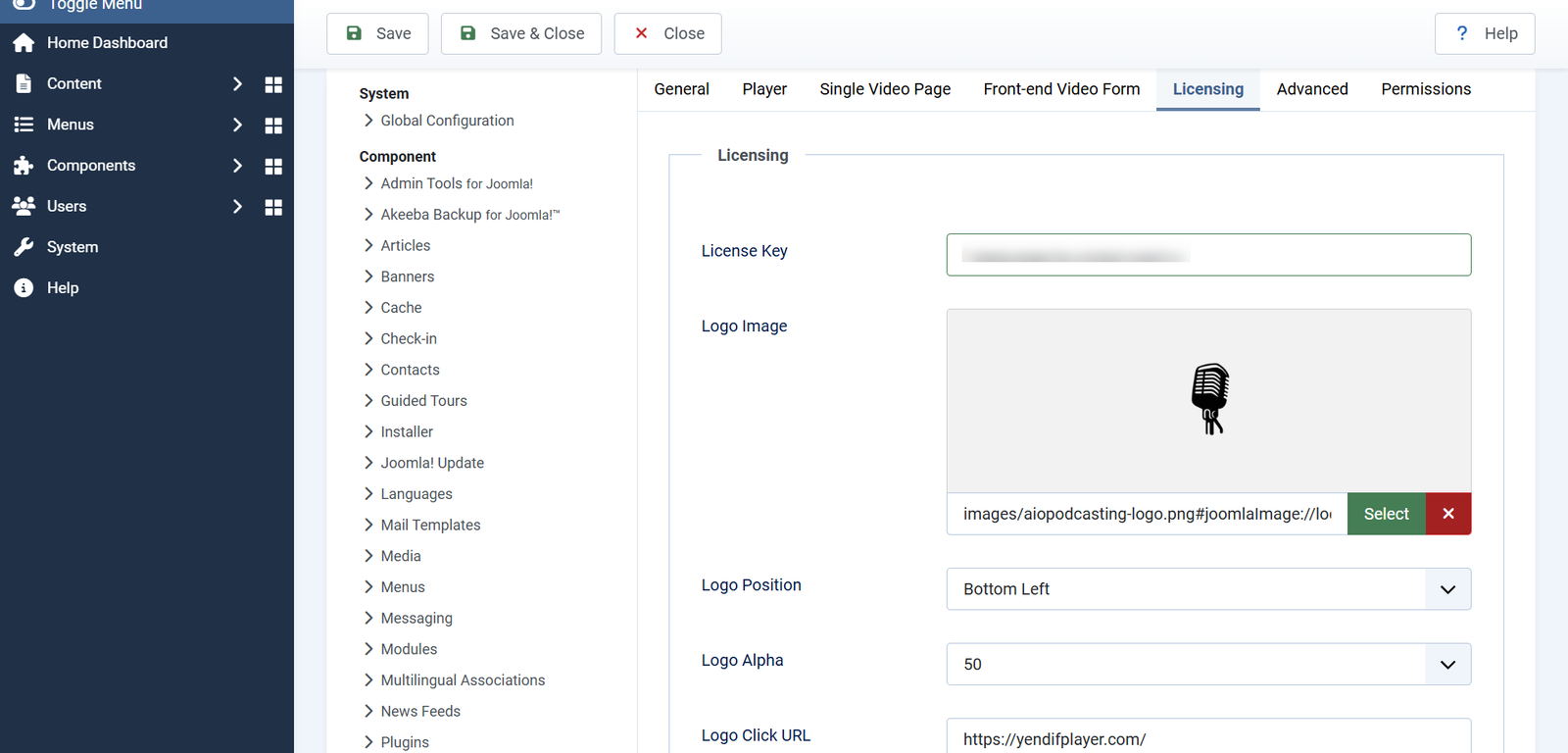
Find your key
Your key was issued when you bought the extension. It is in your purchase email, and in your account on this site. If you cannot find it, contact support with the email address you bought with and we will send it again.
Two things to know before you copy it:
- It is issued for your domain. A key made for one site will not work on another. See Your key and your domain below.
- Copy it exactly. It contains punctuation. Select the whole key, copy, and paste — do not retype it.
Add the key
1. Select Components → Yendif Video Share → Videos.
2. Click Options at the top right corner.
3. Open the Licensing tab.
4. Paste your key into License Key.
5. Click Save & Close.
That is the whole job. There is nothing to activate and no server to contact — the key is checked on your own site as each page loads.
The Licensing tab also holds your player watermark settings — Logo Image, Logo Position, Logo Alpha, Logo Click URL, Display Logo and Copyright Text. They live here because they only work once the key does. See Set up the player how you want it.
Check it worked
Open any video on the front end of your site and look at the bottom left corner of the player.
- An orange “Powered by Yendif” badge — the key is not being accepted. Work through If something goes wrong below.
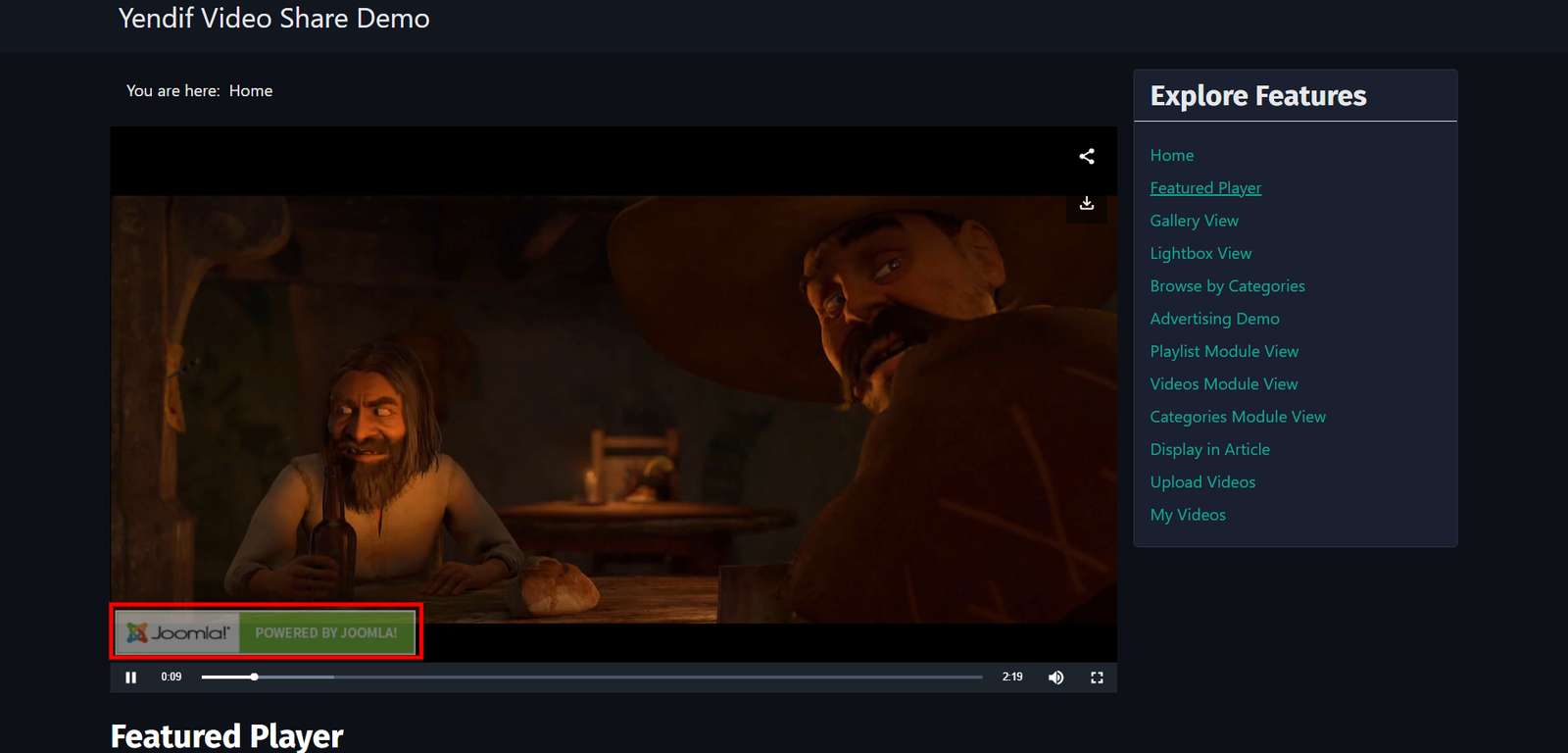
- No badge — the key is working. Your own watermark appears here instead, once you set one.
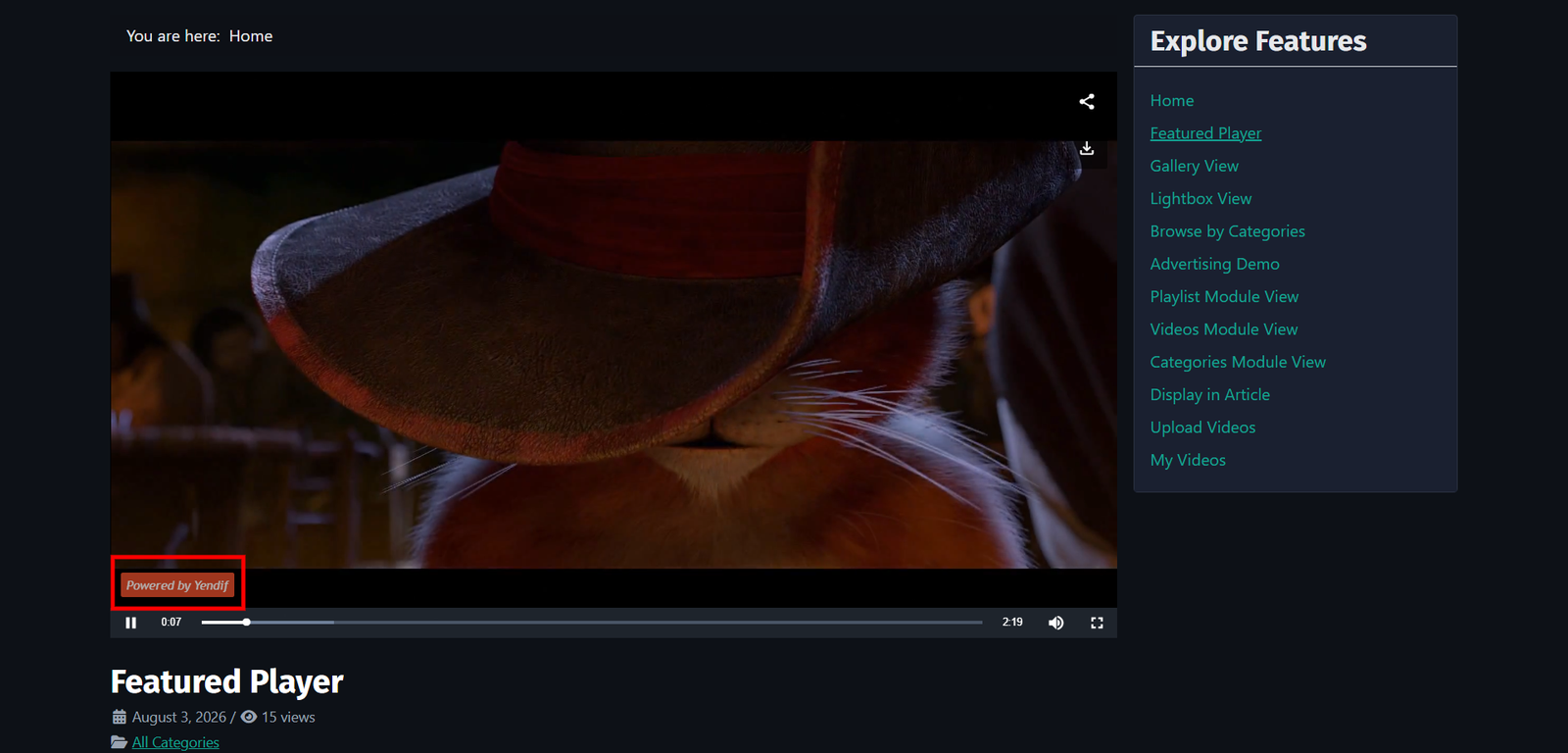
With the key in place, the badge is gone:
There is a second check for the admin side. Open Components → Yendif Video Share → YouTube Import. A normal empty list with a New button means the premium admin screens are available to you. An upgrade message means they are not.
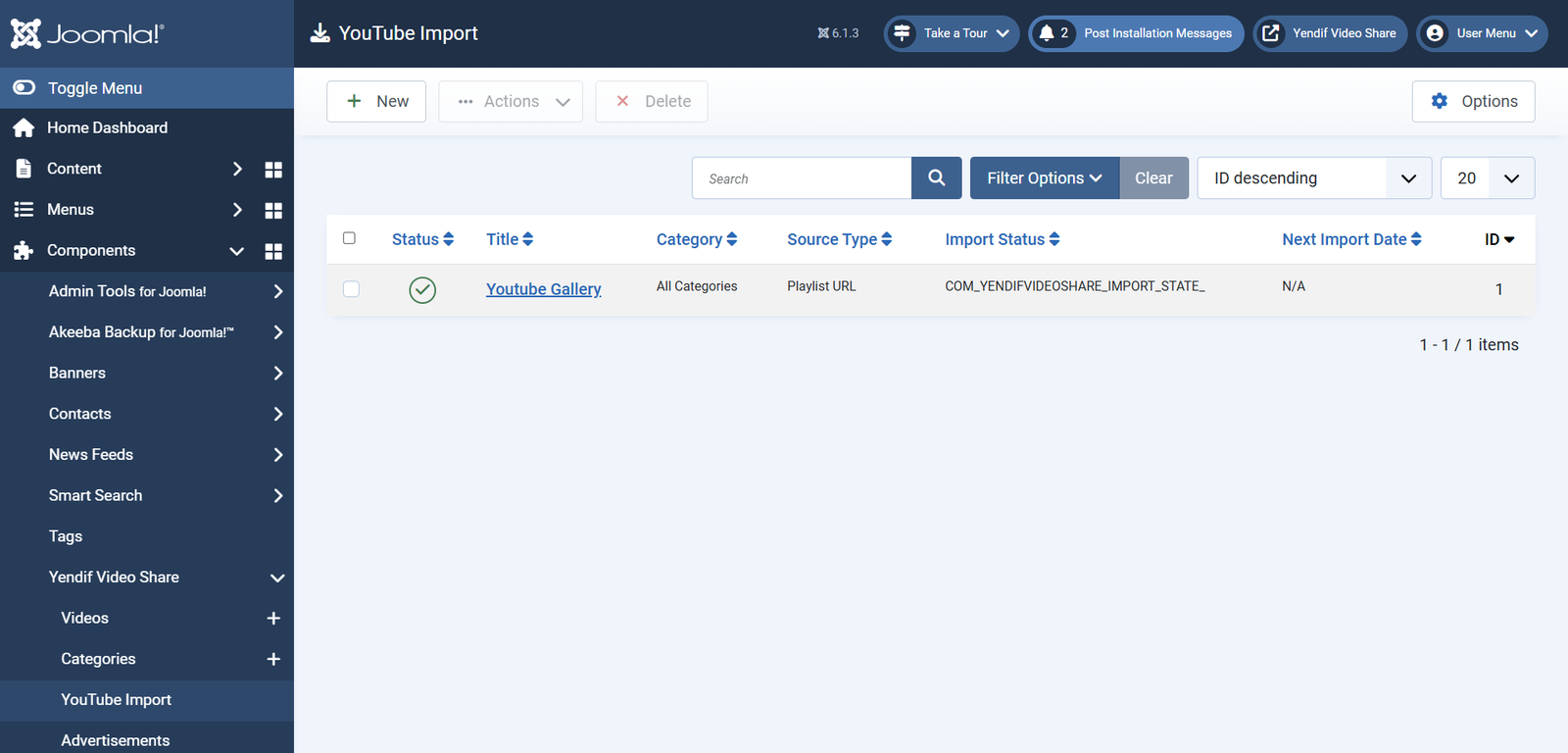
The two checks are separate. The admin screens are unlocked by the package you installed. The player badge and watermark are unlocked by the key on your domain. It is possible to see YouTube Import working while the player still shows the badge — that means the package is right but the key is not. Trust the player badge as your test of the key itself.
What the key unlocks
Without a key these are switched off, whatever their settings say. Setting one to Show changes nothing until the key is in place.
- Embed Button — Player → Player Controls.
- Share Buttons — Player → Player Controls.
- Download Button — Player → Player Controls.
- Open Videos in Popup — General → Gallery.
- Ratings — General → Ratings.
- Likes / Dislikes — General → Likes / Dislikes.
- Advertisements, both kinds — Player → Advertisements.
- YouTube bulk import — Components → Yendif Video Share → YouTube Import.
- Your own player watermark — Options → Licensing.
- Your own right-click message — Options → Licensing, Copyright Text. Without a key it reads “Powered by Yendif”.
Everything else works without a key. Galleries, categories, the player itself, YouTube and Vimeo videos, live streams, modules, the {yendifplayer} tag, access levels and front-end submission are all included.
Your key and your domain
Your key is issued for the domain your site runs on. The player compares the key against the address in the visitor’s browser, so the same key behaves differently depending on where the site is served from.
- www or no www — the same. A key for
example.comworks onwww.example.comtoo. You do not need two. - A different domain — a different key.
example.comandexample.netare separate sites as far as the key is concerned. - A subdomain — a different key.
staging.example.comis not covered by a key forexample.com. - localhost or an IP address — not covered. A local development copy will show the badge. That is normal and nothing is wrong.
- HTTP or HTTPS — makes no difference. Only the domain matters.
So if you build on a staging site and then go live, expect the badge to appear on staging and disappear on the live domain. Nothing needs changing when you launch, as long as the key you were issued is for the live domain.
Moving an existing site to a new domain is different — your key stops matching, and you will need one for the new domain. Contact support before you move, with your order details and the new domain.
If something goes wrong
- The badge is still there after saving. Re-open Options → Licensing and check the key actually saved. If it looks right, the most likely cause is the domain — see Your key and your domain above.
- The badge is still there, and the key looks correct. Something was lost in the copy. Delete the field’s contents entirely, copy the key again from your email, paste, and save. Copying from a PDF or a formatted email is the usual culprit.
- The badge is gone but the page still looks unlicensed. Your browser or your site is serving a cached page. Clear the Joomla cache under System → Clear Cache, then reload with a hard refresh.
- A premium setting is set to Show but nothing appears. Premium features are forced off without a working key, whatever the setting says. Fix the key first, then revisit the setting.
- Your watermark does not appear. The watermark needs the key. Once the badge is gone, check Display Logo is on and open the Logo Image URL directly in your browser to confirm it loads.
- The right-click message says “Powered by Yendif”. Same cause — Copyright Text only applies once the key does.
- It worked, and now it does not. The site moved domain, or is being reached on a different address than before. Check what is in your browser’s address bar against the domain your key was issued for.
- You have lost the key. Contact support with the email address you purchased with.
What to try next
- Set up your first video gallery
To go from a fresh install to a working gallery. - Set up the player how you want it
To add your watermark and set up the player controls the key just unlocked. - Earn money from your videos
To use the advertising the key just unlocked. - Get visitors rating and discussing your videos
To turn on star ratings and likes. - Troubleshooting
To find any other symptom and what to do about it.