Yendif Video Share plays HLS and MPEG-DASH streams, which is what almost every live streaming service produces. Church services, conferences, classes, sports, 24/7 channels — if your encoder or streaming provider gives you a stream URL, you can put it on your Joomla site.
One thing to be clear about first. Yendif Video Share plays streams. It does not create them. You still need something producing the stream — a streaming service, a media server, or an encoder. This guide starts from the point where you have a stream URL in your hand.
What you will build
A live stream playing on your site, with a live indicator, automatic quality switching, and a friendly message when the stream is off air.
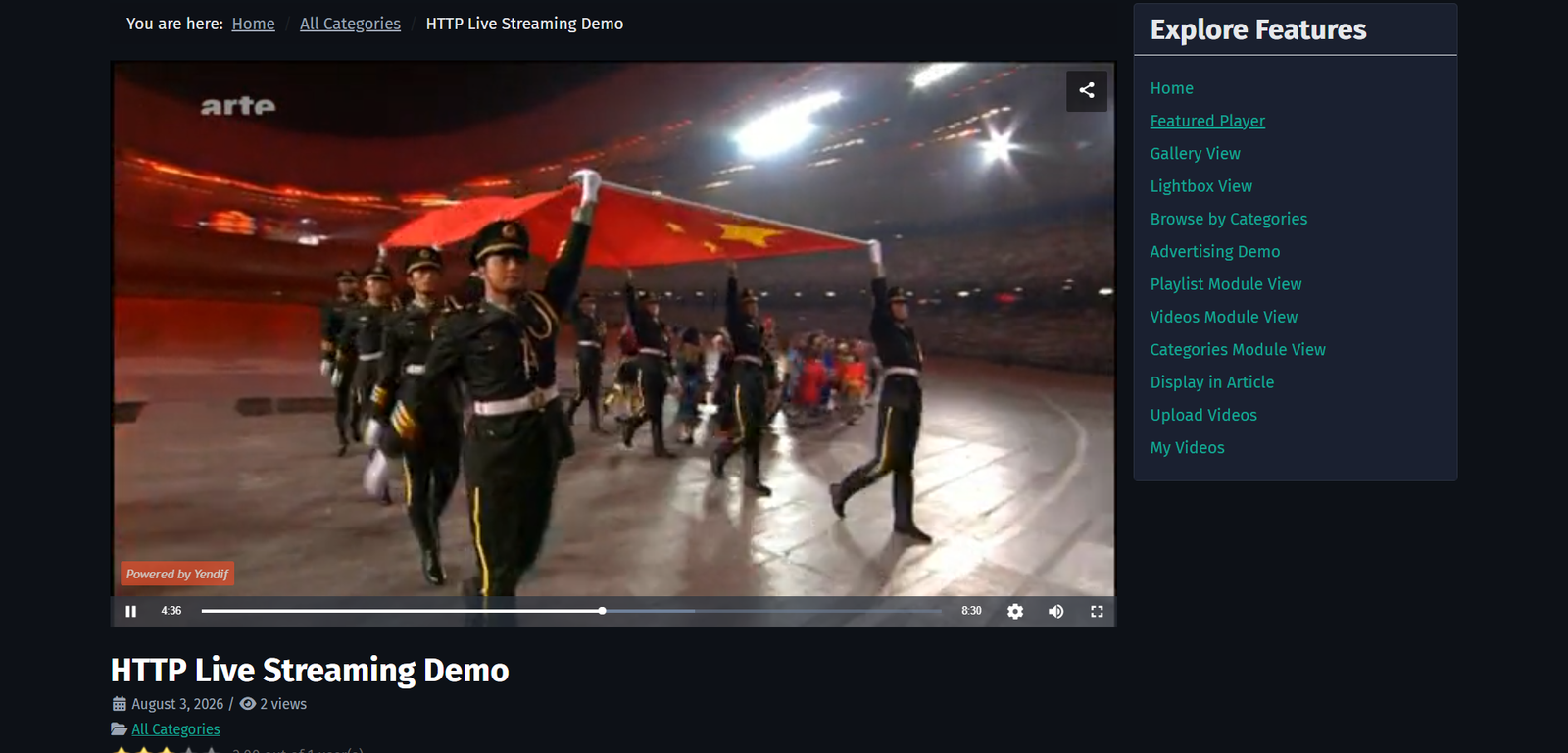
Step 1: Get your stream URL
You are looking for a URL ending in .m3u8 for HLS, or .mpd for MPEG-DASH. Every streaming platform calls it something slightly different.
- A streaming platform such as Wowza, Dacast, Castr or Vimeo Live — look for the HLS playback URL or m3u8 URL in your channel settings.
- Your own media server — the HLS output URL, usually something like
https://stream.example.com/live/channel.m3u8 - A CDN in front of your encoder — use the CDN playback URL rather than the origin, so viewers do not all hit your encoder directly.
- A 24/7 or scheduled channel — the same HLS URL. The player does not care whether a stream is live or looping.
Test it before you go any further. Paste the URL into your browser’s address bar. HLS should download a small text file; if you get a 404 or an access error, the problem is with your streaming provider and no player will fix it.
Use an HTTPS stream URL. If your site runs on HTTPS and your stream URL starts with
http://, browsers block it as insecure content and the player stays blank with no useful message. Ask your provider for the secure URL.
Step 2: Add the stream as a video
A live stream is an ordinary video record with a different source type.
1. Select Components → Yendif Video Share → Videos → New.
2. Type a Title, for example Sunday Service — Live.
3. Set Source Type to HLS / MPEG-DASH.
4. Paste your stream URL into HLS.
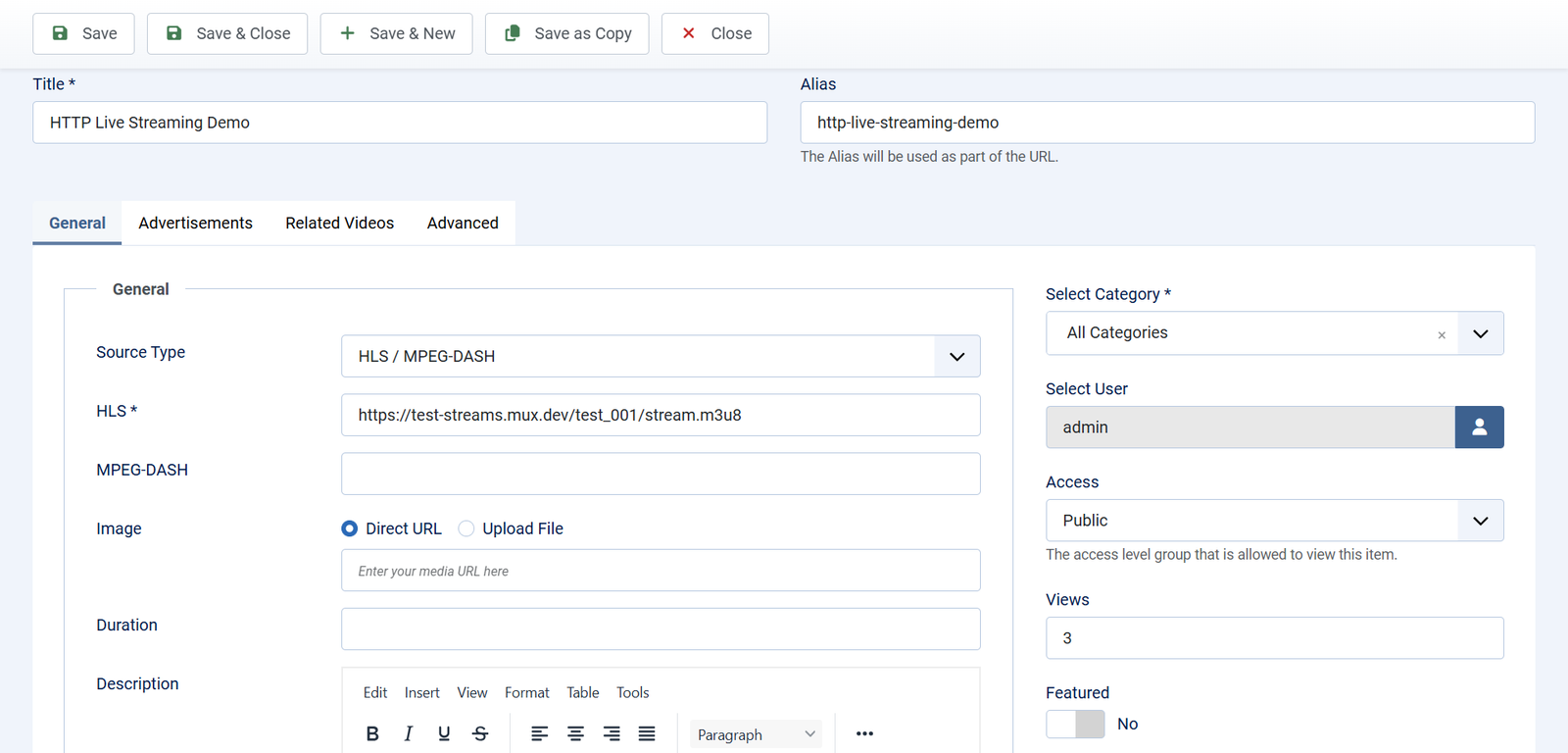
- HLS — your
.m3u8stream URL. This is the one to fill in. - MPEG-DASH — your
.mpdURL, if your provider gives you one. Optional.
5. Set Select Category in the right hand column, then click Save.
Fill in HLS even if you also have DASH. HLS works in every modern browser, on every phone, and on Apple devices natively. MPEG-DASH support is patchier. If you only fill in one field, make it HLS.
Step 3: Add a poster image
This step is easy to skip and you should not skip it.
YouTube and Vimeo videos get a thumbnail fetched automatically. A stream cannot — there is nothing to fetch a picture from. Without an image, your stream shows a grey placeholder everywhere it appears, including in your gallery when the stream is off air.
Fill in the Image field with a URL, or switch to Upload File and upload one.
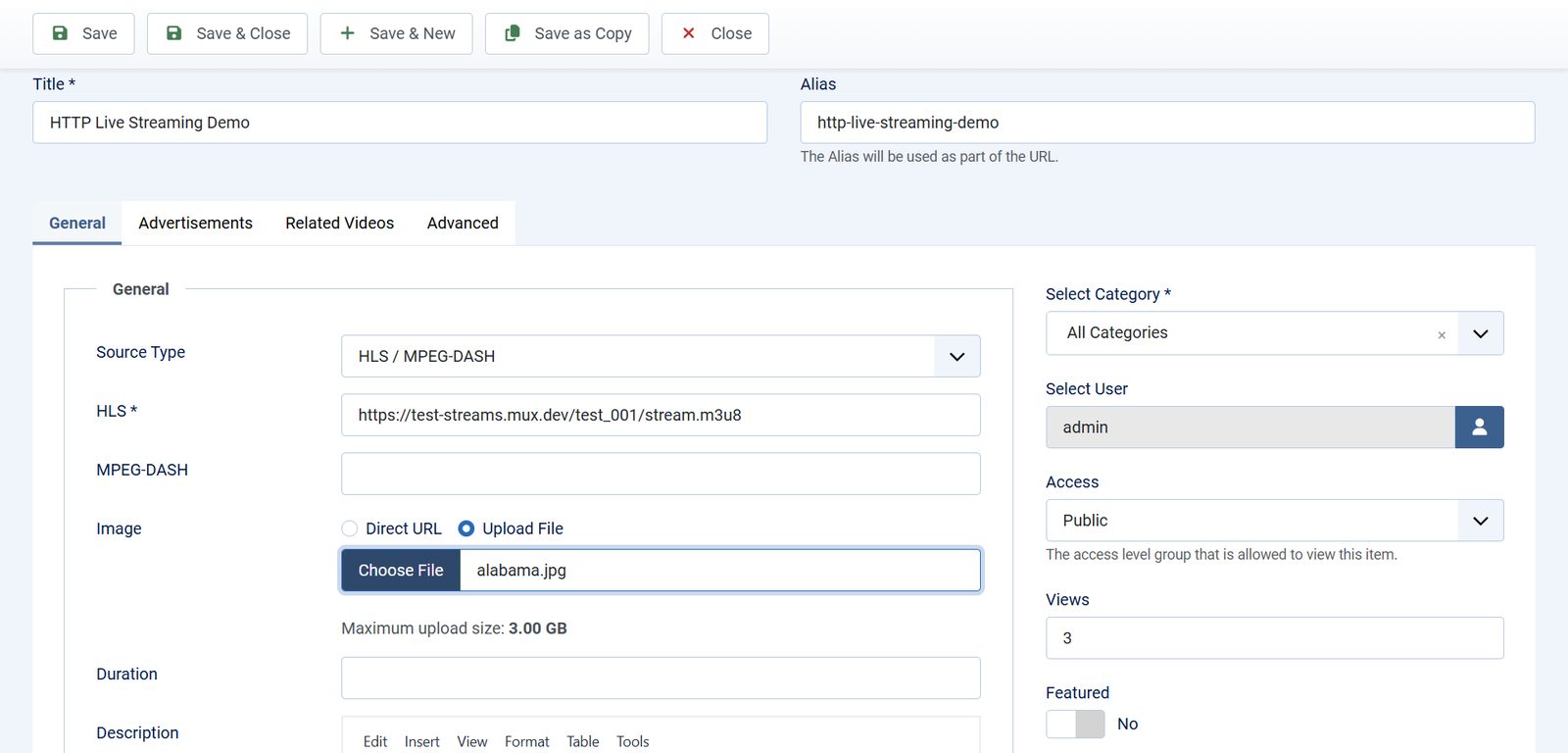
A branded holding image works well here — your logo, the name of the programme, and the broadcast time. Viewers who arrive early see something deliberate rather than a blank rectangle.
Step 4: Check it plays
Open the video on your site while the stream is actually live.
Check it worked: the video plays, and the control bar shows a live indicator rather than a normal progress bar with a fixed length.
Three things happen on their own once a stream is playing, with nothing to configure.
- Live controls — the player recognises a live stream and shows live controls instead of a normal seek bar. If your stream supports rewinding, viewers can scrub back and return to the live edge.
- Quality menu — if your stream carries several quality levels, a quality menu appears in the control bar. Viewers can pick a level, or leave it on automatic and let the player follow their connection speed.
- Playback speed — viewers can play at 0.5x up to 2x. Useful on recorded streams, less so on live ones.
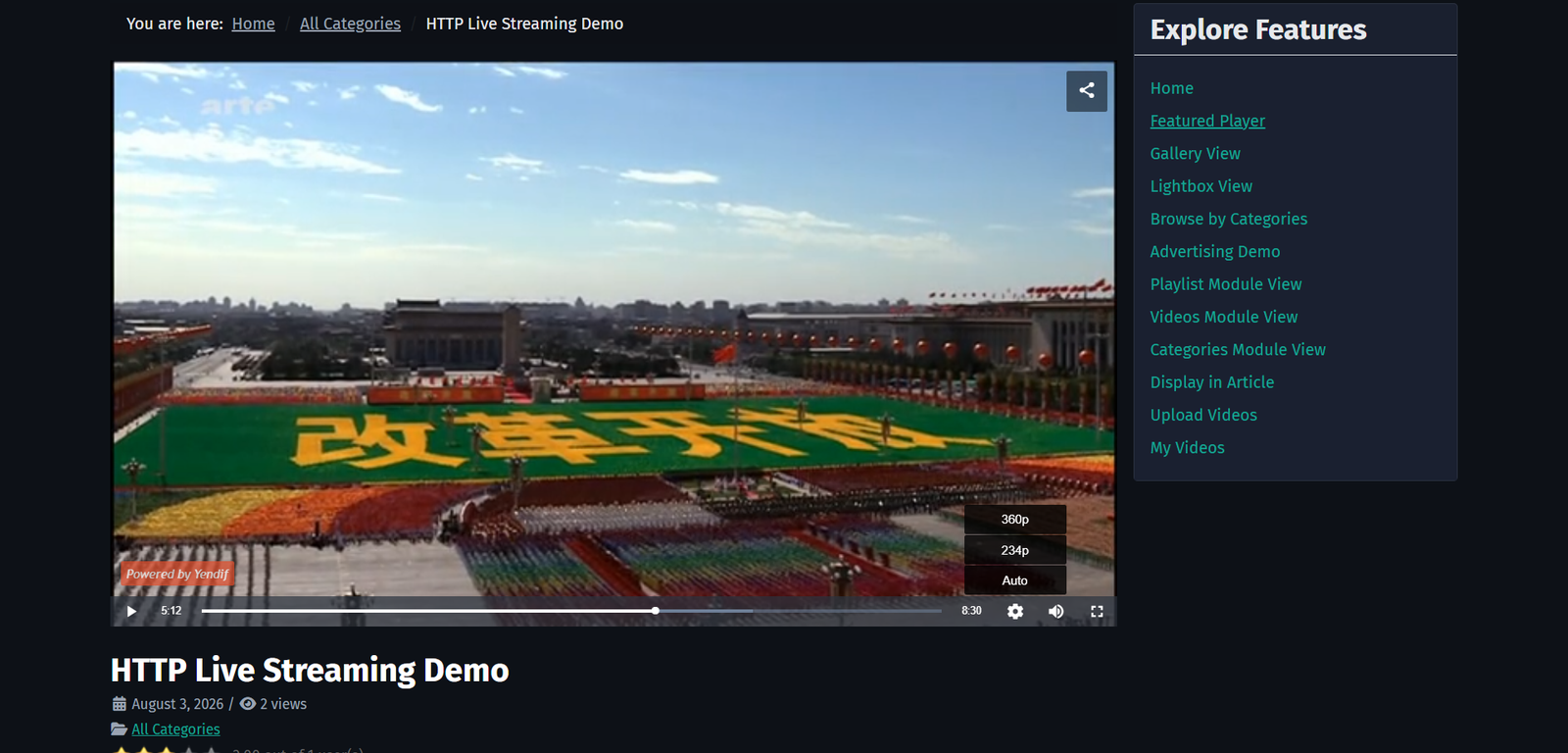
The quality menu only appears if your stream actually offers more than one quality. If your encoder sends a single rendition there is nothing to choose between, and no menu. That is a setting on your streaming provider, not in Joomla.
When the stream is off air
Most streams are not live all the time, and a broken-looking player between broadcasts is not a good look. The player handles this for you.
When a viewer presses play on a stream that is not currently broadcasting, they see:
This stream is currently not live. Please check back or refresh your page.
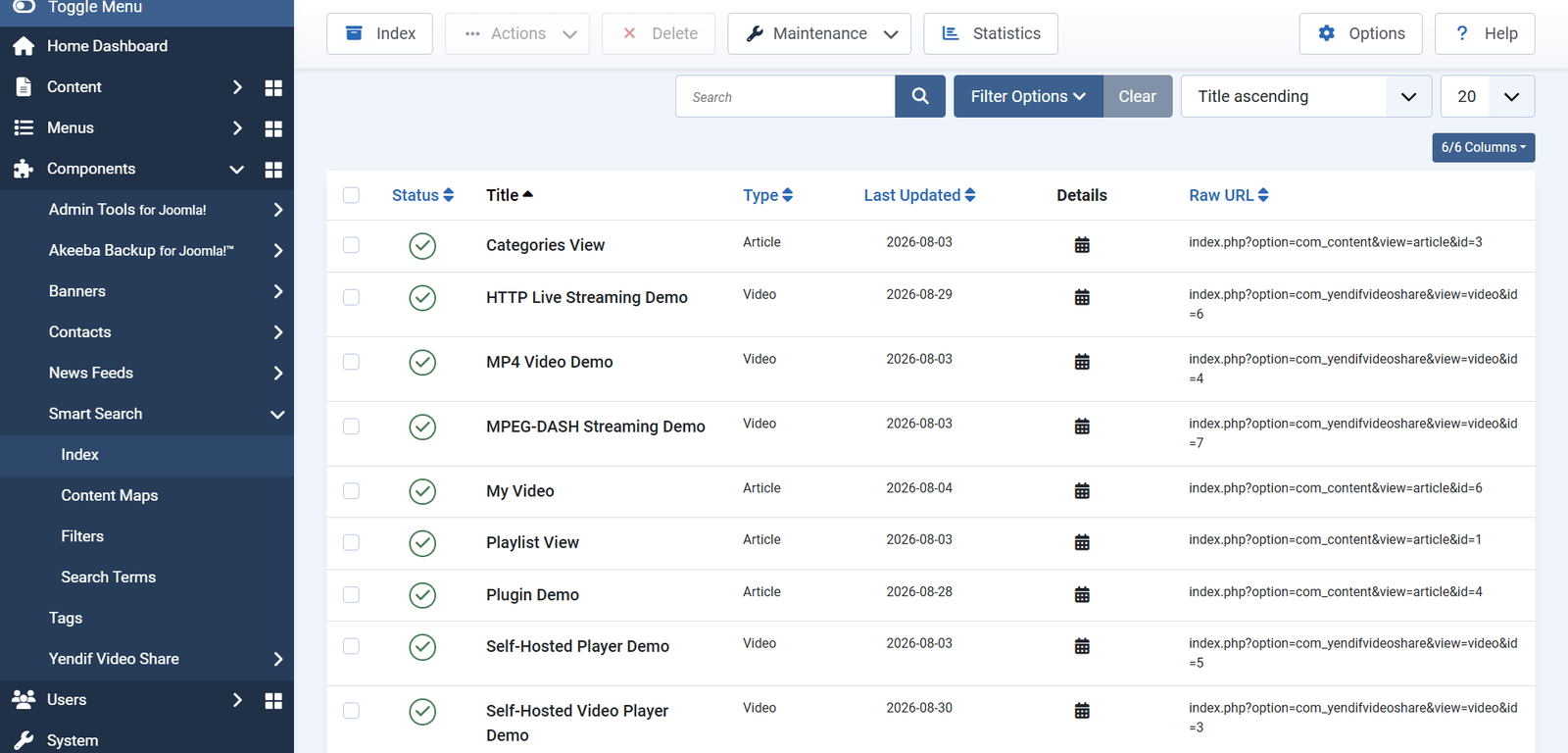
This replaces the technical error a browser would normally show. It only applies to HLS and MPEG-DASH sources, so ordinary videos still report real problems normally.
Between broadcasts, consider unpublishing the stream and publishing it again shortly before you go live. Your gallery then shows it only when there is something to watch. If the stream runs to a schedule, use Start Publishing and Finish Publishing on the video and let Joomla do it for you — see Schedule Video Publishing.
Putting the stream on your homepage
Most people running a live stream want it front and centre, not buried in a gallery.
1. Select Content → Site Modules → New and choose Player – Yendif Video Share.
2. Use Select Video to pin your stream.
3. Choose a Position near the top of your homepage, set Menu Assignment to Home only, then save.
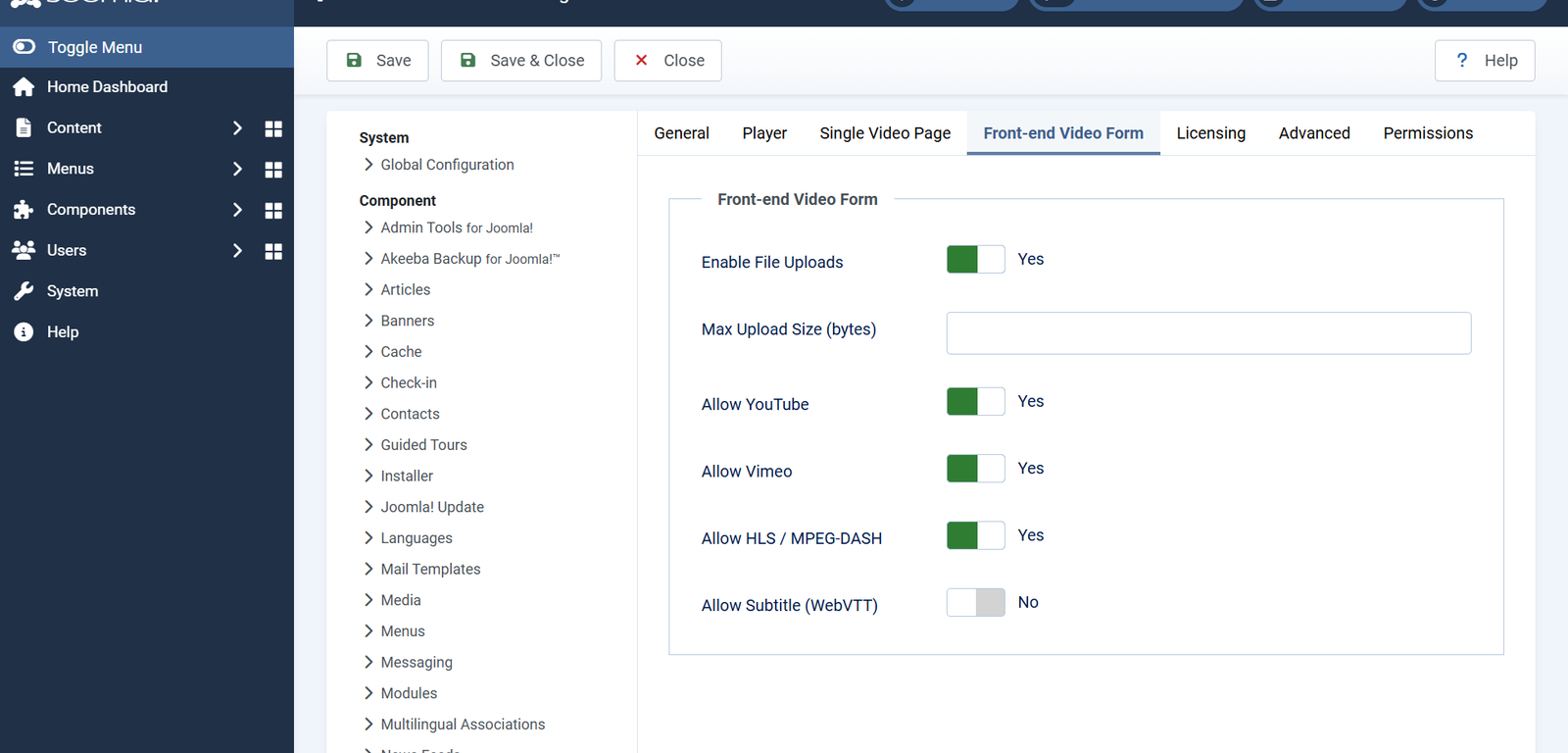
Full details of the Player module are in Build a player with a playlist. You can also drop the stream into any article with a tag:
{yendifplayer videoid=42}Do not set Autoplay on a live stream unless you also set the volume to 0. Browsers block autoplay with sound, and a stream that silently refuses to start looks broken to a viewer who does not know why.
Letting members add their own streams
If your members submit videos from the front end, you can decide whether they may add streams too.
Go to Options → Front-end Video Form and set Allow HLS / MPEG-DASH. It is set to Yes out of the box.
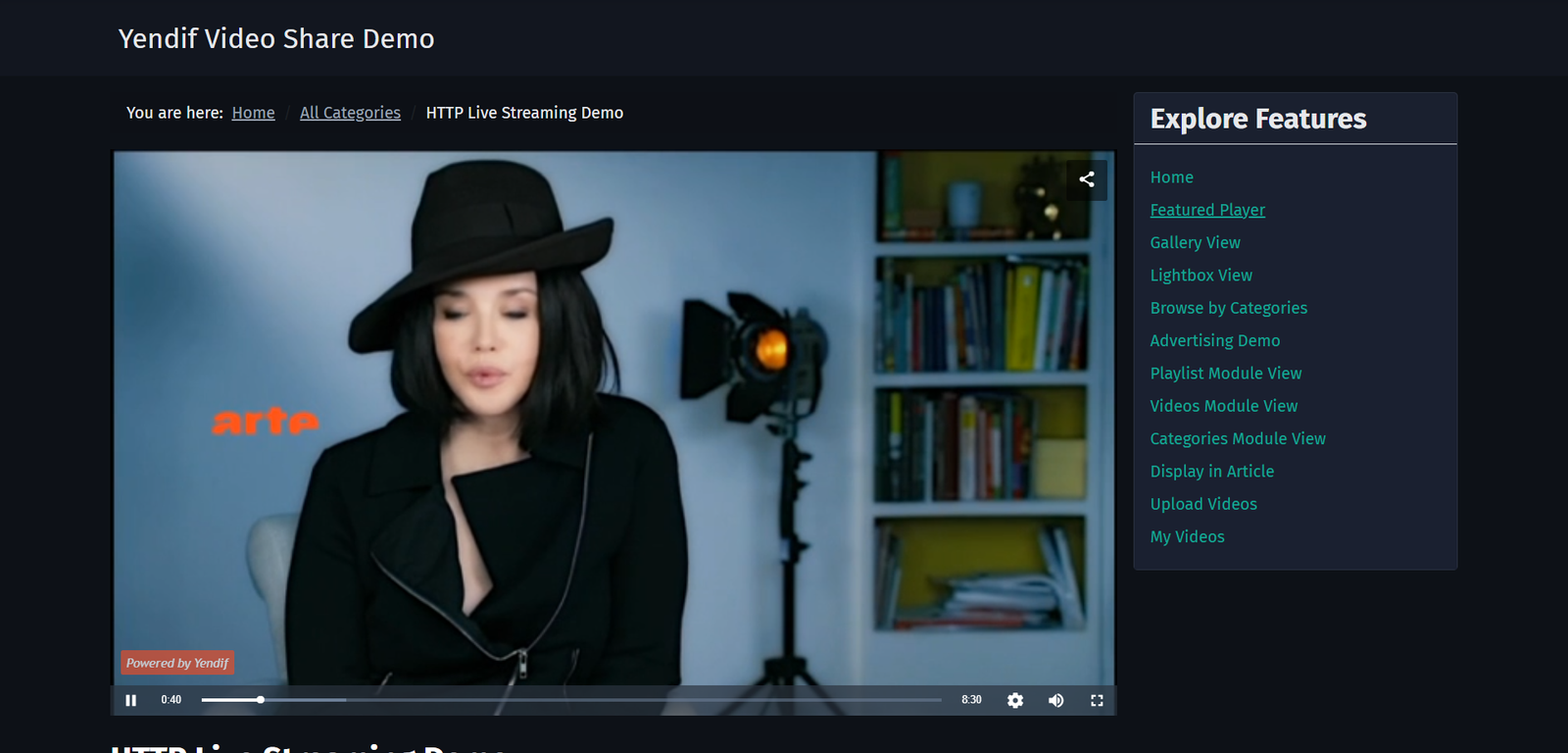
Setting it to No removes the option from the submission form. See Let your members upload their own videos for the rest.
If something goes wrong
Streaming problems are nearly always on the stream side rather than the player side. These three checks find the cause almost every time.
- Is the stream actually live? Open the URL in your browser. Nothing plays if nothing is broadcasting.
- Is it HTTPS? A secure site cannot load an insecure stream.
- Does it work in Safari but not Chrome? That points at one specific cause — see the table.
- “This stream is currently not live.” The stream is off air, or the URL is wrong. Confirm your encoder is broadcasting, then check the URL character by character.
- The player is blank and nothing happens. Your site is HTTPS and the stream URL is HTTP, so the browser blocks it silently. Get the HTTPS version of the URL from your provider.
- Plays in Safari and on iPhone, but not in Chrome or Firefox. This is the classic one. Apple browsers play HLS themselves; other browsers load it with JavaScript, which requires your streaming server to allow requests from your site’s domain. Ask your streaming provider or host to enable CORS for your site’s domain — it is a one-line server setting and every serious provider supports it.
- Plays but stops every few seconds. Not enough bandwidth for the quality being served. Ask your provider to offer several quality levels, and the player will adapt automatically.
- No quality menu. The stream only carries one quality level. That is a setting on your encoder or provider, not in Joomla.
- A grey placeholder in the gallery. No poster image, and streams cannot generate one. Add an Image to the video, as in step 3.
- MPEG-DASH does not play but HLS does. DASH support varies by browser. Use HLS as your main source — it works everywhere.
- Viewers are several seconds behind. Normal. HLS buffers in chunks, so a delay of 10 to 30 seconds is expected. Ask your provider about low latency HLS if the delay matters.
What to try next
- Build a player with a playlist
To put the stream in a module or an article. - Restrict videos to registered members
To limit the stream to paying or registered members. - Set up the player how you want it
To change the player controls and size. - Settings reference
To look up any setting in detail.