Check the below steps to add (or) edit a Category:
- Login to your Joomla admin
- Select Components → Yendif Video Share → Categories
- Click “New” to add a new category or “Edit” to make changes in the existing category. Then, fill in the form as per the following instructions
General Settings
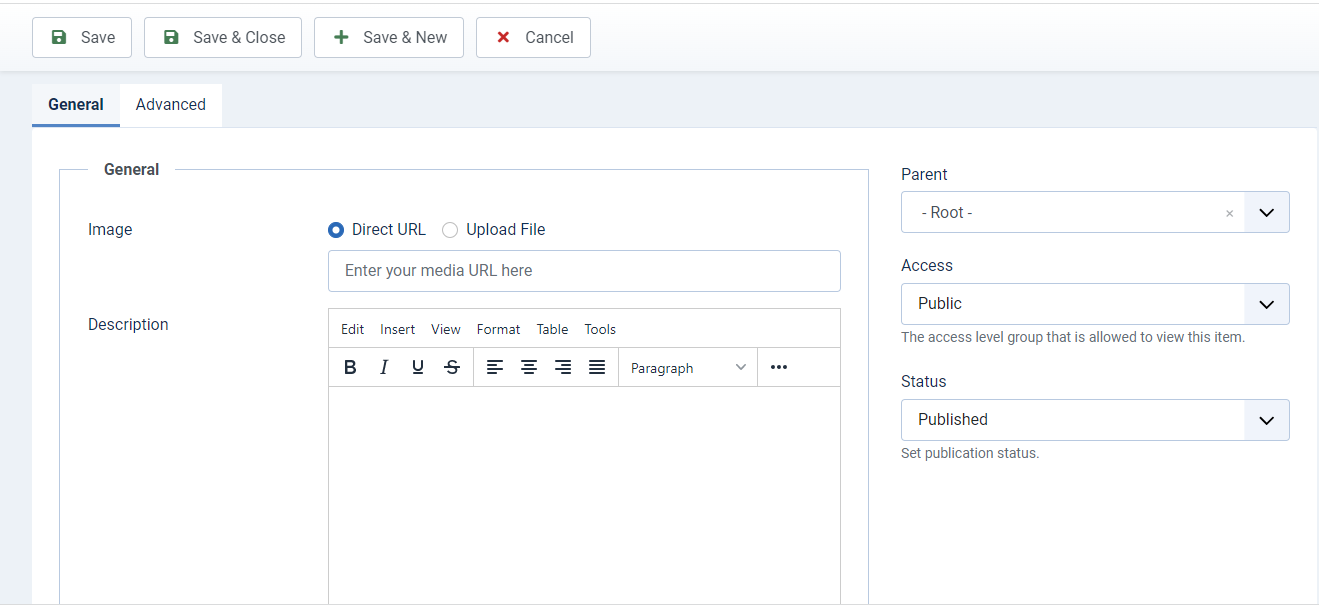
| Option | Description | Example |
|---|---|---|
| Title | Title for your category | Albums |
| Alias | Aliases are short pieces of text that represent the title of the category in a machine-friendly format. Read more Note: Yendif Video Share will automatically generate the field value if it’s left empty. So, it’s recommended to leave this blank, if you’re unsure about this. | albums |
| Parent | Option to select whether the added category is “Parent” or “Child” to another category. | Root |
| Image | Image for the Category. Supported formats: jpg, png, gif | albums.jpg |
| Description | Description of the category | Description |
| Access | The access level group that is allowed to view this category | Public |
| Status | Option to enable or disable the category | Published |
Advanced Settings
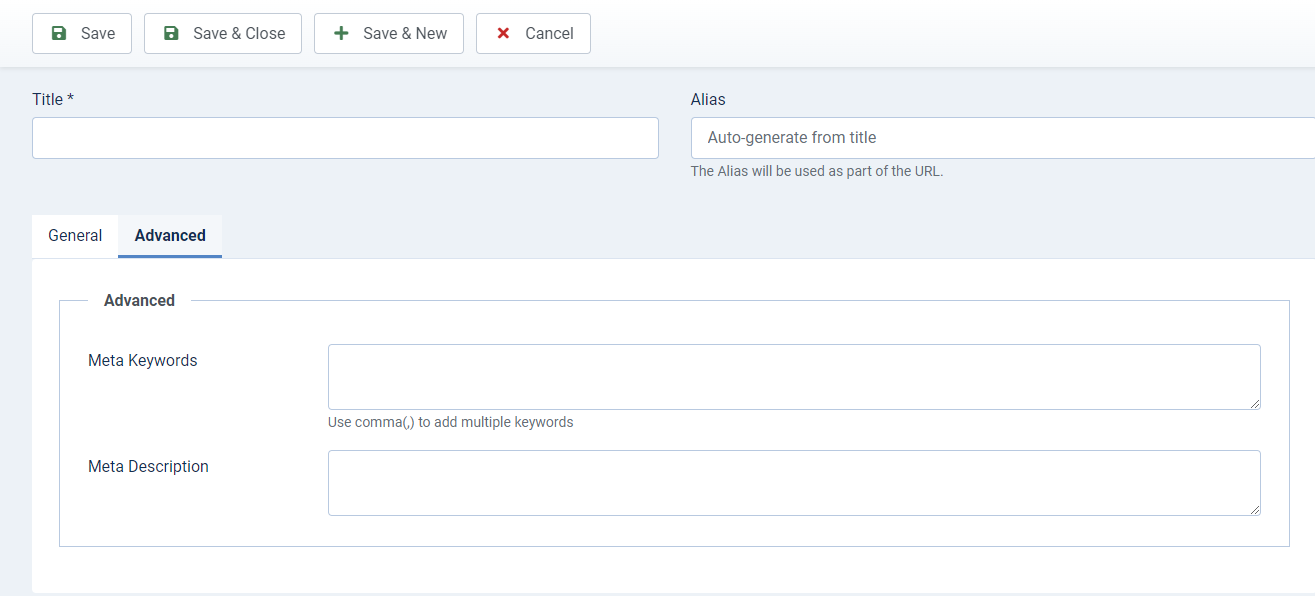
| Option | Description | Example |
|---|---|---|
| Meta Keywords | Custom Meta Keywords to your category page (Use a comma to separate multiple meta keywords). | Albums, Videos, Movies |
| Meta Description | Custom Meta Description to your category page. | My site Albums |
- Click “Save” at the top of the page
- Congrats, you successfully added a category. Follow the same steps to add multiple categories as per your need.
Still stuck on something? We’re just an email away. Reach out to us here, and you should receive a reply within 24 hours, except on Sundays.