Every setting in Yendif Video Share, with its default value and what it does. Use this when you want to look one thing up. If you are setting the extension up for the first time, start with Set up your first video gallery instead.
To reach these settings, select Components → Yendif Video Share → Videos and click Options at the top right.
These are site-wide defaults. Menu items, modules and
{yendifplayer}tags can override most of them for one page or one placement. Where a setting reads Use Global, it is following the value on this screen.
Settings marked Premium need a license key. Without one they stay switched off whatever they are set to.
General
General
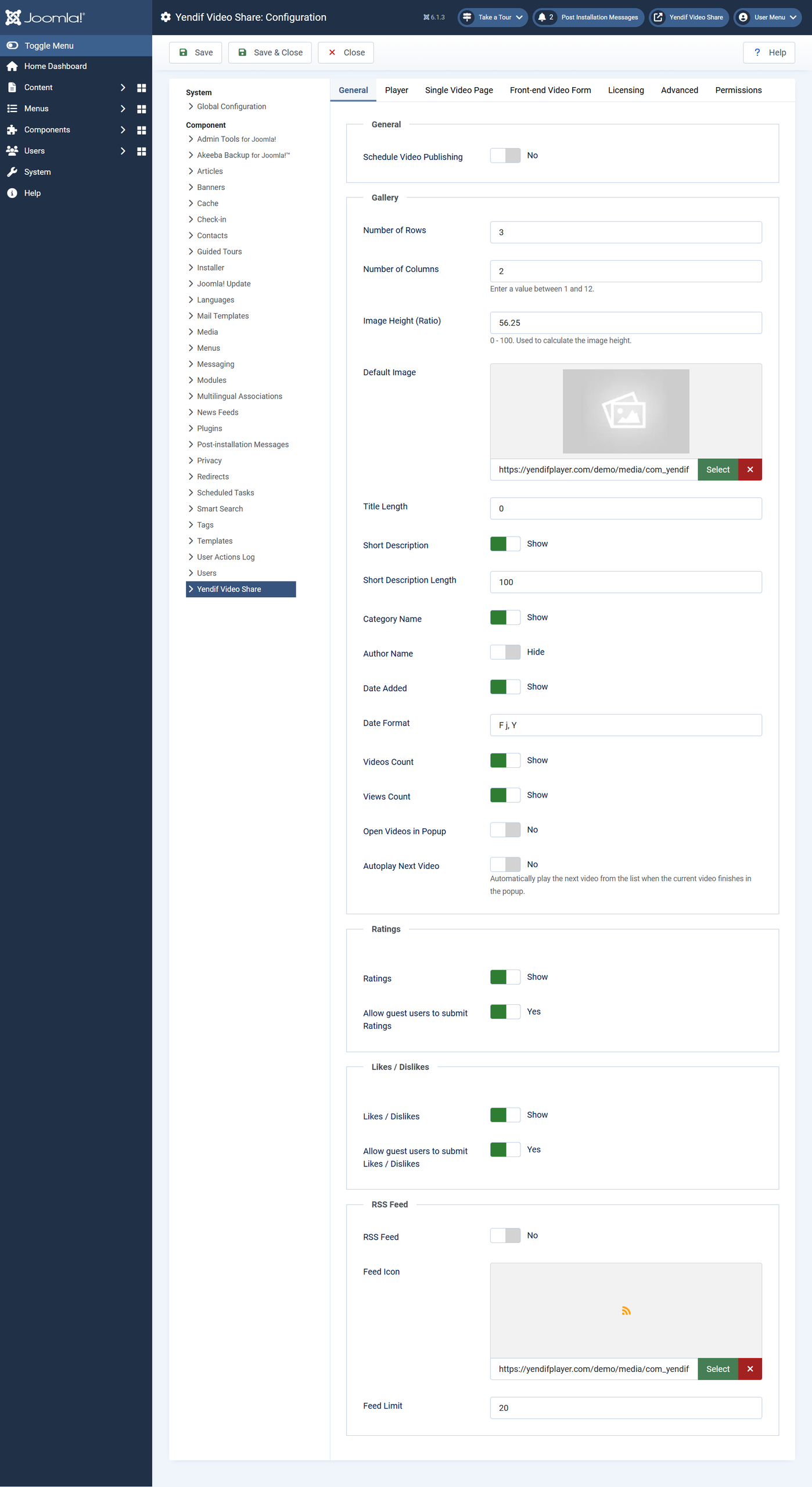
- Schedule Video Publishing — makes the Start Publishing and Finish Publishing dates on each video actually take effect. Off, those dates are stored but ignored. Default: No.
Gallery
- Number of Rows — rows of videos per page. Rows times columns is your page size. Default: 3.
- Number of Columns — videos per row, from 1 to 12. Above 3 the grid drops to 3 on tablets and 2 on phones automatically. Default: 3.
- Image Height (Ratio) — thumbnail height as a percentage of its width. 56.25 is widescreen, 100 is square, 150 is portrait. Default: 56.25.
- Default Image — used when a video has no image of its own. Without this, such videos show a grey placeholder. Default: empty.
- Title Length — characters before a title is shortened. Empty means no limit. Default: empty.
- Short Description — an excerpt of the video description under each title. Default: Show.
- Short Description Length — characters in that excerpt. Cuts at a word boundary. Default: 100.
- Category Name — the video’s category, on each thumbnail. Default: Show.
- Author Name — the credited user, on each thumbnail. Default: Hide.
- Date Added — the video’s date, on each thumbnail. Default: Show.
- Date Format — how dates are written, using PHP date codes.
F j, Ygives March 9, 2026;d/m/Ygives 09/03/2026. Default: F j, Y. - Videos Count — on category tiles, how many videos are inside. Includes sub categories. Default: Show.
- Views Count — how many times a video has been watched. Counted once per visitor session. Default: Show.
- Open Videos in Popup Premium — play in a lightbox instead of opening the video page. Skips the video page entirely, including its description, comments and URL. Default: No.
- Autoplay Next Video — when a popup video ends, start the next one in the gallery. Default: No.
Ratings
- Ratings Premium — shows the star rating widget on the single video page, and enables Most Rated ordering. Default: Hide.
- Allow guest users to submit Ratings — lets visitors vote without an account. Guest votes are tied to a browser session, so they are less reliable than votes from logged-in users. Default: Yes.
Likes / Dislikes
- Likes / Dislikes Premium — shows thumbs up and down with their counts on the single video page. Default: Hide.
- Allow guest users to submit Likes / Dislikes — lets visitors vote without an account. Default: Yes.
RSS Feed
- RSS Feed — adds a feed link to your gallery and category pages. Default: No.
- Feed Icon — a custom icon for that link. Default: empty.
- Feed Limit — how many videos the feed contains. Default: 20.
Player
General
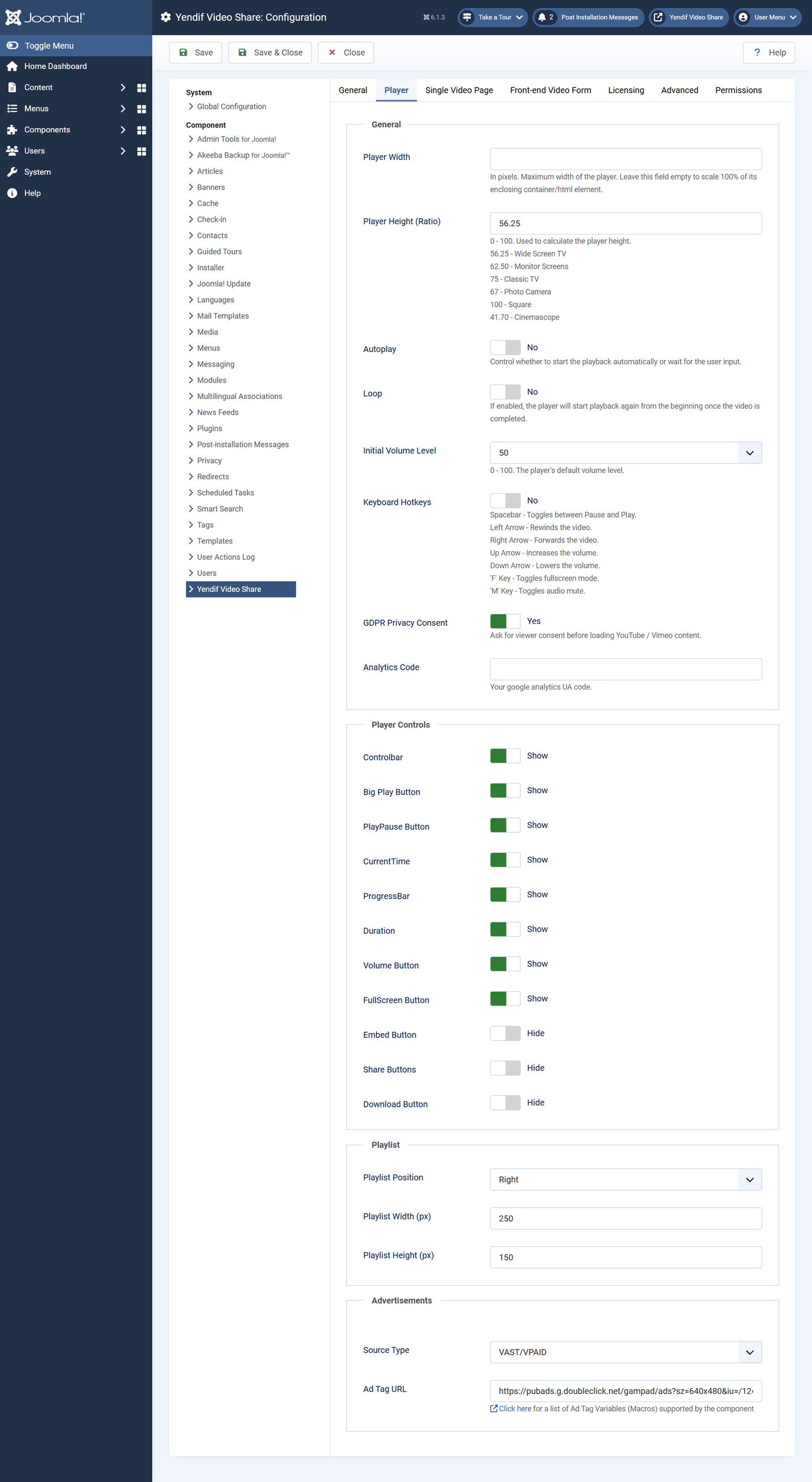
- Player Width — maximum width in pixels. Empty means the player fills its container, which is usually what you want. Default: empty.
- Player Height (Ratio) — height as a percentage of width. 56.25 widescreen, 62.50 monitor, 75 classic 4:3, 100 square, 41.70 cinemascope. Default: 56.25.
- Autoplay — start playing on page load. Browsers block this when the video has sound, so pair it with a volume of 0. Default: No.
- Loop — restart when the video ends. Default: No.
- Initial Volume Level — starting volume, 0 to 100. At –/– the player uses the browser’s own level. Default: –/–.
- Keyboard Hotkeys — spacebar plays and pauses, arrows seek and change volume, F is fullscreen, M is mute. Default: No.
- GDPR Privacy Consent — asks the visitor’s permission before loading YouTube, Vimeo or iframe content. No effect on self hosted videos or streams. Default: No.
- Analytics Code — your Google Analytics ID, for reporting player events. Separate from the Views Count. Default: empty.
Player Controls
- Controlbar — the whole bar along the bottom. Hiding this hides every control below, whatever they are set to. Default: Show.
- Big Play Button — the large play button over the poster image. Default: Show.
- PlayPause Button — play and pause within the control bar. Default: Show.
- CurrentTime — elapsed time readout. Default: Show.
- ProgressBar — the seek bar. Hiding it discourages skipping, but does not prevent it. Default: Show.
- Duration — total length readout. Default: Show.
- Volume Button — volume and mute. Default: Show.
- FullScreen Button — fullscreen. Default: Show.
- Embed Button Premium — gives viewers code to embed your video elsewhere. Default: Show.
- Share Buttons Premium — social sharing links inside the player. Default: Show.
- Download Button Premium — lets viewers download the file. Default: Hide.
Playlist
- Playlist Position — Right beside the player, or Bottom beneath it. Use Bottom in narrow spaces. Default: Right.
- Playlist Width (px) — width of the list. Applies only when the position is Right. Default: 250.
- Playlist Height (px) — height of the list. Applies only when the position is Bottom. Default: 150.
Advertisements Premium
- Source Type — VAST/VPAID serves ads from an ad network; Custom Ads serves clips you upload yourself. The settings below apply to Custom Ads only. Default: VAST/VPAID.
- Ad Tag URL — your ad network’s tag. Shown when Source Type is VAST/VPAID. Accepts macros such as
[post_title]and[random_number]— see Ad tag variables (macros). Default: empty. - Advertisement Type — where your own ads appear: — None —, Preroll Only, Postroll Only or Both. Default: Preroll Only.
- Show Ad Timer — a countdown of remaining ad time. Default: Show.
- Skip Ads Button — lets viewers skip the ad. Default: Show.
- Show Skip Button ON (seconds) — delay before the skip button appears. Default: 3.
Single Video Page
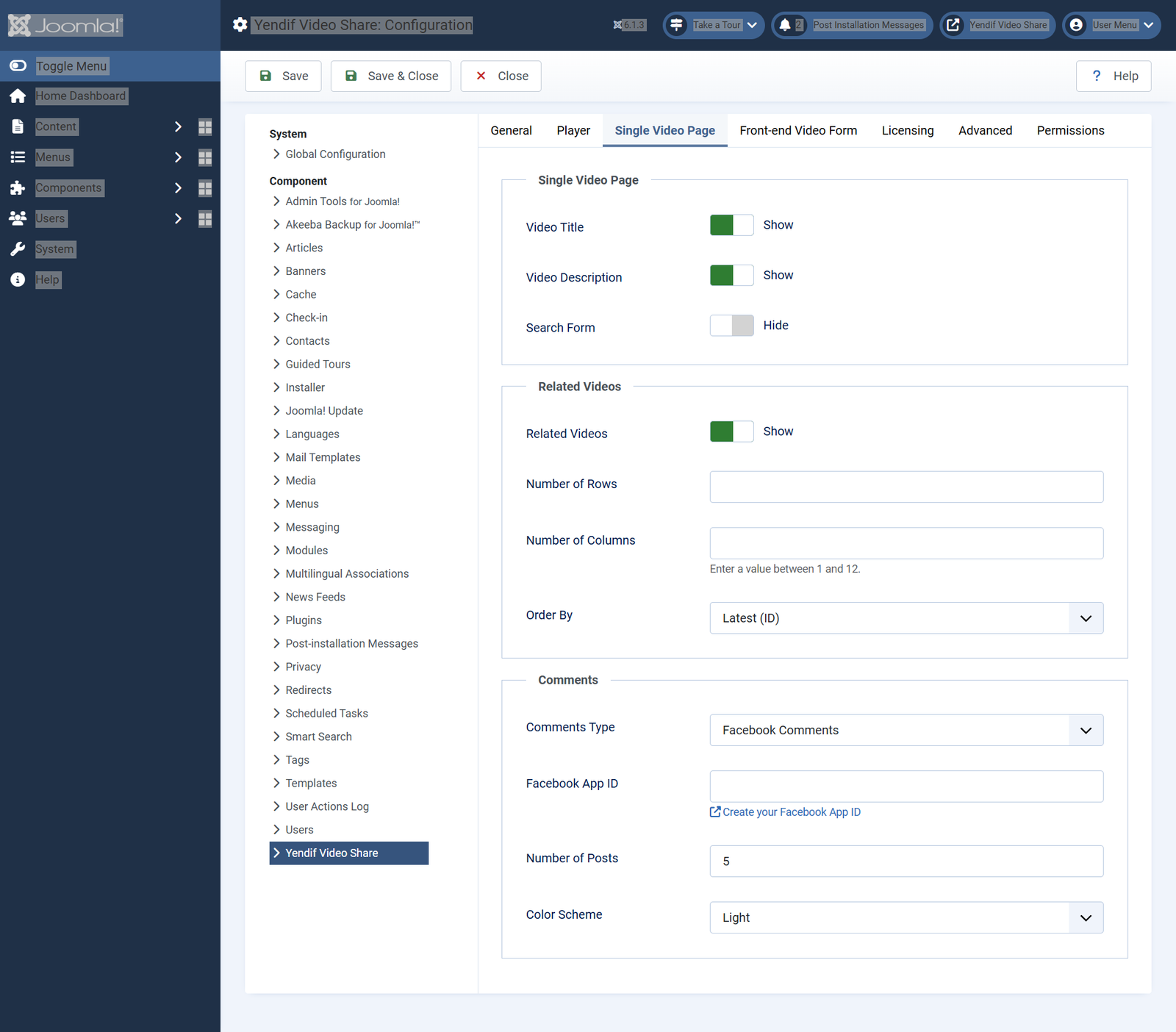
- Video Title — the title above the player. Default: Show.
- Video Description — the full description below the player. Default: Show.
- Search Form — a video search box above the player. Default: Show.
- Related Videos — a row of related videos below. Uses the hand-picked list from the video’s Related Videos tab if there is one, otherwise videos from the same category. Default: Show.
- Related: Number of Rows — rows in that row. Falls back to your gallery setting when empty. Default: empty.
- Related: Number of Columns — columns. Falls back to your gallery setting when empty. Default: empty.
- Related: Order By — how related videos are ordered. Default: Latest (ID).
- Comments Type — — None —, Facebook Comments, Komento or Jlex. The last two need that extension installed and enabled. Default: — None —.
- Facebook App ID — comments work without it, but you need it to moderate them with Facebook’s tools. Shown when Comments Type is Facebook. Default: empty.
- Number of Posts — comments shown before a “view more” link. Default: 5.
- Color Scheme — Light or Dark, for the Facebook comment box. Default: Light.
On a video a visitor does not have access to, the search box, category link, ratings, likes, comments and related videos are all hidden. The title and description stay visible.
Front-end Video Form
What members may do when they submit videos from your site. See Let your members upload their own videos.
- Enable File Uploads — lets members upload a file. Off, only the Direct URL field is shown. Default: Yes.
- Max Upload Size (bytes) — the largest file a member may upload. In bytes — 50 MB is
52428800. Empty uses your server’s own limits. Default: empty. - Allow YouTube — members may add a YouTube URL. Default: Yes.
- Allow Vimeo — members may add a Vimeo URL. Default: Yes.
- Allow HLS / MPEG-DASH — members may add a stream URL. Default: Yes.
- Allow Subtitle (WebVTT) — members may attach a subtitle file. Default: No.
Licensing
- License Key — your purchased key. Unlocks every premium feature. Issued for one domain. See Add your license key. Default: empty.
- Logo Image — a watermark shown over the player. A transparent PNG works best. Needs a working key. Default: empty.
- Logo Position — Top Left, Top Right, Bottom Left or Bottom Right. Bottom Right collides with the fullscreen button. Default: Bottom Left.
- Logo Alpha — transparency, 0 to 100. Around 40 to 50 is visible without being distracting. Default: 50.
- Logo Click URL — where a click on the watermark goes. Empty makes it non-clickable. Default: empty.
- Display Logo — turns the watermark on and off without clearing its settings. Default: Yes.
- Copyright Text — the message shown when a viewer right-clicks the player. Default: empty.
Advanced
SEO
- Category Menu — the menu item that category links open. Choose your Categories Layout item rather than leaving it on autodetect. Default: — Autodetect Menu Item —.
- Video Menu — the menu item that video links open. Choose your Videos Layout item. Default: — Autodetect Menu Item —.
Autodetect works, but once you have more than one Yendif menu item it can pick the wrong one — sending visitors to a page with the wrong template or modules. Naming both explicitly is worth the thirty seconds.
API Keys
- YouTube API Key — required for YouTube bulk import. Nothing else uses it; playing YouTube videos does not need a key. Default: empty.
- Vimeo Access Token — intended for fetching thumbnails from private Vimeo videos. Public Vimeo videos do not need it. Default: empty.
Custom CSS
- Load Bootstrap CSS — the component needs Bootstrap 5. Most Joomla templates already load it, which is why this is off. Turn it on only if your gallery appears unstyled, since enabling it on a template that already has Bootstrap causes conflicts. Default: No.
- Custom CSS — CSS applied to your gallery pages and modules. It cannot reach inside the player, which runs in its own frame. Default: empty.
Permissions
Standard Joomla access control, set per user group.
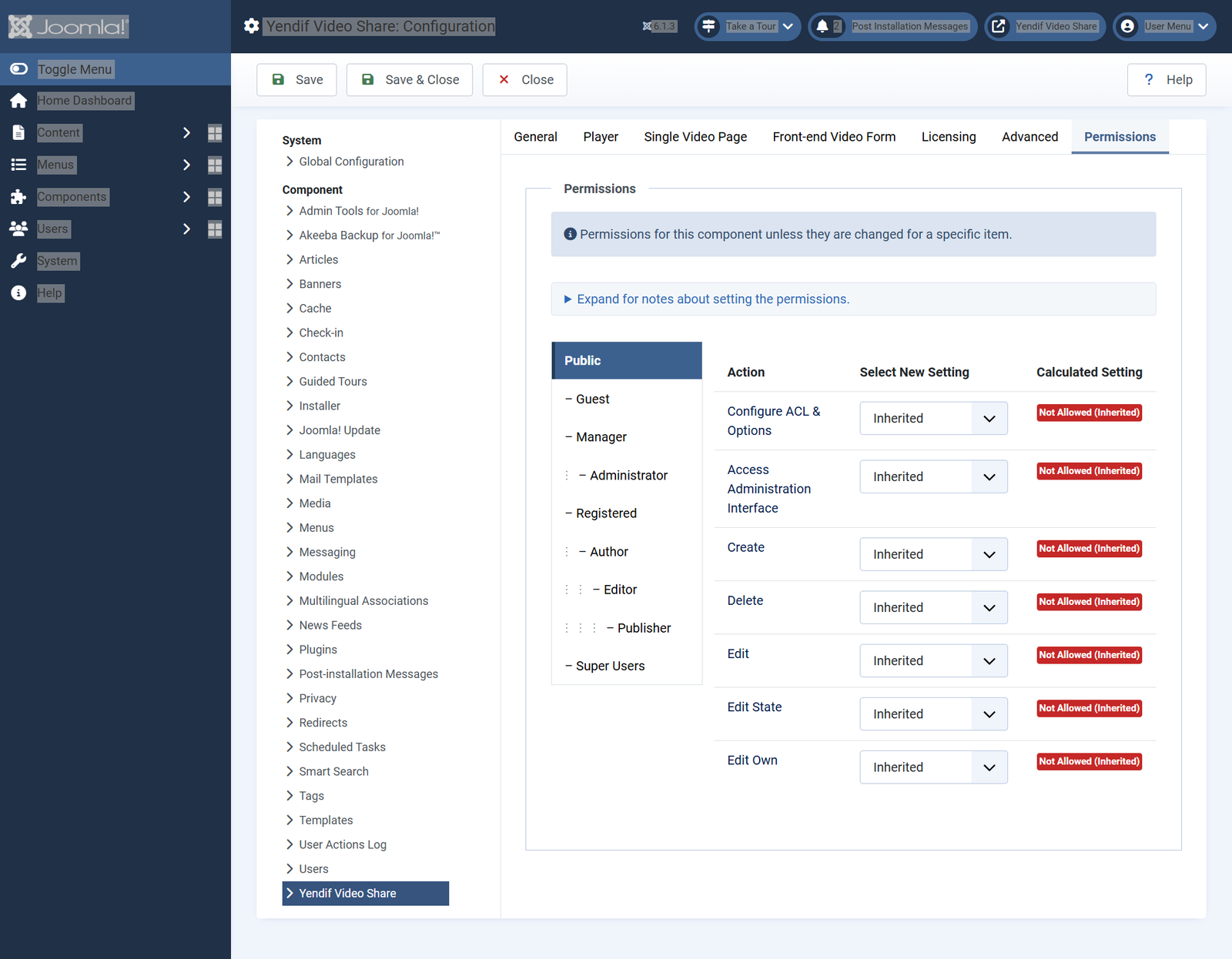
- Configure ACL & Options — change every setting on this screen, including permissions and the license key.
- Access Administration Interface — open the component’s admin screens at all.
- Create — add videos. Required for front-end submission.
- Delete — remove videos permanently.
- Edit — edit any video, including other people’s.
- Edit State — publish, unpublish, archive and trash. Withhold this to review member submissions before they appear.
- Edit Own — edit only the videos they created.
- Contributors who submit for review — grant Create and Edit Own. Deny Edit, Edit State and Delete.
- Trusted channel owners — grant Create, Edit Own, Edit State and Delete. Deny Edit.
- Editors managing the whole library — grant Create, Edit, Edit State and Delete. Deny nothing.
Permissions decide who can manage videos. A video’s own Access field decides who can watch it. They are separate systems.
Video fields
The fields on an individual video, at Components → Yendif Video Share → Videos.
- Title — required.
- Alias — used in the URL. Generated from the title when empty, and made unique automatically. Changing it later changes the URL.
- Source Type — Self Hosted / External URL, YouTube, Vimeo, HLS / MPEG-DASH or Iframe Embed Code. Choosing one hides the fields that do not apply.
- MP4 / WebM / OGV — the video file. Paste a URL or upload.
- MP4 (HD) — a higher quality version. Gives viewers a quality selector.
- YouTube / Vimeo / HLS / MPEG-DASH — the URL, depending on your Source Type.
- Iframe Embed Code — embed code from another service. Player settings do not apply to these.
- Image — the thumbnail. Fetched automatically for YouTube and Vimeo; add your own for self hosted videos and streams.
- Subtitle (WebVTT) — a subtitle file. Self hosted videos only.
- Duration — shown as a badge on the thumbnail. Free text, not read from the file.
- Description — shown on the video page, and used for the gallery excerpt.
- Select Category — required. One category per video.
- Select User — the credited author. This user can always watch the video, whatever its access level.
- Access — who may watch it.
- Views — editable, so you can reset or seed the count.
- Featured — lets layouts and modules filter to featured videos only.
- Status — Published, Unpublished, Archived or Trashed.
- Created Date — what Latest (Date) ordering sorts on.
- Start / Finish Publishing — only enforced when Schedule Video Publishing is on.
- Preroll / Postroll — a specific advertisement for this video. Premium.
- Related Videos tab — a hand-picked, reorderable list, replacing the default same-category behaviour.
- Meta Keywords — page metadata. Also searched by the video search, so useful for synonyms.
- Meta Description — page metadata, and the summary used in social previews.
Category fields
- Title — required.
- Alias — used in the URL.
- Parent — — Root — for a top level category, or another category to nest inside it. Unlimited depth.
- Image — the tile image in category grids.
- Description — shown on the category page, and truncated for the grid excerpt.
- Access — who may see the category. Set the level on the videos too, since the player checks the video’s own level.
- Meta Keywords / Description — page metadata for the category page.
- Status — unpublishing a category hides it and every category beneath it.
Order By options
These appear on every layout and module.
- Latest (ID) — the order videos were created, newest first.
- Latest (Date) — the Created Date field, newest first. The better choice if you back-date or import videos.
- Most Viewed — view count, highest first.
- Most Rated — average star rating, highest first. One five-star vote can outrank fifty averaging 4.8.
- Title Ascending / Descending — alphabetical.
- Random — a different order on every page load.
- Custom Ordering — the order you set by dragging rows in the admin list.
What a license key unlocks
- Embed Button — Player → Player Controls.
- Share Buttons — Player → Player Controls.
- Download Button — Player → Player Controls.
- Open Videos in Popup — General → Gallery.
- Ratings — General → Ratings.
- Likes / Dislikes — General → Likes / Dislikes.
- Advertisements, both kinds — Player → Advertisements.
- YouTube bulk import — Components → Yendif Video Share → YouTube Import.
To check whether your key is active, look at the bottom left corner of any player on your site. An orange Powered by Yendif badge means it is not. See Add your license key.
Guides
- Set up your first video gallery
- Add your license key
- Put videos on your homepage and sidebar
- Add a video to any article or page
- Build a player with a playlist
- Move your YouTube channel onto your site
- Publish a live stream
- Earn money from your videos
- Ad tag variables (macros)
- Restrict videos to registered members
- Get visitors rating and discussing your videos
- Get your videos found in search
- Change how your gallery looks
- Set up the player how you want it
- Ask permission before loading YouTube and Vimeo
- Let your members upload their own videos
- Troubleshooting